Create an analysis with charts
An analysis is a set of charts made from a report’s documents. To create one, open the report’s Analysis tab, click CREATE NEW, give the analysis a title, then add charts with Add new Chart: choose a chart type and the field to chart, optionally a number field to sum and a date field to spread the data over time. Save with Save graph when you are done. Users who cannot edit the analysis see the charts read-only.
Before you start
Section titled “Before you start”- The report must exist and show the fields you want to chart; see Create a report.
- If you do not see CREATE NEW on the Analysis tab, or the controls on a chart, you cannot edit the report’s analyses; ask your user administrator.
- Decide what each chart should answer, for example “how many nonconformities per incident type last month”.
Steps: create the analysis
Section titled “Steps: create the analysis”- Open the report and click the Analysis tab. The Analysis index lists existing analyses with Graph name, Creator, Locked and Delete.
- Click CREATE NEW.
- Type a title for the analysis (“Type analysis name”). You can give it translations.
- Optionally tick Locked, so only you can save changes, or Hidden, so it is hidden for others.
Steps: add a chart
Section titled “Steps: add a chart”- Click Add new Chart. In an empty analysis, the empty graph area also offers to add a chart.
- Type a Chart Title.
- Choose the Graph type.
- Under Select Fields, choose the field to chart in Choose a field, for example an incident-type field.
- Optionally choose one of the Number Fields. “Choosing a number field will calculate the sum of values from this field for the documents included in the graph, instead of showing the count.”
- Optionally choose a date field in Choose a date field, and tick Show by months or Show by weeks. Tick Show data chronologically to show a continuous month-by-month timeline instead of grouping all years under each month.
- Choose what to display: Show total, Show numbers and Show legend.
- Click Create to add the chart, or Close to cancel.
Steps: refine and save
Section titled “Steps: refine and save”- Use the chart’s Filters to limit it to a period, for example From and To dates, a Year, the current or last month or quarter, the last year or the year to date.
- Optionally set a Trend, or compare with another field under Compare with field:.
- Watch the indicator: “Unsaved changes” means you still need to save; “Saved changes” means all is saved.
- Click Save graph.
What you should see
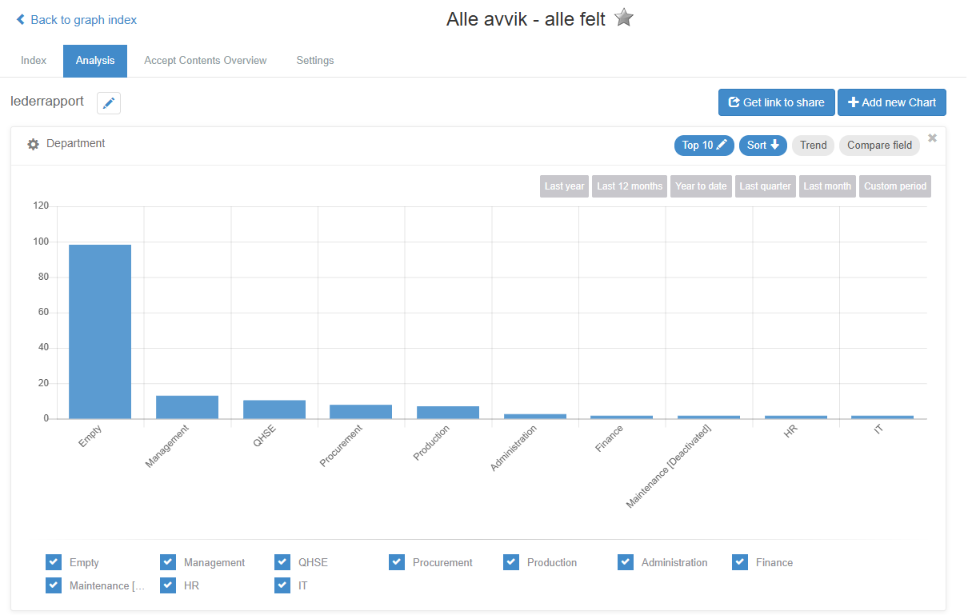
Section titled “What you should see”The analysis shows its charts on the Analysis tab. Clicking a bar or segment lists the Documents behind it. Everyone with access to the report can see the charts; the controls to change them are shown only to those who can edit.
Good to know
Section titled “Good to know”- Locked analyses. If an analysis is locked by its creator, others cannot save changes to it: “You cannot save these changes because the analysis is locked by the creator.”
- Months, weeks and trends. Show by months and Show by weeks are disabled while a trend is set; clear the trend first.
- No data. “No data available for the selected filters or time frame.” means the filters leave nothing to show.
- Missing field. If a chart’s field has been removed from the report, the chart asks you to choose another one.
- Sharing. Get link to share gives a link to the chart.
- Every control is described in The chart editor and chart controls.