Add multiple users at once
To add many users in one go, go to Super > Users, click Create multiple users, type one user per line as first name,last name,email,language, and click Create. E-mail addresses that already exist are skipped, and a message tells you how many users were added.
Before you start
Section titled “Before you start”- You need the Admin level on the Super area row of your rights; this is what shows the Super menu. Your user administrator sets this; see The Users page and the rights table.
- Have each user’s first name, last name, e-mail address and language ready. The language is
enfor English ornofor Norwegian. - Decide whether all the users log in with Office 365. The choice applies to every user in the batch, so add password users and Office 365 users in separate batches.
-
In the left menu, click Super > Users.
-
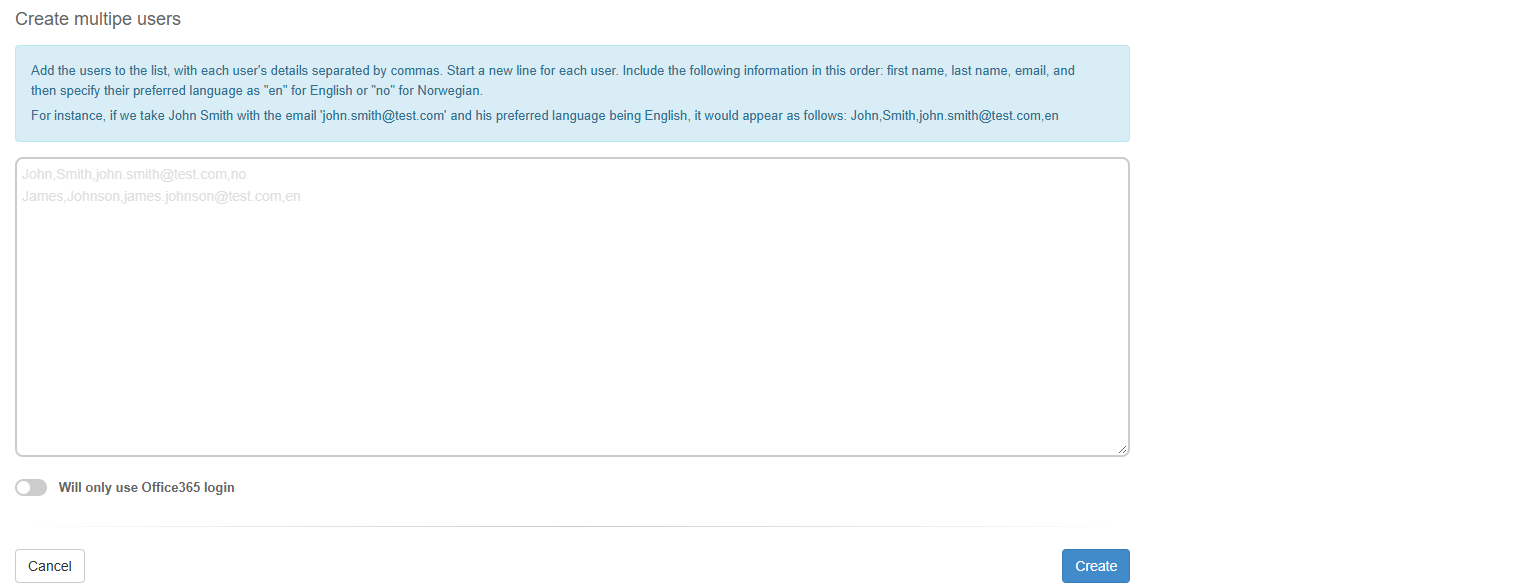
Click Create multiple users. The page Create multipe users opens.
-
In the text box, type one user per line, with the details separated by commas, in this order: first name, last name, e-mail, language. For example:
John,Smith,john.smith@test.com,enKari,Nordmann,kari.nordmann@test.com,no -
If all these users log in with Office 365, switch on Will only use Office365 login.
-
Click Create. To leave without creating anyone, click Cancel.
What you should see
Section titled “What you should see”ABMS returns to the Users page; no message is shown. The new users are in the user list.
Each new user:
- gets a random password and the welcome e-mail; the first time they log in with a password, ABMS asks them to choose a new password, and they can get a reset link with “Forgot your password?” on the login page (see Reset a forgotten password)
- has only the rights every new user gets; your user administrator gives the rest, see Give a user access rights and Access rights by row and level
- is also set up as a user in the competency module
Good to know
Section titled “Good to know”- Existing e-mail addresses are skipped without a separate warning. If the number added is lower than the number of lines, some addresses were already in use.
- Language. Anything other than
enornoin the fourth position is treated as English. - Commas only. Separate the details with commas, one user per line, with no extra columns.
- Rights. Give the users further rights individually or through access groups; see Give a user access rights.