Link shapes to documents and other content in ABMS
You can put a link on a shape in a diagram, so a reader who clicks the shape goes to a document, a report or other content in Antenor BMS, or to any web page. Select the shape, open Edit > Edit Link… (Alt+Shift+L), pick the item under Links from ABMS or type a web address, and click OK. The link is saved with the drawing when you click Save Diagram. A typical use is a process map where each activity links to the procedure that describes it. Links from ABMS needs the Admin level on the Super area row of your own rights (the level that shows the Super menu). If you don’t see it or it doesn’t work, ask your user administrator.
Before you start
Section titled “Before you start”- You need access to Diagrams; see Get access to Diagrams.
- Links from ABMS needs the Admin level on the Super area row of your own rights (the level that shows the Super menu). If you don’t see it or it doesn’t work, ask your user administrator. See also The Users page and the rights table.
- Open the diagram on the diagram page; see Create and edit a diagram.
Steps: link to content in Antenor BMS
Section titled “Steps: link to content in Antenor BMS”- In the drawing, click the shape you want to link from.
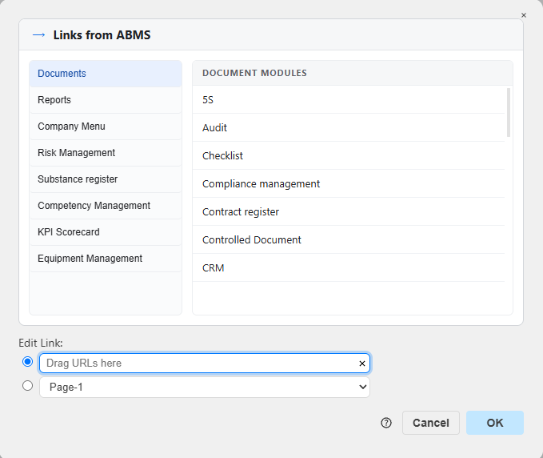
- Choose Edit > Edit Link…, or press Alt+Shift+L. The link dialog opens, with Links from ABMS at the top.
- On the left, click the category of the item, for example Documents or Reports. All categories are listed in The drawing editor: menus, panels and toolbar.
- For Documents: the list DOCUMENT MODULES shows the document modules in your company. Click the module, then find the document; the search field above the list helps in a long list. To choose another module, click the back link at the top of the list. For the other categories, pick the item you want to link to.
- Click the document or item. Its address in Antenor BMS is filled in under Edit Link:. Leave the round button beside that field selected; it is selected when the dialog opens.
- Click OK. The dialog closes and the shape has the link.
- Click Save Diagram on the diagram page to save the drawing with the link.
Steps: link to a web address
Section titled “Steps: link to a web address”- Select the shape, and choose Edit > Edit Link… (Alt+Shift+L).
- In the field under Edit Link: (“Drag URLs here”), type or paste the web address. You can also drag an address from your browser into the field. Leave the round button beside the field selected.
- Click OK, and save the diagram with Save Diagram.
To change a link, select the shape, open the dialog again, and pick another item or change the address.
What you should see
Section titled “What you should see”- In the drawing editor, the item for opening the link in the Edit menu opens the linked page of the selected shape, so you can test the link.
- After saving, a click on the shape in the library preview opens the linked page in a new tab.
- When a document that contains the diagram is printed or saved as PDF, the links in the diagram can still be clicked.
Good to know
Section titled “Good to know”- Inserted copies don’t get new links. A diagram inserted in a document is a copy from the moment it was inserted. If you add or change links later, insert the diagram again; see Insert a diagram in a document.
- Ignore the page choice. The second round button in the dialog chooses a page (Page-1). A diagram has one page, so link to an address or an item in Antenor BMS instead.
- Several links. Each shape has its own link. Repeat the steps for each shape, for example each activity in a process map.