Handle an action you received
When an action is sent to you, open it from the e-mail or from Actions awaiting your input on your dashboard (if your company’s dashboard has this box). Click Accept, do the work, describe it under Action taken/comments and click Send to send it back as done, normally to the creator (or to the person who forwarded the action to you). If the action is not for you, Reject it with a message, or Forward it to the right person, before you accept it. When that person closes the action with Complete, it is closed.
Before you start
Section titled “Before you start”- You must be the action’s Responsible. Only the person who holds the action can work on it.
- The e-mail says, for example, “An action is waiting for your input”.
Steps: accept and carry out the action
Section titled “Steps: accept and carry out the action”- Open the action from the e-mail, from Actions awaiting your input on your dashboard (if your company’s dashboard has this box), or from My Actions in the Action Manager.
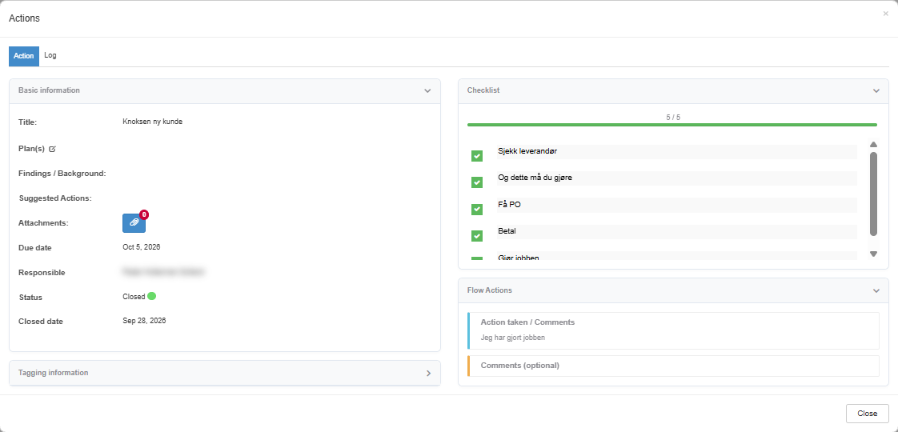
- Read Findings / Background: and Suggested Actions:, and look at the attachments and checklist.
- Click Accept. You now hold the action and can work on it.
- Do the work. Tick off the tasks under Checklist as you go; the progress bar shows how many are done.
- Describe what you did under Action taken/comments. Add files with the paper clip next to Attachments: if needed.
- Click Save as draft to keep your notes and continue later, or Send to send the action back as done.
Steps: reject or forward
Section titled “Steps: reject or forward”Both are available while the action is sent to you and you have not accepted it.
- Reject. Click Reject, write why under Rejection message, and confirm. The action goes back with your message to the person who sent or forwarded it to you.
- Forward. Click Forward, choose the new person under Select recipient:, write a Forwarding message:, and confirm. The new person becomes responsible.
What you should see
Section titled “What you should see”After sending it back as done, the reviewer gets an e-mail that says, for example, “…Please approve or reject the action”. The reviewer is the last other person who took a step on the action: normally the creator, or the person who forwarded it to you. The reviewer then either clicks Complete, optionally writes an Optional comment and clicks Complete again, which closes the action (status Closed, with a Closed date); or clicks Reject with a message, which sends it back to you, and you then see their rejection message.
After rejecting, the person who gets the action back gets an e-mail and sees the banner “Your action has been rejected!” with your message.
After forwarding, the new person gets an e-mail and sees “This action has been forwarded to you!”. If you are not the creator, the creator is told as well.
Good to know
Section titled “Good to know”- The Log tab. The Log tab in the dialog lists every change: who did what, when, which field changed from what to what, and the comments and attachments. It appears once there is something to log.
- Actions you sent to yourself. You do not need to accept them. Close them with Complete action when you are done, or Forward them to someone else.
- Need more time? Change the due date with the pencil next to it; see Change the due date of an action.
- Only one responsible. An action can have only one responsible at a time; to hand it to someone else, forward it before you accept it.
- Actions on documents. If the action is connected to a document, the document cannot be published until the action is closed; see Approve or reject a document you received. Actions can also come from a risk element, an equipment item, a person in Competency or a data sheet; see Follow up a risk element with actions.
Next step
Section titled “Next step”Related
Section titled “Related”- Action statuses, who holds an action, and e-mails
- The action dialog: every field, panel and button
- Create an action and send it to someone
- The document page in view mode
- The action workflow in detail: every step, who holds the action, buttons, e-mails and log
- Ownership transfer: what moves for each kind of item