Set up reminders for expiring competencies
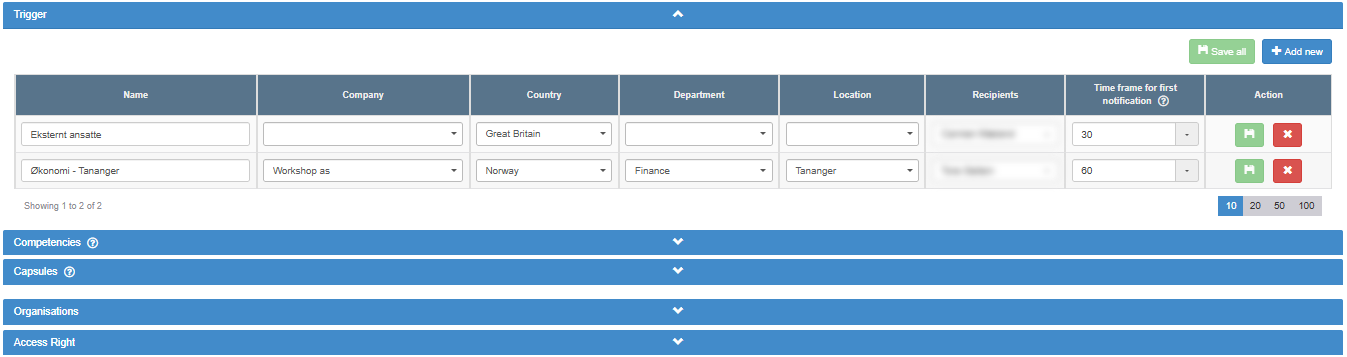
Reminder e-mails about expiring competencies come from reminder rules in the Trigger section of the Admin tab in Competency. Click Add new, give the rule a Name, optionally limit it to values of your global fields, choose the Recipients, set the Time frame for first notification (how many days before the expire date the first e-mail goes out), and save. From then on, the recipients get an e-mail when a competency is due, and again every 14 days until the expire date is moved so that the competency is no longer due, the person’s end date passes, or the rule is deleted. Nothing is sent without a rule. A rule covers every competency of the people it matches; it cannot be limited to certain competencies or capsules.
Before you start
Section titled “Before you start”- You need the Manage right or higher on the Competency row; the Admin tab in Competency is shown from that level upward. Your user administrator sets your right.
- Reminders are based on the Expire date of each person’s competency rows. A competency without an expire date never triggers a reminder; see Register and update a person’s competencies.
- A recipient must be a person in Competency who is linked to a login to ABMS and has an e-mail address. Others do not appear in the Recipients list.
Create a rule
Section titled “Create a rule”- Open Competency, go to the Admin tab and open the Trigger section. The existing rules are listed, 10 per page.
- Click Add new. An empty rule row is added, with a time frame of 7 days.
- In Name, type a name for the rule, for example “Oslo office”. The name is required.
- If the rule should only cover some people, choose a value in one or more of the global-field columns (one column per global field your company uses in Competency, for example a department). Each column takes one value. Leave a column empty to include everyone, whatever their value in that field. When you choose values in several columns, a person must match all of them.
- In Recipients, choose one or more people. The list shows people in Competency who are linked to a login to ABMS and have an e-mail address, by first and last name. At least one recipient is required.
- In Time frame for first notification, pick 7, 30 or 365, or type another number of days. The question mark next to the heading explains: “This field defines how many days before a competency expires the first notification email should be sent. After the first notification, reminder emails will continue to be sent every 14 days until the competency is renewed or updated.”
- Click the save icon (tooltip Save) at the end of the row. It is enabled when the rule has a name, a time frame and at least one recipient.
Change rules
Section titled “Change rules”- Change the fields on a row and click its save icon, or click Save all above the table to save every changed rule at once. Save all is shown only when there are rules, and is enabled when at least one rule has changed. While any rule on the page is incomplete, Save all saves nothing.
Delete a rule
Section titled “Delete a rule”- Click the cross (tooltip Remove) at the end of the row, and answer Yes to “Please confirm that you wish to delete this trigger”. The message “The trigger has been deleted” appears.
Give one competency a longer lead time (optional)
Section titled “Give one competency a longer lead time (optional)”Some competencies need more notice, for example a certificate that takes months to renew. In the Competencies section of the Admin tab, click the flash icon (tooltip “Trigger”) on the competency, set Time frame for first notification, and switch on Activate/deactivate. Each change is saved at once, with the message “Trigger updated”.
For rows of that competency, every rule then uses the longer of the two time frames: the rule’s or the competency’s. The competency’s own time frame can only make the lead time longer, never shorter, and on its own it sends nothing: the e-mails still come from the rules.
What you should see
Section titled “What you should see”After saving, the message “The trigger has been updated” appears and the rule is listed with its name, global-field values, recipients and time frame.
The e-mails go out once a day, at night:
- Each recipient of a rule gets one e-mail per rule with the subject “Competency Reminder”. It lists every competency the rule covers that is due, with Name, Competency, Expire Date and a Link. The e-mail is in the recipient’s own ABMS language.
- The person who holds the competency gets one e-mail, as long as a rule covers them, with the subject “One or more competencies need your attention”, listing their own due competencies, but only if Send trigger email is switched on in their details and they have an e-mail address. Send trigger email is on for new people. A person without a login to ABMS gets the text “The following competencies are about to expire. Please contact your manager to have these updated these in ABMS.”, without links, in the language chosen in Email language in their details.
Good to know
Section titled “Good to know”- When the first e-mail goes out. For a competency row, the first e-mail is sent on the first night when the expire date minus the time frame has been reached. With a time frame of 30 days and an expire date of 31 March, the first e-mail comes on 1 March.
- Repeats every 14 days, also after expiry. The same competency is mailed again every 14 days for as long as it is due, including after the expire date has passed. It stops when the expire date is moved so that the competency is no longer due (for example when the competency is renewed), when the person’s end date has passed, or when the rule is deleted. Changing the status or uploading a certificate alone does not stop the reminders, even though the tooltip says “renewed or updated”.
- Who is covered. For a rule, only people whose end date has not passed, whose login to ABMS (if they have one) is not deactivated, and whose competency row has an expire date. The status of the row does not matter. People with an end date in the past get no reminders and appear in no reminder.
- No pause switch. A rule cannot be switched off. To stop it, delete it.
- One unsaved rule at a time. Clicking Add new while a new rule is still unsaved gives “Please save the trigger before adding a new one”.
- Overlapping rules. Each rule sends its own e-mail, so a recipient on two rules that cover the same competency gets two e-mails.
- Renewing a competency. Moving the expire date forward stops the reminders but does not change the status from Expired; see Register and update a person’s competencies.
Why didn’t a reminder arrive?
Section titled “Why didn’t a reminder arrive?”Check these, in order:
- A rule covers the person. The person’s values in the global fields must match every value set on the rule. Without a matching rule, nobody is mailed, the person included.
- The competency is due. The row has an Expire date, and the expire date minus the time frame has been reached.
- The person is active. Their end date has not passed, and their ABMS login (if they have one) is not deactivated.
- For a recipient: they are linked to an ABMS login and have an e-mail address.
- For the person who holds the competency: Send trigger email is on in their details, and they have an e-mail address.
- Timing. The e-mails go out once a night, and the same competency is mailed again at most every 14 days.