Add and edit risk elements
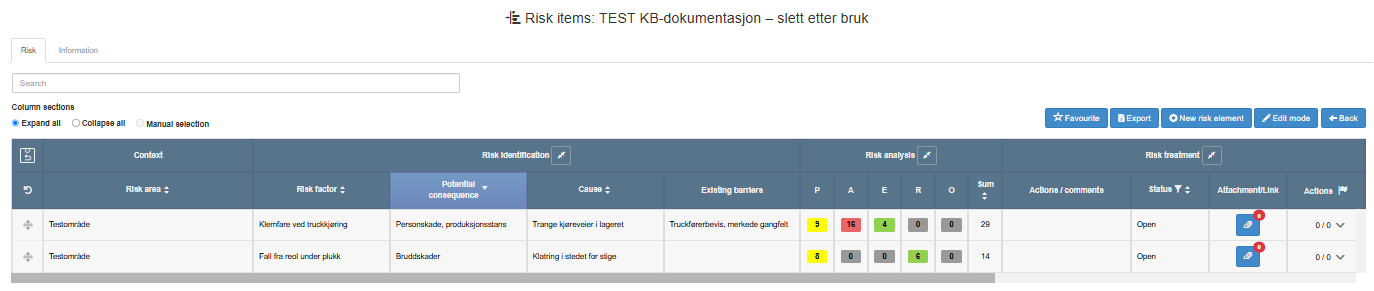
Add risk elements to an analysis with New risk element, or switch to Edit mode and use Add 1 row, Add 10 rows or Add 50 rows to get blank rows you fill in directly in the table. In edit mode, a text cell is saved when you leave it: there is no Save button and no message. A blank row is saved only once you type something in one of its text cells.
Before you start
Section titled “Before you start”- Risk management appears in the left menu only if your company has the module and you have at least the Read right on its row. If you don’t see it, contact your user administrator. See The top bar and the left menu.
- To edit risk elements you need the Edit right on the Risk management row. To add risk elements (with New risk element, the add-row buttons or the insert icon) you need the Create right, which includes Edit. Your user administrator grants these rights; see Give a user access rights.
- Open the analysis and stay on the Risk tab; see Find and read a risk analysis.
- Use a wide browser window. The add-row buttons below the table belong to the wide desktop layout and are not shown in a narrow window.
Add one element with the dialog
Section titled “Add one element with the dialog”- Click New risk element. The button is available in both view mode and edit mode.
- Fill in Risk area, Risk factor, Potential consequence and Cause as needed. All are free text.
- Check Status. It starts as Open; you can also choose Pending or No action.
- Click the save button at the bottom of the dialog, next to the cancel button. The new element is added at the end of the analysis’s custom order, and the table reloads.
Add several elements in the table
Section titled “Add several elements in the table”- Click Edit mode.
- Below the table, click Add 1 row, Add 10 rows or Add 50 rows. The blank rows are added at the end of the table; rows that do not fit on the current page create extra pages.
- Click a text cell in a blank row, type, and click elsewhere. When you leave the cell, the row is saved as a new risk element.
- To add a row directly below a saved row, click the + icon at the end of that row. The new row keeps that position when it is saved. The icon does nothing if the next row is already blank.
Edit an element’s text
Section titled “Edit an element’s text”- Click Edit mode.
- Click the cell you want to change: Risk area, Risk factor, Potential consequence, Cause, Existing barriers or Actions / comments. Expand the sections under Column sections if a column is hidden.
- Type your change and click elsewhere. The cell is saved when you leave it.
- Click View mode when you are done.
What you should see
Section titled “What you should see”Saved rows stay in the table when you switch to View mode. In view mode, Updated at for a risk element shows when it was last changed, which is a simple way to check that your edit was saved.
Good to know
Section titled “Good to know”- No confirmation. Nothing confirms a saved cell, a saved row or a saved dialog. There is no warning about unsaved changes when you leave the table.
- Blank rows are not kept. A blank row is saved only when at least one of its six text cells (Risk area, Risk factor, Potential consequence, Cause, Existing barriers, Actions / comments) has content. Blank rows are removed when you switch to View mode, sort, filter or search. A blank row cannot be deleted, and its trash icon says “No need to delete, blank rows aren’t saved”.
- Adding needs the Create right. With only the Edit right you still see the add-row buttons and the + icon, but saving a new row needs the Create right; without it the row is not saved.
- The dialog saves even when empty. The New risk element dialog has no required fields. If you save it without text, the analysis gets an empty risk element.
- Fields not in the dialog. Existing barriers and Actions / comments are not in the dialog. Add them in the table in edit mode.
- Risk area is free text. It is typed, not chosen from a list.
- Risk values come next. Risk cells on a blank row show a grey 0 with the tooltip “Add information about the item to enable risk analysis”. Save some text on the row first, then assess the risk.
- Edit mode is remembered. Edit mode stays on in the same browser tab until you switch it off. When you open a new analysis right after creating it, the table opens in edit mode with 10 blank rows.