The risk-element table
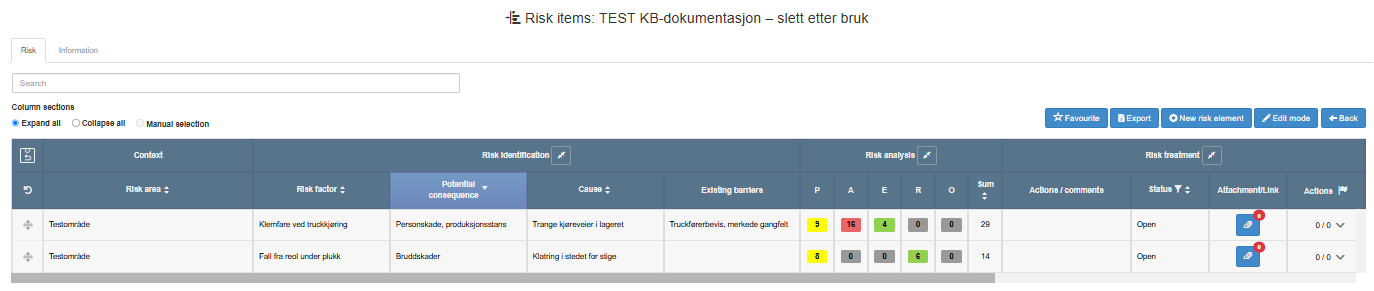
The Risk tab of a risk analysis shows its risk elements in a table, one element per row. The page heading is Risk items: followed by the analysis title, and the Information tab next to Risk holds the analysis information (see The analysis information form). The table has two modes: view mode for reading, and Edit mode for changing text, risk values and status. This page describes the wide desktop layout; a narrow browser window shows a reduced layout without some of these controls.
Rights
Section titled “Rights”| Right on Risk management | What it allows in the table |
|---|---|
| Read | Open the analysis, read the table, open the risk picker and attachments read-only, open the action panel, sort, filter, search and export. Tick and untick Top 10. |
| Edit | Also Edit mode: edit text, status and risk values, manage attachments and links, create actions from the Actions cell, and move rows. The copy and trash icons are shown, and copying a risk element to other analyses works. |
| Create | Also add risk elements (New risk element, the add-row buttons, the + icon), copy risk elements within the analysis and delete them. Create includes Edit. |
The add-row buttons, the + icon and the copy and trash icons are shown with the Edit right, but adding, copying within the analysis and deleting need the Create right; without it the action is not carried out. Your user administrator grants these rights.
Header controls
Section titled “Header controls”The controls appear in this order above the table.
| Control | What it does | When it is shown |
|---|---|---|
| Search | Type and press Enter to show only matching risk elements. Searches Risk area, Risk factor, Potential consequence, Cause, Existing barriers and Actions / comments; a date matches Created and Updated at. The search also compares your text with a fixed English name of each risk element’s status, so a word such as “open” can also find risk elements by their status, while the Norwegian status names never match; to find risk elements by status, use the status filter in the Status heading, see Risk-element values: scores, colours and statuses. Empty the field to show all rows again. While a search is active, rows cannot be moved and blank rows are removed. | Always. |
| Favourite (star) | Adds or removes the analysis in your favourites. | Always. |
| Export | Downloads the analysis as an Excel file (tooltip “Export analysis to excel”). The file contains all risk elements, not just the current page, in your sort order, limited by the status filter and the search. See Filter, search, export and share the risk index. | View mode only. |
| New risk element | Opens a dialog for one new risk element, added at the end of the custom order. See Add and edit risk elements. | View and edit mode, with the Create right. |
| Edit mode | Switches the table to edit mode. Edit mode stays on in the same browser tab until you switch it off. A new analysis opened right after it was created starts in edit mode with 10 blank rows. | View mode, with the Edit right. |
| View mode | Switches back to view mode. Blank rows are removed; if that empties the current page, the table jumps to page 1. | Edit mode. |
| Back | Returns to the index you came from, or to the index. | Always. |
Column sections
Section titled “Column sections”Under Column sections, Expand all shows every column and Collapse all shows only the columns that are always visible. You can also expand or collapse one section at a time in the table; Manual selection then lights up as an indicator. It is not a command. Your section choices are saved for you on that analysis.
| Section | Always shown | Shown when expanded |
|---|---|---|
| Context | Risk area | |
| Risk identification | Risk factor | Potential consequence, Cause, Existing barriers |
| Risk analysis | Sum | One column per risk type in the matrix |
| Risk treatment | Status | Actions / comments, Attachment/Link, Actions |
| Residual risk | Sum | One column per risk type in the matrix |
After the sections come Created and Updated at (view mode only), Top 10 and the row controls.
Columns
Section titled “Columns”Columns are listed in the order they appear. In edit mode, a text cell is saved when you click outside it; there is no Save button and no message.
| # | Column | View mode | Edit mode | Sortable |
|---|---|---|---|---|
| 1 | Drag handle | Drag the row to a new place (see Sorting and order). | Same; blank rows cannot be dragged. | |
| 2 | Risk area | Text. | Free-text field, saved when you leave it. | Yes |
| 3 | Risk factor | Text. | Free-text field. | Yes |
| 4 | Potential consequence | Text. | Free-text field. | Yes |
| 5 | Cause | Text. | Free-text field. | Yes |
| 6 | Existing barriers | Text. | Free-text field. | No |
| 7 | Original risk, one column per risk type | Probability × consequence, in the matrix colour; a grey 0 when no consequence is set. Click to open the risk picker read-only. The column heading is the first letter of the risk type; hover for the full name. | Click to open the risk picker and set the values. On a blank row, a grey 0 that cannot be clicked, with the tooltip “Add information about the item to enable risk analysis”. | No |
| 8 | Sum | For a risk element, the sum of probability × consequence across the matrix’s risk types. | Same; calculated, not editable. | Yes |
| 9 | Actions / comments | Text. | Free-text field. | No |
| 10 | Status | The risk element’s status. The funnel icon in the heading opens the status filter. | A list with Open, Pending and No action, saved as soon as you choose. Locked and showing the status when linked actions set it (Actions in progress, Actions completed). Locked on blank rows. | Yes |
| 11 | Attachment/Link | Paperclip with the number of files and links; hover to see their names. Click to open them read-only. | Click to upload files and add or remove links. Disabled on blank rows. See Attach files and links to a risk element. | No |
| 12 | Actions | Closed linked actions / all linked actions, with an arrow (“Click here to open the actions menu”). Click to open the action panel under the row. | Same, and the panel has New action. See Follow up a risk element with actions. | No |
| 13 | Residual risk, one column per risk type | As column 7, for the residual risk. | Click to set the residual risk. | No |
| 14 | Sum (residual) | For a risk element, the sum of probability × consequence of the residual values across the risk types. | Same. | Yes |
| 15 | Created | When the risk element was created. | Not shown. | Yes |
| 16 | Updated at | When the risk element was last changed. | Not shown. | Yes |
| 17 | Top 10 | Checkbox; ticking it saves at once and highlights the row. Available to everyone who can open the analysis. | Checkbox; disabled on blank rows. | Yes |
| 18 | Row controls | Copy icon and trash icon, with the Edit right and no status filter active. The trash icon is shown only for status Open or No action. Copying within the analysis and deleting need the Create right; copying to other analyses works for everyone who sees the copy icon. | + icon (insert a blank row below), copy icon, trash icon. On a blank row the trash icon is disabled: “No need to delete, blank rows aren’t saved”. |
For setting risk values, see Assess original and residual risk. For copy, delete and Top 10, see Copy, reorder, flag and delete risk elements. Deleting a risk element also deletes its linked actions.
When Updated at changes
Section titled “When Updated at changes”For a risk element, Updated at changes on any saved change: text, status, Top 10, a saved risk picker, a status change caused by a linked action, and a change of position (moving a row, or inserting or deleting other rows so that it shifts). Adding or removing attachments or links does not by itself change it. Any change to a risk element also updates Last updated for the analysis on the index.
Below the table
Section titled “Below the table”| Control | What it does | When it is shown |
|---|---|---|
| Add 1 row, Add 10 rows, Add 50 rows | Add blank rows at the end of the table. Rows that do not fit on the current page create extra pages. A blank row is saved as a risk element when one of its text cells gets content; otherwise it is removed when you switch to View mode, sort, filter or search. | Edit mode, wide window. Saving the new rows needs the Create right. |
| Rows per page | 10, 20, 50 or 100 rows per page. Default 10. Saved for you on that analysis. | Always. |
Status filter
Section titled “Status filter”The funnel icon in the Status heading opens a filter with one checkbox per status: Open, Pending, No action, Actions in progress and Actions completed. Apply the filter to show only those statuses, or reset it to show all. While a filter is active, the funnel is highlighted, the copy and trash icons are hidden in view mode, and rows cannot be moved. The filter is not saved. Export includes only the filtered rows.
Sorting and order
Section titled “Sorting and order”| Control | What it does |
|---|---|
| Sortable column heading | Click to sort all risk elements, across all pages. Each click switches between ascending and descending; if the order is the wrong way round after your first click on a column, click the header again. Your sort is saved for you on that analysis. Sorting removes blank rows. |
| “Return to initial order” (tooltip of the icon at the top of the first column’s header) | Sorts the risk elements in the order they were created. A copied risk element comes right after its source. |
| “Return to custom order” (tooltip of the undo icon in the first column’s header) | Clears sorting and search and shows the analysis’s own order, the custom order. |
| Drag handle | Moves a row within the custom order, also across pages. Works only in custom order with no status filter or search; otherwise the tooltip says “Please return to Custom order to move items”. Moving needs the Edit right. |