Add a user
To add a user, go to Super > Users, click Add user, fill in the User profile form and click Save. The e-mail address is the username, and it must not already be in use. The new user gets an e-mail so they can log in. The user fields on the right of the form are your company’s own, so your form may have other user fields than the example.
Before you start
Section titled “Before you start”- You need the Admin level on the Super area row of your rights; this is what shows the Super menu. Your user administrator sets this; see The Users page and the rights table.
- Decide whether the user logs in with a password or with Office 365.
- To add many users at once, see Add multiple users at once.
-
In the left menu, click Super > Users. The page ABMS - Users opens on the Users tab.
-
Click Add user. The User profile form opens.
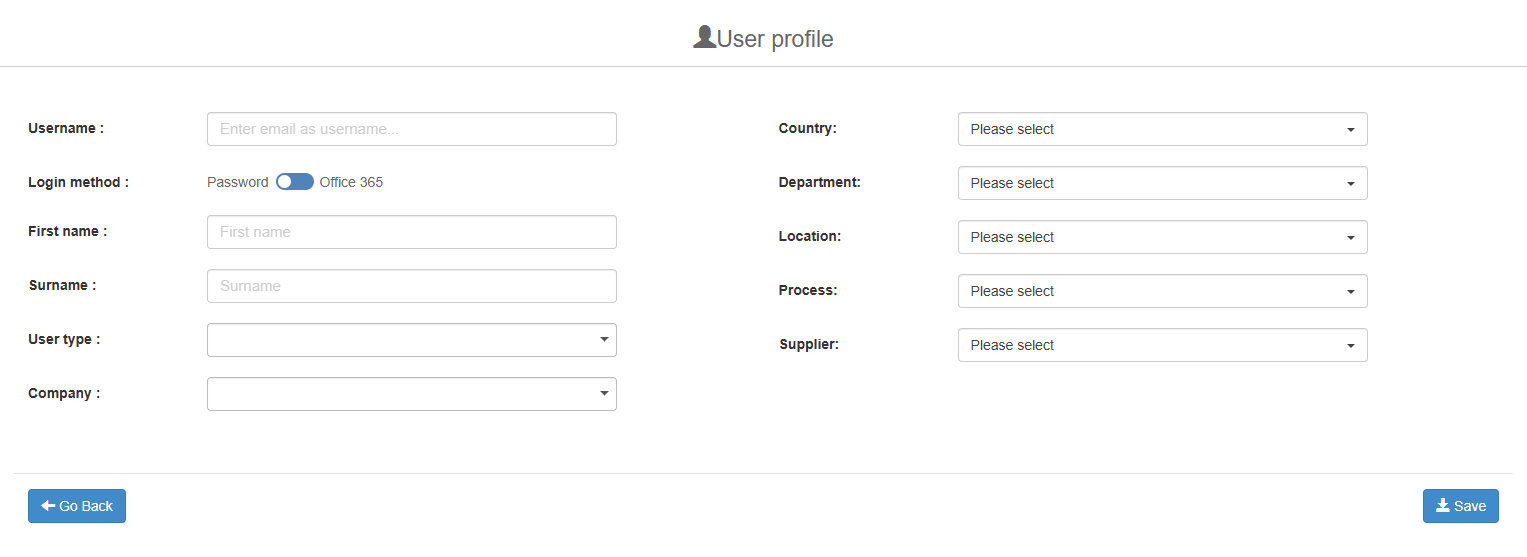
-
Under Username :, type the user’s e-mail address (“Enter email as username…”).
-
Under Login method :, leave the switch on Password, or switch it to Office 365 if the user logs in with their Microsoft account.
-
Fill in First name : and Surname :.
-
Choose a User type :. The options are Antenor, Partner, SuperUser and Corporate User. The user type does not give access to the Super menu; that comes only from the Admin level on the Super area row. If you are unsure which type to choose, ask Antenor support.
-
If your organisation is split into companies in ABMS, choose one under Company :. This is optional.
-
Fill in your company’s own user fields on the right of the form, for example Country, Department or Location (“Please select”).
-
Click Save. To leave without saving, click Go Back.
What you should see
Section titled “What you should see”The user is created for your company, with the same interface language as yours. The message “New user created for Antenor BMS” confirms it. Where your company has the Competency module, one of the Competency messages is shown instead: “A corresponding competency user was also created” or “An existing competency user has been merged with this system user” (not for users of type Antenor); see User accounts: details, e-mail changes, deactivation and login. The user can change the language themselves; see Change language or password.
The user gets an e-mail:
- With Password, an e-mail about their new password login. The first time they log in with a password, ABMS asks them to choose a new password before they get in; see Find your way after logging in. If they cannot log in, they can get a reset link with “Forgot your password?” on the login page; see Reset a forgotten password.
- With Office 365, an e-mail about logging in with Office 365 instead; a random password is set in the background.
Then give the user the rights they need; see Give a user access rights.
Good to know
Section titled “Good to know”- Unique e-mail. If the e-mail address is already used by another user, the user is not created, and a message tells you why.
- Editing a user later. Pick the user on the Users tab and click Edit. Changing the e-mail address updates the username. Switching an existing user from Password to Office 365 means their ABMS password no longer lets them in: from then on they log in with Login with Office 365. Tell the user about the change yourself; see Let a user log in with Office 365. The user’s group memberships are kept.
- Access groups. It is often easier to give rights through access groups than to each user; see Create and manage an access group.