Make a process map with the Antenor templates and shapes
A process map shows the activities in a process and who takes part in each one. The drawing editor has three templates from Antenor for this: Raci, Swimlane Horizontal and Swimlane Vertical. You find them under Insert Template in the left panel, in the category Antenor (3). Antenor also has its own library of nine shapes, Antenor, in the left panel. The templates contain example text and shapes, so you start by replacing the example content with your own process. This article shows how to insert a template, what the Raci template contains, how to adapt it, and how to work with swimlanes.
Before you start
Section titled “Before you start”- You need access to Diagrams; see Get access to Diagrams.
- Open a new or existing diagram; see Create and edit a diagram. If you have not drawn in the drawing editor before, start with Draw your first flowchart.
- List the roles that take part in the process and the activities in order.
RACI in short
Section titled “RACI in short”RACI is a common method for describing who does what in a process. For each activity, it marks which roles are Responsible (carry out the activity), Accountable (answer for the result), Consulted (are asked before or during the activity) and Informed (are told about it). The Raci template sets this up as a table: the roles are columns, the activities are rows, and you place shapes where a role takes part in an activity.
The Antenor library has a Responsible shape (with the text R) and an I/C shape (with the text I), but no separate shapes for Accountable and Consulted. You can change the text in any shape, for example to C. Agree in your company how you mark each RACI role with the Antenor shapes, so everyone reads the maps the same way. All nine shapes are listed in The drawing editor: menus, panels and toolbar.
Steps: insert an Antenor template
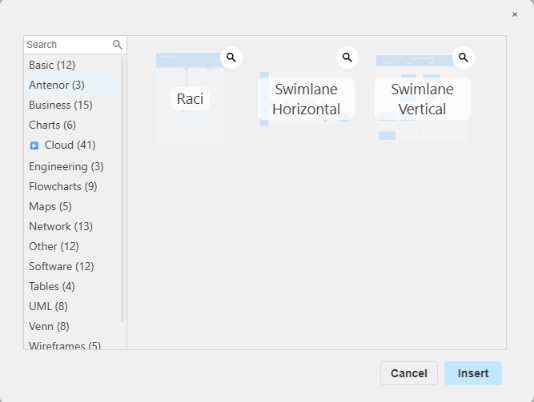
Section titled “Steps: insert an Antenor template”- In the left panel of the drawing editor, click Insert Template. The button is below Scratchpad and above the Antenor library. The template dialog opens.
- In the list of categories on the left, click Antenor (3). The three templates Raci, Swimlane Horizontal and Swimlane Vertical are shown.
- Click the template you want, and click Insert. Cancel closes the dialog without inserting anything.
What the Raci template contains
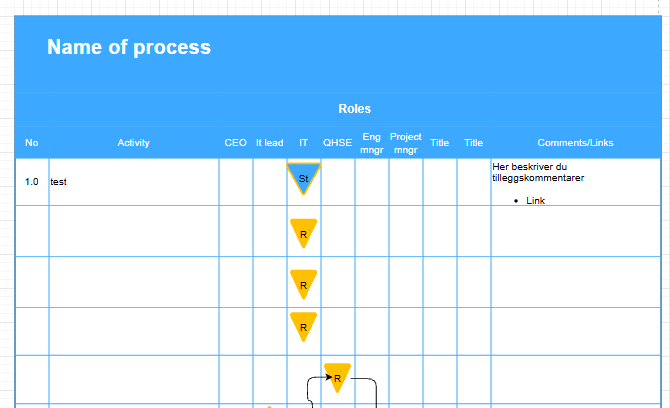
Section titled “What the Raci template contains”The Raci template inserts a process table:
- At the top, the heading “Name of process”.
- Under the heading “Roles”, one column per role: CEO, It lead, IT, QHSE, Eng mngr and Project mngr, followed by two columns headed “Title” for roles of your own.
- To the left of the roles, the columns “No” (the activity number) and “Activity”.
- To the right, the column “Comments/Links” for comments and links.
- One row per activity. The first row is an example: number 1.0, the activity “test”, and a comment in Norwegian, “Her beskriver du tilleggskommentarer”, with a bullet “Link”.
- Example shapes from the Antenor library down the role columns: Start (St), several Responsible (R), and a decision with the texts “Nei” and “Ja”, connected with arrows.
The headings and the example text are the same whatever your language, and the headings are in English. Replace them with your own text.
Steps: adapt the Raci template to your process
Section titled “Steps: adapt the Raci template to your process”- Double-click “Name of process” and type the name of your process.
- Double-click each role heading (CEO, It lead and so on) and type the roles in your process. Use the two “Title” columns for more roles.
- In the “Activity” column, double-click a cell and write one activity per row, in order, and number them in “No” the same way.
- Remove the example content you don’t need: select a shape or text and press Delete. Remember the example text “test” in the first row and the example comment.
- Place the Antenor shapes in the role columns: drag a shape from the Antenor library to the row of the activity and the column of the role. For example, start the process with Start, mark the role that carries out each activity with Responsible, use Decision where the process splits, and end with End. You can also move the example shapes instead of deleting them.
- Connect the shapes in the order the process runs: point at a shape and drag from one of its blue connection arrows to the next shape. To write Yes or No on the arrows after a decision, double-click the arrow and type.
- In “Comments/Links”, write any comments for the activity. To link a shape to a procedure or another document in Antenor BMS, see Link shapes to documents and other content in ABMS. Links from ABMS needs the Admin level on the Super area row of your own rights (the level that shows the Super menu). If you don’t see it or it doesn’t work, ask your user administrator.
- Click Save Diagram.
Steps: work with swimlanes
Section titled “Steps: work with swimlanes”Swimlanes show the roles as bands (lanes) across or down the page, and each activity sits in the lane of the role that does it. These are draw.io’s standard ways to work with lanes.
- Insert Swimlane Horizontal for lanes from left to right, or Swimlane Vertical for lanes from top to bottom, as described above, and replace any example text.
- Name each lane: double-click the lane’s title and type the role.
- Put a shape in a lane: drag the shape over the lane until the lane is highlighted, then release. The shape now belongs to the lane. Drag a shape out of the lane to take it out. To drop a shape on a lane without putting it in the lane, see Alt+drag in Keyboard shortcuts in the drawing editor.
- Add a lane: select the pool (the container that holds the lanes) or one of its lanes, and use the buttons for inserting a row on the Arrange tab of the format panel.
- Resize: lanes grow when you drop shapes in them. Drag an edge or a corner to change the size by hand. The +/- sign in a lane’s title collapses or expands it.
- Click Save Diagram.
You can also draw swimlanes from scratch with the swimlane and pool shapes in the Advanced library.
What you should see
Section titled “What you should see”- After inserting a template, the template in the drawing, with the example headings and shapes.
- After saving, the process map in the diagram library, with the name you gave the diagram.
Good to know
Section titled “Good to know”- Deleting a lane deletes its shapes. Arrows that cross into other lanes must be deleted separately.
- The template is a starting point. Everything in a template is ordinary shapes and text, so you can change, move or delete all of it.
- Lay out in one direction. A vertical process suits printing; a horizontal one suits a wide screen or a wall. More tips: Draw your first flowchart.
Next step
Section titled “Next step”- Link shapes to documents and other content in ABMS
- Tidy up a diagram: align, style, group and layers