Create a report
To create a report, open Reports, click New report, give the report a name and choose its module, and click Save. The module cannot be changed afterwards. Then open the report’s Settings tab to choose its columns, which document types it shows, its main filter and whether it appears in the left menu.
Before you start
Section titled “Before you start”- Creating a report needs the Create right or higher on the reports row of your rights. A report’s settings are changed on its Settings tab, which is shown only to the report’s creator and to users with the Admin level on the Super area row, and only for a report on one module. Your user administrator sets these rights; see The Users page and the rights table.
- Decide which module the report is for. The module cannot be changed after the report is created.
Steps: create the report
Section titled “Steps: create the report”-
In the left menu, click Reports, then New report.
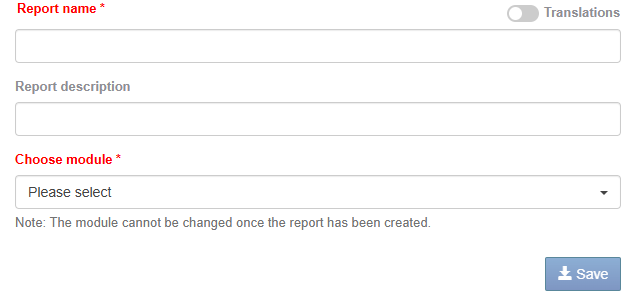
-
Type the Report name *. Switch on Translations to give it an English and a Norwegian name.
-
Optionally type a Report description.
-
Under Choose module * (“Please select”), choose the module. “Note: The module cannot be changed once the report has been created.”
-
Click Save. The report opens.
Steps: set up the report
Section titled “Steps: set up the report”Open the Settings tab. It has four sections.
- General Settings. Check the name, translations, description and module. Tick Show this report in the system menu to list the report under its module in the left menu. Title and Status are always shown on phones; tick Show first two columns on mobile to also show the first two columns from the left of the table.
- Field Settings. Tick the fields to show as columns, from Module Specific Fields and Shared Fields. At least one field must stay selected. Switch on Show old Fields to include fields from older versions of the module that were removed in the latest update. For modules with a risk field, Show colors shows the risk colours.
- Main report filter.
- Under “Select the types of documents to display in the report”, choose among new, in progress, completed and archived documents. Field filters then only filter within the types you chose.
- Under Select columns for filtering, choose the fields to filter on and set the criteria for each, for example list values, a text, a range, or blank / not blank.
- Click Save filter.
- PDF Export settings. See Set up PDF export of a report.
What you should see
Section titled “What you should see”The Index tab shows the documents that match the main filter and document types, with the columns you chose. Users who open the report see the same, and can add their own personal filters on top. The main filter applies to everyone.
Good to know
Section titled “Good to know”- Delete report. Delete report in General Settings is shown to the report’s creator and to users with the Admin level on the Super area row. Deleting needs the Create right or higher on the Super area row.
- Personal filters. Users cannot add a personal filter on a field that your main filter already covers; a message tells them so.
- Charts. Add charts on the Analysis tab; see Create an analysis with charts.