Manage tagging fields and due-date approval in the Action Manager
The tagging fields on actions, such as Country or Project, and the due-date approval setting are managed on the Admin tab of the Action Manager. Under Management of drop down menus, click New dropdown to create a field for the Action Manager alone or to add one of your company’s global fields; use the pencil to rename a field and the trash icon to remove it. Under “Action manager settings”, switch Require approval for change of due date on or off. Both apply to every action in your company.
Before you start
Section titled “Before you start”- You need the Admin level on the Super area row of your rights; this is what shows the Super menu. The Admin tab of the Action Manager is shown only with this level. Your user administrator sets this; see The Users page and the rights table.
- Decide whether the field should be shared. A global field has the same values in every module that uses it, and changes to its name or values apply everywhere. A field created in the Action Manager is used by actions only.
Steps: add a tagging field
Section titled “Steps: add a tagging field”-
Click Actions in the left menu and select the Admin tab.
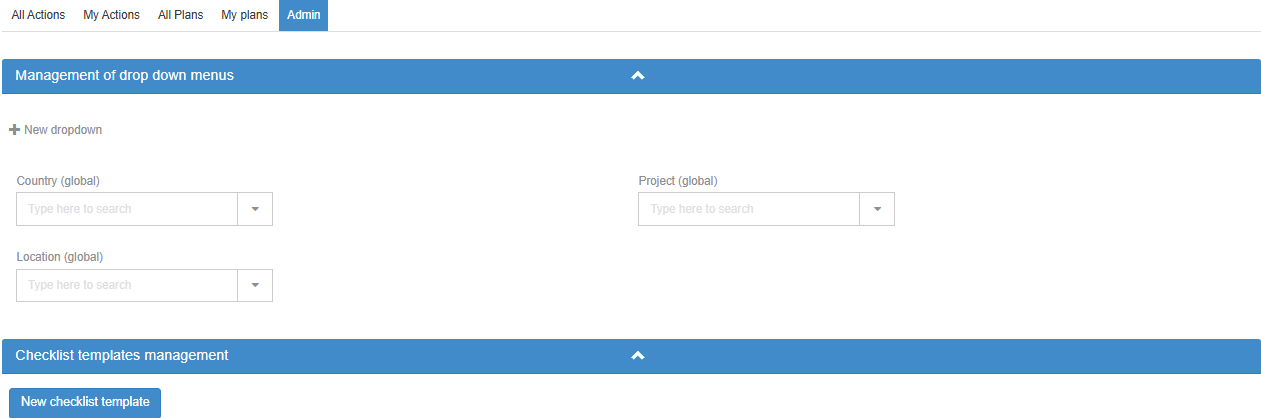
-
In Management of drop down menus, click New dropdown. A menu opens with two choices.
-
To create a field that only the Action Manager uses, choose Create new drop-down, type the name and click Create. You see “Drop-down saved successfully”.
-
To add an existing global field, choose Add from global drop-downs. A dialog with the same title lists the global fields that are not yet in the Action Manager. Click Add to module next to the field you want; you see “Global drop-down has been added”.
-
To give the field its values, click its value box (“Type here to search”) and use Add new; see Add a value to a global field, with or without translation.
Steps: rename or remove a tagging field
Section titled “Steps: rename or remove a tagging field”- Rename: click the pencil (tooltip Edit) next to the field, change the name and save. A new name for a global field shows in every module that uses it.
- Remove a global field: click the trash icon (tooltip Remove) and confirm “Please confirm that you would like to remove this field from the module”. The field is taken out of the Action Manager only and stays available to other modules. You see “Drop-down removed successfully”.
- Delete a field of the Action Manager: click the trash icon (tooltip Delete) and confirm “Are you sure you want to delete this field?”. You see “Drop-down deleted successfully”.
Steps: turn due-date approval on or off
Section titled “Steps: turn due-date approval on or off”- On the Admin tab, go to the section Action manager settings.
- Switch Require approval for change of due date on or off. The setting is saved at once; there is no Save button.
What you should see
Section titled “What you should see”- Tagging fields: the field is listed in Management of drop down menus, with “(global)” after the name if it is a global field. In the action dialog, it appears under Tagging information, where users can choose one or more values or leave it empty. In the action list, it can be added as a column with Select columns and used in Filter.
- Due-date approval on: when the person who holds an action changes its due date, the change goes to the action’s creator for approval. Off: the new due date takes effect at once.
Good to know
Section titled “Good to know”- A field in use cannot be removed. If any action has a value in the field, removing or deleting it is refused with “Drop-down cannot be removed because it’s in use”. To retire values, deactivate them in the field’s value list instead.
- Self-assigned actions. An action where the creator is also the responsible is always approved automatically, whatever the due-date setting.
- Requests already waiting. Switching the due-date setting does not change requests that are already waiting for the creator’s approval.
- Plan pages. The Admin tab on a plan page shows the same company-wide setup; there are no separate settings per plan.
- Checklist templates are on the same tab, in Checklist templates management; see Create and manage checklist templates.