The action dialog: every field, panel and button
Every action opens in the same dialog, titled Actions: when you create one with New action in the Action Manager or from a document, when you open one from the list, and when you open one from the dashboard. Which buttons you see depends on who holds the action and what has happened to it. Tagging fields and checklist templates are your company’s own setup; the examples show one company’s setup.
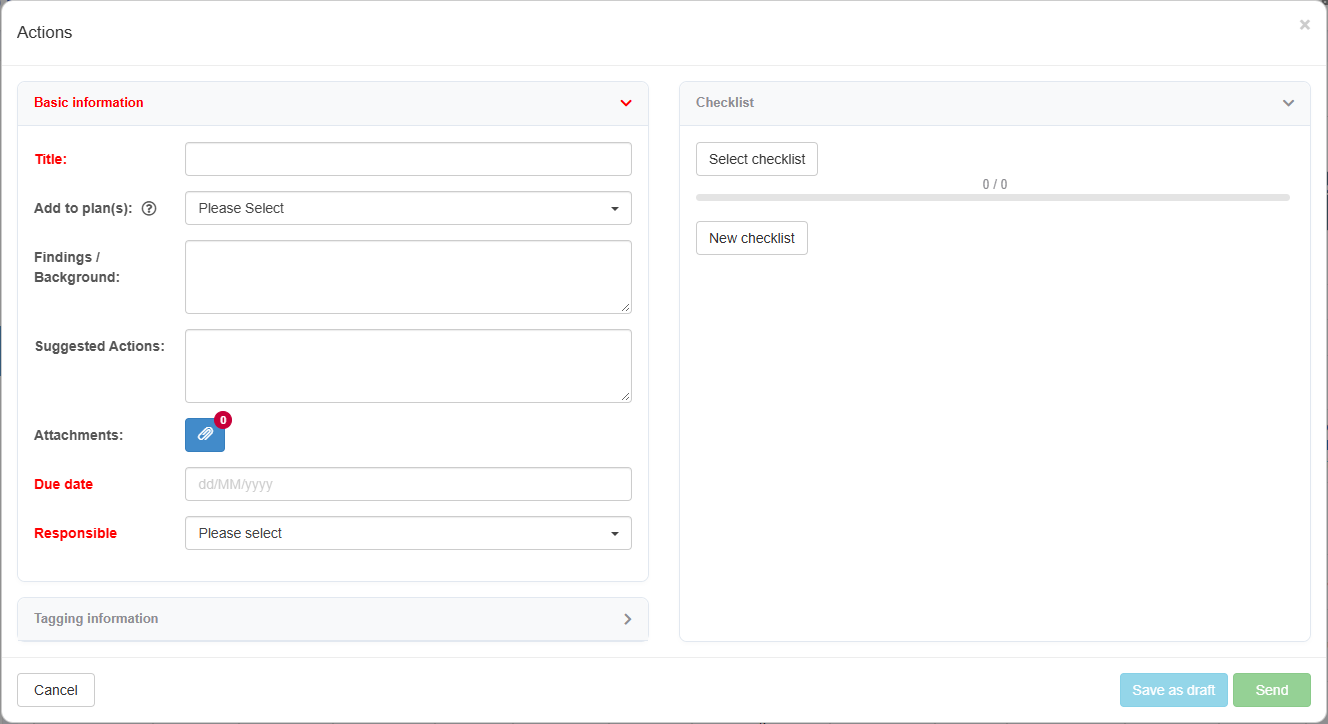
Basic information
Section titled “Basic information”Required fields have red labels. Send stays disabled until they are all filled in; Save as draft needs only Title:.
| Field | Required | What it holds |
|---|---|---|
| Title: | Yes | The action’s title. |
| Add to plan(s): | No | The plans the action belongs to. The list offers the plans that already exist: start typing to narrow it, and click a plan or press Enter to choose the highlighted one. A new plan is created with New plan; see Work with plans. |
| Findings / Background: | No | What was found, or why the action is needed. |
| Suggested Actions: | No | What should be done. |
| Attachments: | No | The paper-clip button, with a counter of how many attachments the action has. You can upload files, link to an internal document, or add a web address (URL). |
| Due date | Yes | The date the action must be done by, typed as 16/06/2026 in English or 16.06.2026 in Norwegian. On an existing action it is changed with the pencil next to it; see Change the due date of an action. |
| Responsible | Yes | The person who is to carry out the action (“Please select”). Only one person can be chosen. Choose yourself to keep the action. |
Tagging information
Section titled “Tagging information”A panel with your company’s tagging fields, for example Country, Location and Project in the example. Each field is optional, and you can choose more than one value. A tagging field is either one of your company’s global fields, added to the Action Manager, or a field created for the Action Manager alone. Users with the Admin level on the Super area row manage the fields on the Admin tab of the Action Manager; see Manage tagging fields and due-date approval in the Action Manager. Their values are managed as described in Add a value to a global field, with or without translation.
Checklist
Section titled “Checklist”| Control | What it does |
|---|---|
| Select checklist | Picks a checklist template your company has prepared and adds its tasks. See Create and manage checklist templates. |
| New checklist | Starts a checklist of your own. You add tasks, which can have sub-tasks; tasks can be indented and outdented, and the list expanded or collapsed. |
| Progress bar | Shows how many tasks are done, out of the total, for example 2 / 5. |
Connected to
Section titled “Connected to”An action created from a document or another module shows what it is connected to and the module’s name. For a document, see The document page in view mode; for a risk element, see Follow up a risk element with actions.
Buttons
Section titled “Buttons”Which buttons are shown depends on the situation:
| Situation | Buttons |
|---|---|
| A new action | Cancel, Save as draft, Send. The first Send creates the action and sends it in one step. |
| You created the action and have not sent it | Save as draft, Send |
| The action was sent to you and you have not accepted it | Accept, Reject, Forward |
| You have accepted it | Save as draft, Send (sends it back as done to the reviewer: normally the creator, or the person who forwarded the action to you) |
| You sent it to yourself | Complete action, Forward, Save as draft |
| The work has been sent back to you for review (normally because you created the action) | Complete (opens an Optional comment box; click Complete again to close the action, or Cancel), Reject (sends it back) |
When you reject, you write a message under Rejection message. When you forward, you choose the new person under Select recipient: and write under Forwarding message:. After accepting, you describe what you did under Action taken/comments.
Notifications at the top
Section titled “Notifications at the top”Banners at the top of the dialog tell you what has happened, for example “Your action has been rejected!” (shown to the creator when the responsible rejects the action), “Your action has been forwarded!”, “This action has been forwarded to you!”, or “Your due date change has been approved/rejected!”.
The Log tab
Section titled “The Log tab”The dialog has two tabs, Action and Log. The Log tab appears once there is something to log. It lists every change, with the user, what was done, the date, the field, the old and new value, comments and attachment names.
Next step
Section titled “Next step”Related
Section titled “Related”- The Action Manager index: tabs, columns, filters and buttons
- Action statuses, who holds an action, and e-mails
- Change the due date of an action
- Add a value to a global field, with or without translation
- Work with plans
- The Action Manager Admin tab
- Changing an action in detail: fields, checklist, attachments, copies and deleting