The Action Manager index: tabs, columns, filters and buttons
The Action Manager is where you find, create and follow up actions, on their own or grouped in plans. You open it with Actions in the left menu. The page title is Actionplans - all. Everyone with the Read right on the Action Manager row of their rights can open it and see the actions and plans. New action, New plan and the icons on the rows need the Create level or higher on that row. By default every user has these rights, but your company may have removed them for some users; your user administrator manages this. Tagging fields and checklist templates are your company’s own setup; the examples show one company’s setup.
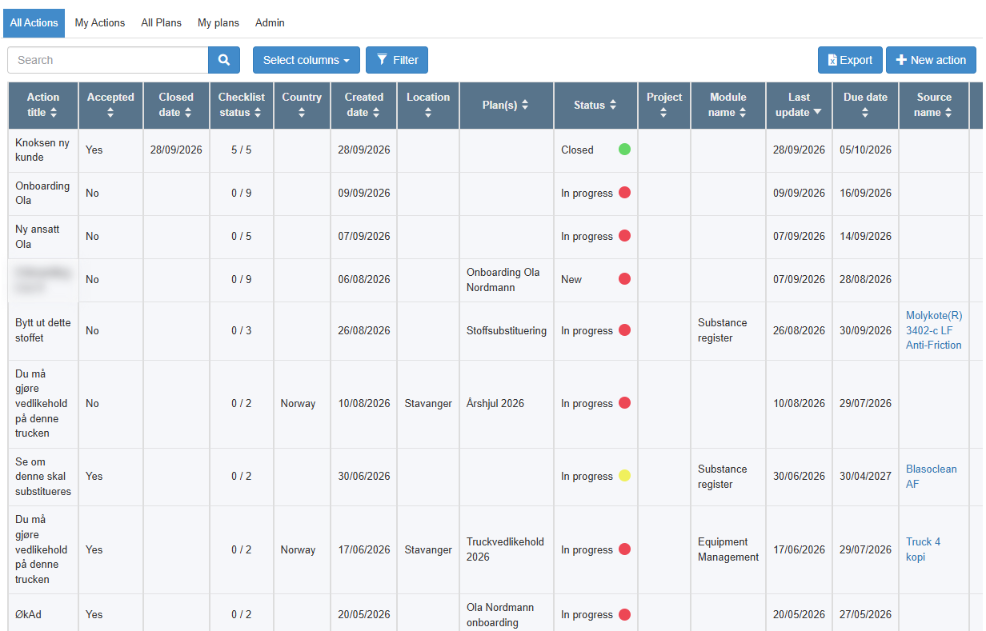
| Tab | What it shows |
|---|---|
| All Actions | Every action in your company’s Action Manager, in every status, including actions connected to a document or another module. |
| My Actions | The actions you created and the actions where you are the Responsible, in every status. |
| All Plans | Every plan. A plan groups actions; see Work with plans. |
| My plans | The plans you created. |
| Admin | The Action Manager’s Admin tab is shown only to users with the Admin level on the Super area row. Where the tagging fields, the checklist templates and the setting that decides whether due-date changes need approval are managed for the whole company. Tagging fields can be created for the Action Manager alone or added from your company’s global fields. See The Action Manager Admin tab, Manage tagging fields and due-date approval in the Action Manager and Create and manage checklist templates. |
Buttons
Section titled “Buttons”| Button | What it does |
|---|---|
| Select columns | Chooses which columns the list shows. Your choice is remembered for you. |
| Filter | Filters the list. Your filter choices are also remembered for you. |
| New action | Opens the action dialog for a new action; see Create an action and send it to someone. |
| New plan | On the plan tabs. Creates a new plan. |
New action and New plan are shown only to users with the Create level or higher on the Action Manager row.
Columns in the action list
Section titled “Columns in the action list”The columns are selectable with Select columns. In the example, the list shows:
| Column | What it shows |
|---|---|
| Action title | The action’s title. Click the row to open the action. |
| Status | New, In progress or Closed; see Action statuses, who holds an action, and e-mails. |
| Accepted | Whether the responsible has accepted the action. |
| Due date | The due date. |
| Created date, Last update, Closed date | When the action was created, last changed and closed. For an action, Last update changes when the action is saved in the action dialog with a change to its fields or checklist, and on every workflow step: sending, accepting, rejecting, forwarding, completing, and a due-date change and its approval. Adding or removing attachments does not by itself change it. |
| Checklist status | How many checklist tasks are done, out of the total. |
| Plan(s) | The plans the action belongs to. |
| Module name, Source name | For an action created from a document or another module: the module and the item it is connected to. |
| Country, Location, Project | Tagging fields. They are your company’s own setup, so yours may have other names. |
Other columns can be chosen too, for example the action’s ID, the creator, the responsible person and the current editor.
Dates are shown as 16.06.2026 in Norwegian and 16/06/2026 in English.
Row buttons
Section titled “Row buttons”The row buttons are shown only to users with the Create level or higher on the Action Manager row.
Copy action. Creates a copy of the action.
Delete action. Deletes the action. Shown to the action’s creator while its status is New or In progress, and to users with the Admin level on the Super area row, who can also delete a Closed action. An action that is connected to a document or another module cannot be deleted in the Action Manager. An action connected to a document can be deleted from the document’s Actions list by its creator, or by a user with the Admin level on the Super area row, while its status is New or In progress and that list shows them the row buttons; see Actions linked to documents and other modules. Deleting the document at its first step deletes its actions too; see Delete or archive a document.
The plan list
Section titled “The plan list”On the plan tabs, each plan is listed with its name, the number of actions in it and a delete button (Delete plan). Clicking a plan opens the plan page, titled “Plan:” followed by its name, with the plan’s actions. On the plan page, Remove action from plan on an action’s row takes the action out of the plan without deleting it. Delete plan and Remove action from plan are shown to the plan’s creator and to users with the Admin level on the Super area row, when they also have the Create level or higher on the Action Manager row.
The dashboard box
Section titled “The dashboard box”Actions that need your attention also show on your dashboard, in Actions awaiting your input, if your company’s dashboard has this box; see Action statuses, who holds an action, and e-mails.
Actions in Environmental aspects are not Action Manager actions. They are handled on the aspect, are not listed here, and are not covered by the action reminders; see Action rounds, statuses and e-mails.
Next step
Section titled “Next step”Related
Section titled “Related”- The action dialog: every field, panel and button
- Action statuses, who holds an action, and e-mails
- The Action Manager Admin tab
- The document page in view mode
- Follow up a risk element with actions
- Change the due date of an action
- Set up action reminders
- Search for a document
- Action lists in detail: what each list holds, columns, sorting, filters and search
- Plans in detail: rules, rights and what changes them