Add equipment
On the Index tab of Equipment Management, click New Equipment, type the Internal id/name and click Save. The new item opens in a new browser tab, where you fill in the rest. Each field is saved as soon as you leave it; there is no Save button on the equipment page. Maintenance records start only when Purchasing / Start date, Maintenance interval and Responsible are all filled in.
Before you start
Section titled “Before you start”- To add equipment you need the Create right on the Equipment row, which includes Edit. Your user administrator sets this.
- Decide who is responsible for the item. The Responsible user is the one who gets the maintenance reminder e-mails.
- If a similar item already exists, copying it can be quicker; see Copy, deactivate or delete equipment.
-
Open Equipment Management and stay on the Index tab.
-
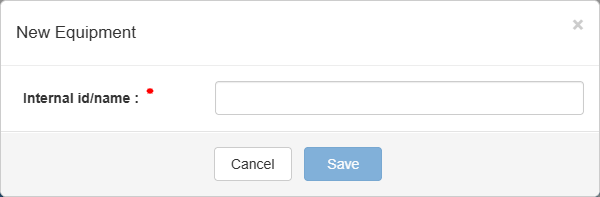
Click New Equipment. A dialog with the same heading opens.
-
Type the Internal id/name. The field is required; Save stays disabled while it is empty.
-
Click Save. The item is created and opens in a new browser tab. The list in the first tab is refreshed.
-
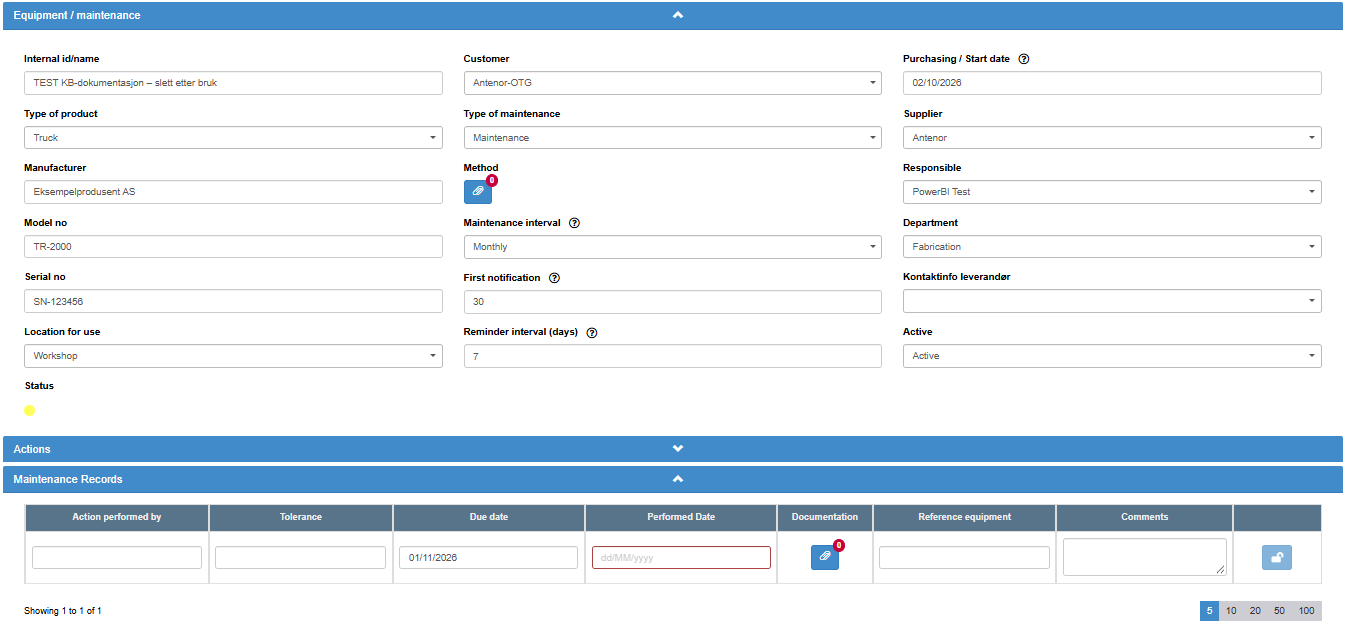
On the equipment page, fill in the fields under Equipment / maintenance. Each field is saved when you click outside it, move the mouse away from it, or pick a date, if its value has changed:
- Model no, Manufacturer and Serial no: free text.
- Dropdown fields your company has added to Equipment: choose a value.
- Purchasing / Start date: the purchase date, or the date the maintenance interval should start from.
- Maintenance interval: how often maintenance should take place.
- Responsible: the user who is responsible for the item.
- First notification: how many days before the due date the reminders should start.
- Reminder interval (days): how often to repeat the reminder after the first one. Leave it at 0 for no repeats.
-
To attach the maintenance method or other files to the item, click the paperclip next to Method; see The equipment page.
What you should see
Section titled “What you should see”When Purchasing / Start date, Maintenance interval and Responsible are all filled in, the first maintenance record appears under Maintenance Records. For a new equipment item, its Due date is the Purchasing / Start date plus the number of days in the Maintenance interval. The new item also appears in the list on the Index tab.
Until all three are filled in, Maintenance Records shows “Please fill in Purchasing / Start date, Maintenance interval and Responsible above to start maintaining the equipment”.
Good to know
Section titled “Good to know”- Autosave. A note at the top of the page says “Not to worry, all changes you make will be automatically stored!”. Click its x to hide it; it stays hidden for you.
- New items start as follows: Active, First notification 0, Reminder interval (days) 0, status green and no maintenance records.
- Active. Set Active to Inactive for equipment that is no longer in use. For an inactive equipment item, no reminder e-mails are sent and the status colour is not updated daily. Inactive items stay in the list.
- Who can be Responsible. The list contains users who are not deactivated and have the Edit right or higher on the Equipment row: users of your company, and users from another company account or from Antenor who have been given access to your company; see Rights in Equipment Management, action by action. A user who is already Responsible for the item stays selectable for that item even after losing that right, and keeps getting its reminder e-mails as long as the user is active.
- No Responsible, no reminders. For an equipment item, reminder e-mails go only to the Responsible user. If Responsible is empty or the user has been deactivated, nobody is reminded. Before a user is deactivated, change Responsible on each of their equipment items to another user. You can also transfer the items in the Equipment responsible panel on the Ownership transfer page; see Transfer ownership of a user’s items.
- The interval cannot be cleared. Once Maintenance interval has a value, you can change it to another interval but not empty it.
- Internal id/name is required only in the New Equipment dialog. On the equipment page you can change it freely, even clear it.
- Settings for the reminders are explained in Set up maintenance reminders.