Build a useful KPI scorecard
A KPI scorecard is a table of headers with measure rows under them. You create it, add headers and rows in edit mode, and give each row a calculation type and a green and a red boundary. Manual rows hold figures people type in; system rows count figures from documents. Filling in manual rows can then be handed to others.
Before you start
Section titled “Before you start”- The KPI Scorecard module must be enabled for your company; Antenor enables it on request. If the menu entry is missing, either the module is not enabled, you do not have at least the Read right on the KPI row, or you have no scorecard you can read and no Create right on the KPI row: ask your user administrator first, then Antenor support.
- To create a scorecard you need the Create right on the KPI row. To add headers and rows you need the Manage right on the KPI row and the Edit right or higher on the scorecard’s row; you get Create automatically on scorecards you make. Your user administrator sets these levels; see Rights, years, favourites and Excel export in KPI Scorecard.
- Headers and rows can only be added while the selected year is the current calendar year.
-
In the left menu, click New scorecard, or click New KPI on the KPI Index page.
-
In the Add KPI dialog, type a name in KPI Name.
-
Click Save. The scorecard opens for the current year.
-
Click the pencil in the top-left cell of the table, above the first header, to switch to edit mode.
-
Click Add new header.
-
Type a name in the new, empty header at the bottom of the table. It is saved when you leave the box. A header needs a name before it can have rows.
-
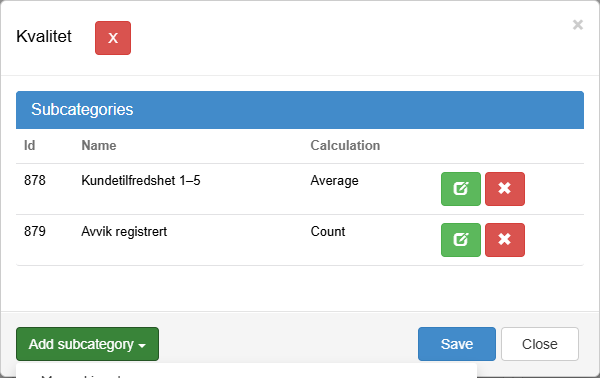
Click the cog next to the header. The rows dialog opens.
-
In Add subcategory, choose Manual input for a manual row, Get data from module and show all values from a drop-down menu for a system row, or Get data from a module, filtered by one value in a drop-down menu for a system row limited to one value. The row dialog opens.
-
Fill in the row settings described below and click OK. The row appears under the header.
-
When all rows are added, click the floppy-disk icon in the top-left cell. Values and rows are already saved; the icon reloads the scorecard and leaves edit mode.
Manual row. Enter a Name, the green boundary in Green and the red boundary in Red. Target becomes available once both boundaries are set. Pick a Calculation type: Sum, Average, Count or Show last registration. Under Drilldowns, Add creates named sub-rows with their own target and boundaries. Each sub-row also has a Calculation type box, but when you save, every sub-row gets the row’s own calculation type; the sub-row’s choice is not applied. Every field is described in Manual row dialog in a KPI scorecard.
System row. In Choose module, pick the document module to count from. In Module date fields, choose which date places a document in a month: Document created at, Document updated, or one of the module’s own date fields. Status is optional: New counts documents that are at the first workflow step and not yet published, and the other choices are the module’s own workflow statuses. Documents saved as can limit the row to, for example, observations. Drill down column splits the row by a choice field, with a target and boundaries per option; on a split row, use the figures on the sub-rows. Calculation type always offers Count; the other types appear only when the module has number fields, and you then pick the field in Module fields. Every field is described in System row dialog in a KPI scorecard and Get data from a module, filtered by one value in a drop-down menu; what each calculation type shows is in Calculations and traffic lights in a KPI scorecard.
What you should see
Section titled “What you should see”The header appears with its rows. System rows show values at once; manual rows stay empty until someone fills them in. Rows with boundaries show a light in the Status column: a system row at once, a manual row once one of its months has a value. An empty boundary counts as 0; the exact rules are in KPI traffic lights: detailed rules.
Good to know
Section titled “Good to know”Traffic lights. Only a row’s green and red boundaries decide its light; the target is shown for information. If green is higher than red, higher is better; if green is lower, lower is better. For several calculation types the boundaries are scaled to the part of the year that has passed, so enter them as full-year values. The full rules are in Calculations and traffic lights in a KPI scorecard, and a checklist for a surprising light is in Why is a traffic light red, yellow or missing?.
System rows are live, not a frozen record. Their figures are recalculated every time the scorecard is shown, so earlier months and years change when documents are published, archived, re-dated or edited. Only the latest version of each published, non-archived document counts; a row with New in Status counts documents at the first workflow step that are not yet published instead.
Years. Opening a scorecard shows the copy for the current calendar year; the list and the menu show the name and dates of the copy for the highest year. A new year copy keeps the headers, rows, boundaries, targets, calculation types and sources; manual values start empty and system values are recalculated. Headers and rows you add are not added to a copy for a later year that already exists; such a copy can only get new rows once its year is the current year. Choosing a year after the current one in Select KPI Year creates such a copy and makes it the copy for the highest year, which the list and the menu then take the scorecard’s name and dates from and which later year copies are made from, so do that only when you mean to; if it happens by mistake, contact Antenor. Details are in Rights, years, favourites and Excel export in KPI Scorecard.
Handing over. People who fill in manual rows need the Edit right on the scorecard’s row. Your user administrator sets it in the left menu under Super > Users: open the user on the Users tab, or the group on the Access groups tab, find the entry named “Kpi: <scorecard name>” and choose the level Edit. The steps are in Give a user access rights.
Worked example (guidance)
Section titled “Worked example (guidance)”This section is general guidance, not a product rule. Adapt it to your own goals.
A common pattern is one header per goal with a few rows, each answering one question: system rows where the data already lives in documents, manual rows for figures from outside the system.
Example: a header “Quality” with two rows.
- Nonconformities (system row). Module: your nonconformity (NCR) module. Calculation type: Count. Date: Document created at. Each month cell shows that month’s count; the Sum column shows the year so far. Fewer is better, so green is lower than red: green 24, red 48 for the year, which by the end of June means roughly 12 and 24. A target of 20 is shown beside the row as “<20” but does not affect the light. In a year with no nonconformities yet, the sum 0 is below the scaled green boundary, so the row shows green.
- Customer satisfaction, 1–5 (manual row). Calculation type: Average. Green 4.2, red 3.5, target 4.5. A colleague with Edit types in the monthly survey score.
Many teams also name an owner in each row’s info text (the i icon in edit mode) and review the scorecard at a fixed interval, such as a monthly management meeting.
Next step
Section titled “Next step”- Manual row dialog in a KPI scorecard
- System row dialog in a KPI scorecard
- Calculations and traffic lights in a KPI scorecard
Related
Section titled “Related”- Edit mode in a KPI scorecard
- Get data from a module, filtered by one value in a drop-down menu
- Rights, years, favourites and Excel export in KPI Scorecard
- Edit a manual value in a KPI scorecard
- Why is a traffic light red, yellow or missing?
- Give a user access rights
- When does “Document updated” change in the KPI list?