Manual row dialog in a KPI scorecard
The manual row dialog sets up a row whose month values people type in by hand. It opens from the rows dialog (the cog next to a header in edit mode): choose Manual input in Add subcategory to make a new row, or click the green pencil on an existing manual row to change it. You need the Manage right on the KPI row and the Edit right or higher on the scorecard’s row (Rights, years, favourites and Excel export in KPI Scorecard), and the selected year must be the current calendar year. The dialog title is New subcategory.
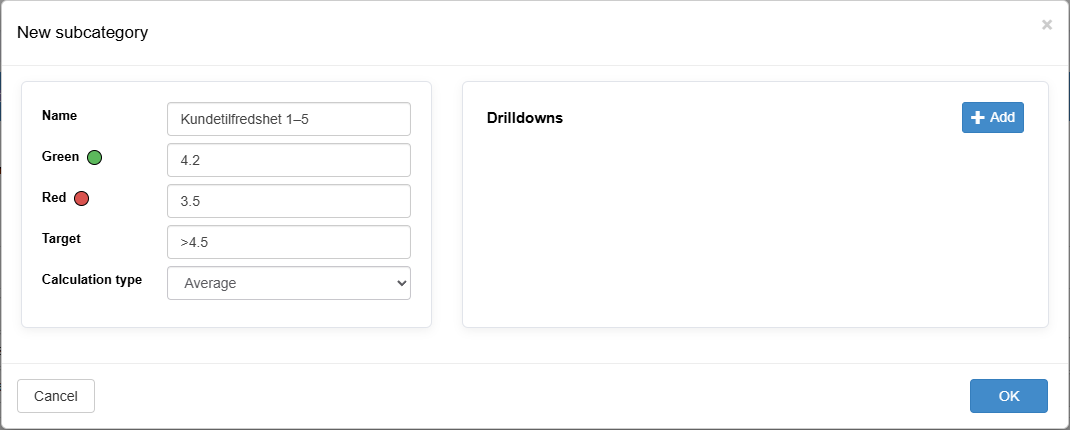
Fields
Section titled “Fields”| Field | Required | Values and behavior |
|---|---|---|
| Name | Yes | Free text. The row’s name in the table. |
| Green (green dot) | No | The green boundary. A number; comma or period as decimal separator, no thousands separator. |
| Red (red dot) | No | The red boundary. A number. |
| Target | No | The target, a number. Disabled until both boundaries are filled, with the tooltip “Set the colour thresholds to enable setting a target”. When saved, it is shown with a > sign if green is higher than red, or < if green is lower. A target of 0 is shown as 0 without a sign. |
| Calculation type | Yes | Sum, Average, Count or Show last registration. Decides what the Sum column shows; see Calculations and traffic lights in a KPI scorecard. |
| Drilldowns | No | Sub-rows for this row; see below. |
The boundaries decide the traffic light. The target is only shown for information and does not affect the light.
Drilldowns
Section titled “Drilldowns”Drilldowns are named sub-rows under the manual row. People type values in them the same way as in the row itself, and the row’s own sum is not calculated from them.
- Add adds a sub-row. A new sub-row is named “New(1)”, “New(2)” and so on until you rename it.
- Each sub-row has the fields Name, Target, Green, Red and Calculation type.
- The red X removes a sub-row. If the sub-row was already saved, it is deleted at once.
- The list shows 10 sub-rows at a time.
When you save, every sub-row gets the row’s own calculation type. The Calculation type you choose on a sub-row is not applied.
Buttons
Section titled “Buttons”OK. Disabled until the required fields are filled in. Saves the row and its sub-rows under the header, and reloads the header so the row appears in the table.
Cancel. Closes the dialog without saving. Sub-rows you removed that were already saved stay deleted.
After saving
Section titled “After saving”The new row appears under its header with empty month cells. Anyone with the Edit right on the scorecard’s row can now fill it in. A row with both boundaries shows a traffic light once it has values.