Fill in the fields of a document
You fill in a document in edit mode, in the section you currently own: click in each field, type or choose a value, and move on. Each field is saved on its own as soon as you leave it, and a choice in a list, a tick box or a date picked from the calendar is saved the moment you make it. Fields marked with * (tooltip Required) must have a value, and the paper-plane button (Send for approval) stays disabled until every required field of your section is filled and no e-mail field holds an invalid address. Which fields a form has, which of them are required, and their help texts are your company’s setup of the module, so your form may use only some of the field types described in The field types in a document form.
Before you start
Section titled “Before you start”- You must own the current step of the document, so that it opens in edit mode, and you need the Edit right on the module’s row. Your user administrator sets the rights. A new document is yours at its first step; see Create a document and send it for approval. A document you received becomes yours when you take it over with the green button; see Approve or reject a document you received.
-
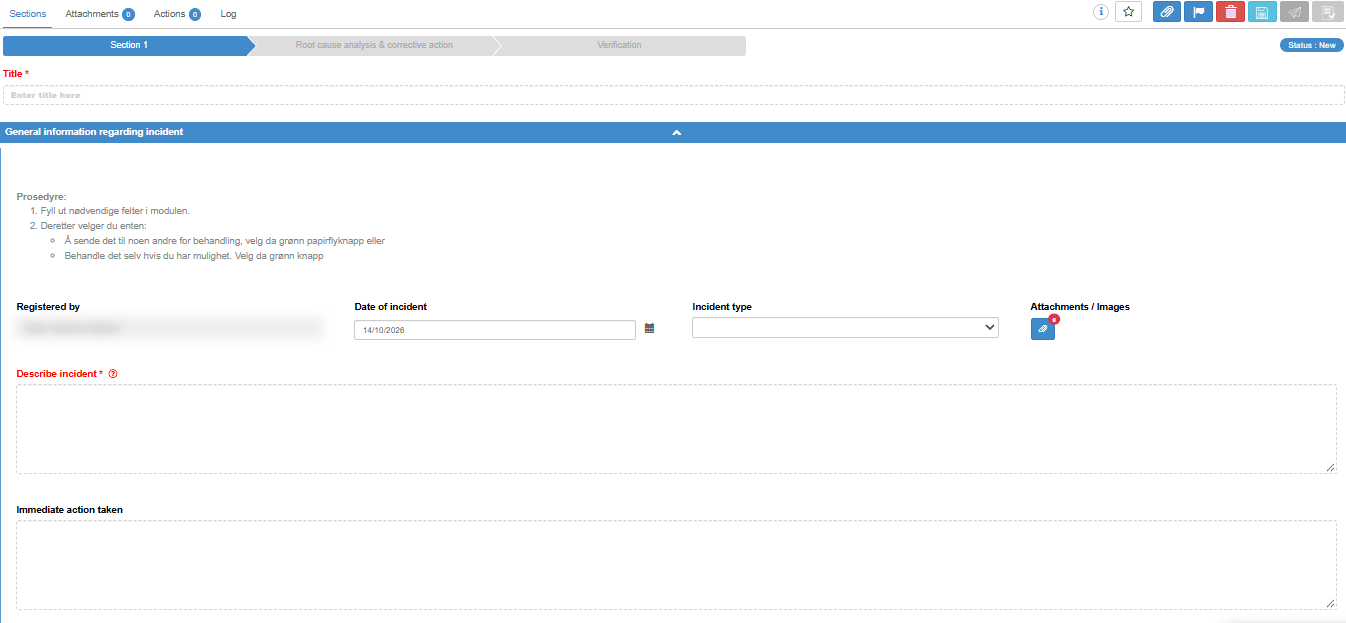
Open the document in edit mode and go to your section.
-
If a field has a question mark in a circle after its label, hover over it to read the help text your company wrote for that field.
-
Fill in the fields from top to bottom. Click in a text field and type; choose from lists, option buttons and tick boxes; type a date or pick it with the calendar icon. Grey fields that you cannot type in, such as a calculated result or a name that is filled in for you, need nothing from you. How each kind of field works is described in The field types in a document form.
-
Open every collapsible box in your section by clicking its header (“[Click on box header to expand/collapse]”). A box may start closed, and the required fields inside it still have to be filled.
-
Watch for new rows. In some forms, choosing a value in a list or with option buttons shows more fields below it. Fill those in too.
-
For a table field, type in the cells and add rows as needed; see The table field.
-
Leave each field when you are done with it: click elsewhere or press Tab. That saves it. While saving, the top bar shows “Autosaving…”, then “Last save at:” with the time.
-
When the paper-plane button becomes active, send the document on; see Create a document and send it for approval. If you are not finished, click the floppy disk (Save and continue later) to save and return to view mode.
What you should see
Section titled “What you should see”- The values you entered stay in their fields when you move on, and the top bar shows the time of the last save.
- A field with a default value is already filled in when your section opens, for example a date set to a number of days from today or a preselected option. You can change it.
- A calculated field shows its result once every field it uses has a value, and updates as you change them.
- The paper-plane button becomes active once all required fields of your section have a value and no e-mail field holds an invalid address.
Good to know
Section titled “Good to know”- The send button stays disabled. Check, in your section: the document title; every field with *; every collapsible box, opened, for required fields inside it; every e-mail field, even one that is not required, which must be empty or hold a valid address; and any required table field, where every cell of every row must have a value. Rows that are hidden because of a choice you made do not count.
- When saving happens. A field is saved when you leave it: you click elsewhere, press Tab, or move the mouse away from the field. In addition, unsaved changes are saved every 60 seconds, but only while the browser window is the active window. Leave the field you are typing in before you close the window or switch to something else.
- A value is refused. Some fields only accept certain input: a whole-number field takes only digits and a minus sign, a date must be typed with the separator and the four-digit year shown in the field, and an e-mail address must be a valid address. If a value is refused, a message names the field and the reason, and the value you typed stays in the field, unsaved, so you can correct it. If a value cannot be saved for another reason, the message is “Error saving field” and the field goes back to the last saved value; if it keeps coming back, contact support.
- Changing a choice can clear other fields. If a new choice in a list or with option buttons would hide rows below it that already have values, a Confirmation dialog asks whether to go on. If you confirm, the values in those rows are cleared; Cancel keeps your earlier choice.
- The same document in two tabs. A field saved in one browser tab replaces the value of that field in the other tab.
- After publication. In a module without revisions, single fields of a published document can be changed with a small pencil next to the field; see Edit a published document and see earlier revisions and The field types in a document form.