The table field
A table field is a grid in a document form where each row is one entry, for example one finding, one measurement or one person. Antenor sets up its columns for your company, so the column headings and column types vary from form to form; a table may use only some of the column types below. You fill in a table in edit mode, when you own the current step of the document and have the Edit right on the module’s row. This page describes the table as it appears in a wide window: the column types in the order listed here, the row buttons, and the dialogs for links, attachments and actions. For filling in a form in general, see Fill in the fields of a document.
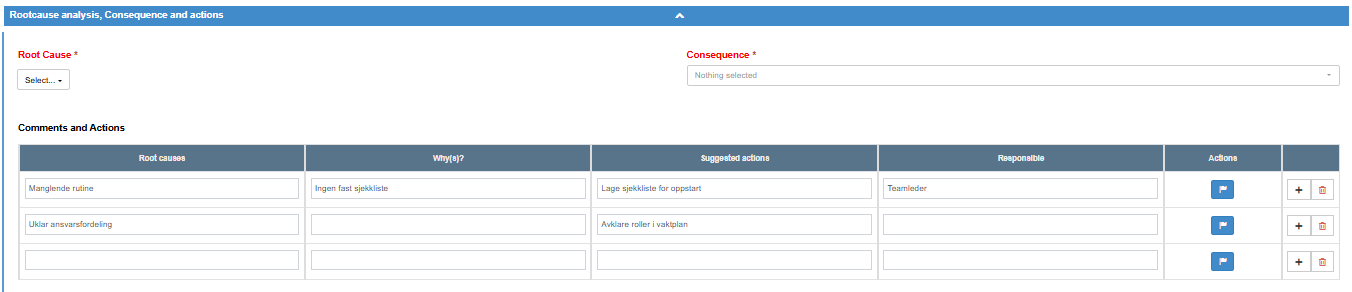
Column types
Section titled “Column types”| Column type | What you see | How to fill it in | Allowed values |
|---|---|---|---|
| Text | A text box that grows as you type. | Type. | Any text. Some text columns are read-only and cannot be changed. |
| Number | A text box. | Type a number. | A number. Otherwise the cell is marked red with “Must be a number”. The document can be sent only when every number cell holds digits only: a minus sign, decimals or a thousands separator (for example -1, 2.5 or 1,000) keep the paper-plane button (Send for approval) disabled, although the cell is not marked red. |
| E-mail address | A text box. | Type an e-mail address. | An e-mail address. Otherwise the cell is marked red with “Must be an email”. |
| Checklist | Tick boxes in the cell. | Tick as many as apply. | Several options per row. |
| Option buttons | Option buttons in the cell. | Click one. | One option per row. |
| Link | The links already added, and Add link. | See “Links in a cell” below. | Web addresses. A link that is not a valid address is marked with “Must be an url”. |
| Attachments | A paper clip with the number of files. | See “Attachments in a cell” below. | Files up to 20 MB each, links to internal documents, web links. |
| Actions | A flag with the number of actions. | See “Actions in a cell” below. | Actions linked to the row. |
Cells can have default values that are filled in when the table appears.
Saving
Section titled “Saving”A cell is saved when you leave it, as long as no cell in the table is marked red. Tick boxes and option buttons are saved as soon as you change them.
| Control | What it does | When it is shown |
|---|---|---|
| “+” | Opens a menu with Insert row above and Insert row below. | Only if the table is set up to let you add rows. |
| Trash (Delete this row) | Deletes the row. | Only if the table is set up to let you add rows, and only while it has more than one row. |
Links in a cell
Section titled “Links in a cell”Add link opens the Insert/Edit Link dialog:
| Control | What it does |
|---|---|
| Text to display | The text shown for the link in the cell. |
| URL | The web address. |
| Open in | Where the link opens: New tab, The same tab or A new window. |
| Cancel | Closes the dialog without saving. |
| Save | Adds the link to the cell. |
Each link in the cell has buttons to edit it, to delete it (after the question “Do you really want to delete?”), and Insert link above and Insert link below to add another link next to it.
Attachments in a cell
Section titled “Attachments in a cell”The paper clip opens the Download/Upload attachments dialog:
| Control | What it does |
|---|---|
| File list | The row’s files and links. Links to documents are marked “Internal:” and web links “External:”. Click an item to open or download it. |
| Upload | Uploads a file. A file larger than 20 MB is refused with “File size is too large. Maximum size is 20 MB”. |
| Link to internal document | Adds a link to another document in your company. Not offered on forms sent to people outside your company. |
| External URLs | Adds a link to a web address. |
| Delete, per file | Deletes the file after you confirm “Please confirm that you wish to delete this file”. |
| Close | Closes the dialog. |
Actions in a cell
Section titled “Actions in a cell”The flag opens the Actions dialog with the actions linked to the row and Add action, which creates a new action for it. See Create an action and send it to someone.
The flag is disabled on forms sent to people outside your company. When a field of a published document is being changed with the small pencil, actions in a table cannot be changed: “You cannot edit this field inside table.”
Required tables
Section titled “Required tables”A required table counts as filled only when every cell of every row has a value; in a Checklist or Option buttons cell, at least one option must be chosen. Until then the paper-plane button (Send for approval) stays disabled. If the table lets you add rows, delete the rows you do not need rather than leaving them empty. If the button stays disabled although every cell you can type or choose in is filled, the table may also expect a value in its read-only, Link, Attachments or Actions cells; ask your user administrator.
View mode
Section titled “View mode”In view mode the table is a read-only grid. Links can be clicked, and the paper clip and the flag open the row’s attachments and actions.