Create a company text template for the text editor
A company text template is a ready-made text that users can insert in a document with Insert template in the text editor. To make one, go to Super > Templates, open the Wysiwyg Templates tab and click Create new. Give the template a name, write the content in the editor and click Save.
Before you start
Section titled “Before you start”- You need the Admin level on the Super area row of your rights; this is what shows the Super menu. Your user administrator sets this; see The Users page and the rights table.
- Have the text ready. You can format it as in a document; see The text editor.
- Choose a name that is not already used by another of your templates.
-
In the left menu, click Super > Templates. The Wysiwyg Templates tab lists your company’s templates.
-
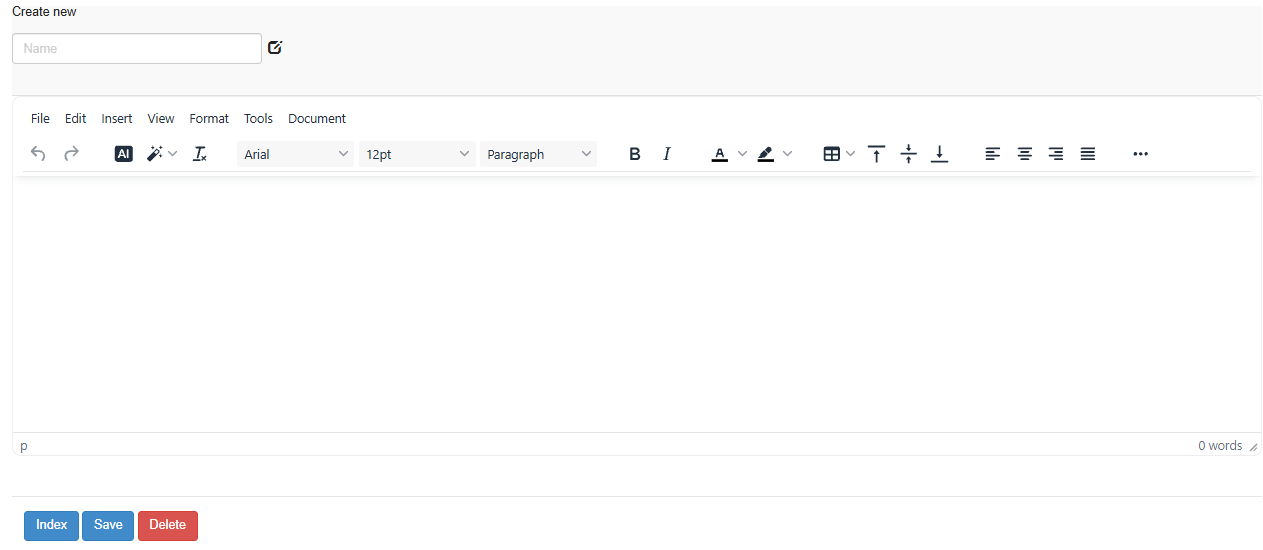
Click Create new. The page Create new opens.
-
Type the template’s name in the name box.
-
Write and format the content in the editor.
-
Click Save. You return to the list.
To change a template, click its edit icon in the list (or click the row and choose to edit it in the preview). The name is locked until you click the pencil next to it. Make the changes and click Save; a confirmation appears under the editor. Index takes you back to the list.
What you should see
Section titled “What you should see”The template is listed under Wysiwyg Templates with its Name and Created date. In the text editor, users find it under Insert template in the Document menu, together with Antenor’s built-in templates; see Write and format a document.
Good to know
Section titled “Good to know”- Same name. Saving a new template with the name of an existing one replaces the existing one, without a warning.
- Characters in the name. The characters ’ “ . * / - \ in a name are replaced by spaces.
- Content needed. A new template must have some content before it can be saved.
- Antenor’s templates. Antenor’s built-in templates are not listed on this page and cannot be changed here.
- Deleting. The trash icon in the list asks Delete template? and deletes the template when you click “Yes”. You can also click Delete while you edit a template.