Create a diagram with AI
The drawing editor can draw a first version of a diagram for you from a short description. Click Generate (the sparkle icon) on the toolbar, describe the diagram in “Describe your diagram”, and send it. The result is shown as a preview in the panel; Insert adds it to your drawing as ordinary shapes that you can move, change and delete. Then you check it, adjust it and save the diagram as usual. What you write in the panel is sent through Antenor BMS to an external AI service, so leave out personal data and confidential details. Generate needs the Admin level on the Super area row of your own rights (the level that shows the Super menu), and your company’s AI assistant. If you don’t see it or it doesn’t work, ask your user administrator.
Before you start
Section titled “Before you start”- You need access to Diagrams; see Get access to Diagrams.
- Generate needs the Admin level on the Super area row of your own rights (the level that shows the Super menu), and your company’s AI assistant. If you don’t see it or it doesn’t work, ask your user administrator. See also The Users page and the rights table.
- Open a new or existing diagram on the diagram page; see Create and edit a diagram.
- Click Generate (the sparkle icon) on the toolbar. The Generate panel opens.
- Check that the mode under the text field is Create Diagram (draw.io). The other choices in that list copy diagrams to and from the clipboard, or reset the panel.
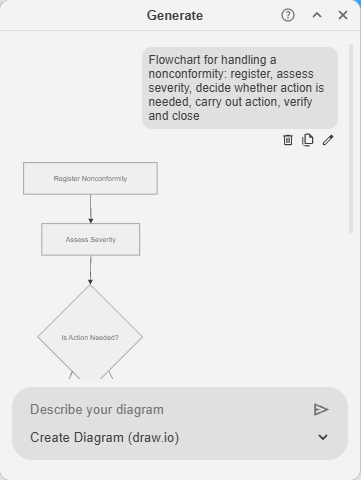
- In “Describe your diagram”, write what the diagram should show. Start with the kind of diagram, and list the steps in order, for example: “Flowchart for handling a nonconformity: register, assess severity, decide whether action is needed, carry out action, verify and close”.
- Click the send arrow, or press Enter.
- Wait for the result; it appears after a short wait. The result is shown as a preview in the panel, below your text.
- If the result is not what you wanted, change your description and send it again. The icons under your text delete it, copy it, or (the pencil) let you edit it.
- When you are happy with the result, click Insert under it. The diagram is added to your drawing as ordinary, editable shapes. The other buttons under the result are not needed for this.
- Check every step and every arrow, for example that decisions are drawn as diamonds, change the texts and shapes where needed, and tidy up the layout; see Tidy up a diagram.
- Give the diagram a name in Name if it doesn’t have one, and click Save Diagram.
What you should see
Section titled “What you should see”- After step 5, a preview of the generated diagram in the panel. The texts in the diagram are in the language you wrote the description in.
- After step 7, the same diagram in the drawing area, where you can select and change each shape.
Tips for a good description
Section titled “Tips for a good description”- Name the kind of diagram first, for example “Flowchart for …”.
- List the steps in order, with short, direct sentences.
- Write in the language you want the labels in. A description in Norwegian gives Norwegian texts; one in English gives English texts.
- Say which way it should run: add “vertical” or “horizontal”.
- Use one name per role and keep to it throughout the description.
- Include the decisions, with what happens on yes and on no.
- Split long processes into several short descriptions, and generate one part at a time.
- Leave out personal data and confidential details. The text is sent to an external AI service.
Good to know
Section titled “Good to know”- The AI does not know your company. It does not know your real processes, roles or documents, and it can get things wrong. Treat the result as a rough first draft and check it before you use it.
- A new description starts from scratch. Sending a new description gives a new diagram; it does not change the one you have already inserted. Adjust the inserted diagram by hand instead.
- Your company’s style. The result uses the AI’s own layout and colours, not your company’s. Use the format panel to adjust it.
- Nothing is saved until you save. Insert only adds the shapes to the drawing. Click Save Diagram to keep them; Cancel leaves without saving.