The drawing editor: menus, panels and toolbar
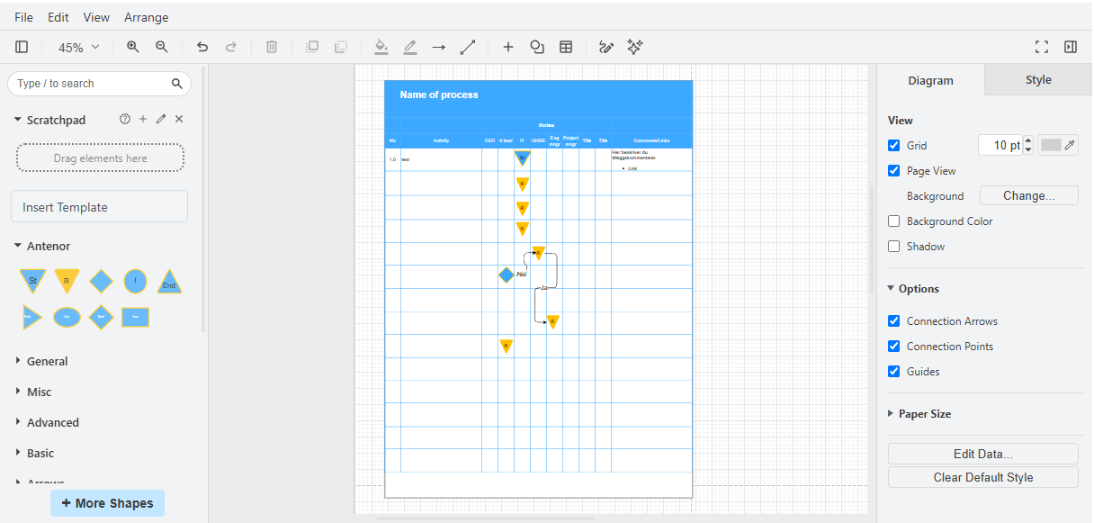
The drawing editor is the large area below Name and Description on the diagram page, where you draw the diagram itself. It is draw.io, a widely used drawing editor, set up by Antenor for Antenor BMS: it has Antenor’s own shapes, templates, links to content in Antenor BMS and AI generation, and it leaves out draw.io’s options for saving, opening and creating draw.io files; you can still export a picture of the drawing. The editor follows your language setting. This page describes the drawing editor in the order you meet it, in a wide window: the menu bar, the toolbar, the left panel, the drawing area and the right-hand format panel, then the dialogs Antenor has added. The fields and buttons around the drawing editor (Name, Description, Cancel, Save Diagram) are described in The diagram page. For a first walkthrough, see Draw your first flowchart.
Menu bar
Section titled “Menu bar”The menu bar has four menus: File, Edit, View and Arrange. Keyboard shortcuts are shown next to the menu items; the full list is in Keyboard shortcuts in the drawing editor.
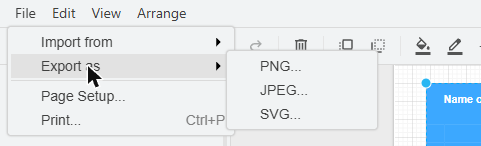
The File menu is shorter than in other versions of draw.io. It has only these items:
| Item | What it does |
|---|---|
| Import from | A submenu with three sources: your browser, your device or a web address. Importing is not covered in these articles; contact Antenor before you rely on it. |
| Export as | A submenu with PNG…, JPEG… and SVG…. Saves a picture of the drawing to your own device. Before the file is made, a dialog lets you choose, for example, the zoom, whether to export only the selected shapes, and (for PNG and SVG) a transparent background. |
| Page Setup… | Page settings for the drawing. Paper size is also set under Paper Size in the format panel. |
| Print… (Ctrl+P) | Prints the drawing. The print dialog is set to fit the drawing on one sheet (one sheet wide and one sheet tall); you can change the scale and the number of sheets there. |
There are no items for saving, opening or creating files. The diagram is saved with Save Diagram on the diagram page, not from this menu.
The Edit menu works on what you have selected. Its main items:
| Item | What it does |
|---|---|
| Undo and redo | Undo (Ctrl+Z) or redo (Ctrl+Y) your last changes. |
| Cut, copy, paste and delete | Cut (Ctrl+X), copy (Ctrl+C), paste (Ctrl+V) or delete (Delete) the selection. |
| Duplicate | Makes a copy of the selection next to it (Ctrl+D). |
| Find/Replace | Searches the text in the drawing (Ctrl+F). |
| Edit Data… | Adds your own properties (name and value) to a shape (Ctrl+M). |
| Edit Tooltip… | Text that appears when someone points at the shape (Alt+Shift+T). |
| Edit Style… | Shows the shape’s style as text, for exact changes (Ctrl+E). |
| Editing geometry and connection points | Edit the shape’s geometry (Ctrl+Shift+M), and the points where connectors can attach (Alt+Shift+Q). |
| Editing the text | Starts editing the text of the selected shape (F2 or Enter); see the text keys in Keyboard shortcuts in the drawing editor. |
| Edit Link… | Adds or changes a link on the shape, including links to content in Antenor BMS (Alt+Shift+L); see “Edit Link dialog” below. |
| Opening the link | Opens the link on the selected shape. |
| Selecting | Four items that select all shapes (Ctrl+Shift+I), all connectors (Ctrl+Shift+E), everything (Ctrl+A) or nothing (Ctrl+Shift+A). |
| Lock/Unlock | Locks the selection so it cannot be moved or changed by mistake, or unlocks it (Ctrl+L). |
The View menu decides what you see while you draw. Its main items:
| Item | What it does |
|---|---|
| Format panel | Shows or hides the format panel on the right (Ctrl+Shift+P). |
| Outline | A small overview of the whole drawing, for moving around in a large diagram (Ctrl+Shift+O). |
| Layers | Opens the layers dialog (Ctrl+Shift+L); see Tidy up a diagram. |
| Tags | Opens the tags dialog (Ctrl+K). |
| Scratchpad and the shapes panel | Show or hide the Scratchpad and the shapes panel on the left (shapes panel: Ctrl+Shift+K). |
| Page View | Shows the drawing on a page, or as an endless area. |
| Grid, Guides | Show or hide the grid (Ctrl+Shift+G) and the blue guide lines that help you line up shapes. |
| Connection Arrows, Connection Points | Show or hide the blue arrows that appear when you point at a shape (Alt+Shift+A), and the small crosses where connectors can attach (Alt+Shift+O). |
| Reset View | Resets the zoom and position of the view (Home, or Enter with nothing selected). |
| Zooming and full screen | Change the zoom, or show the drawing editor in the browser’s full screen. |
Arrange
Section titled “Arrange”The Arrange menu places and orders shapes. Its main items:
| Item | What it does |
|---|---|
| To Front, To Back | Puts the selection in front of (Ctrl+Shift+F) or behind (Ctrl+Shift+B) everything else. |
| Bring Forward, Send Backward | Moves a shape or group one step forward or back. |
| Rotating and reversing | Ctrl+R rotates a shape 90° or reverses the direction of a connector. |
| Align, Distribute | Lines up two or more shapes, or spaces them evenly. |
| Insert | Inserts content in the drawing, such as a template or a link. |
| Group, and the items for ungrouping and removing from a group | Joins shapes into one group (Ctrl+G), splits a group (Ctrl+Shift+U), or takes one shape out of its group. |
| Clearing bends | Removes the bends you have added to a connector, so it takes the direct route again (Alt+Shift+R). |
| Autosize | Fits the shape to its text (Ctrl+Shift+Y). |
Toolbar
Section titled “Toolbar”The toolbar sits below the menu bar. Point at a button to see its name. From left to right:
| Button | What it does |
|---|---|
| Panel icon (far left) | View options. You move around the drawing by holding the space bar and dragging; see Keyboard shortcuts in the drawing editor. |
| Zoom level (for example 100 %) | Opens the zoom menu: Fit Window, Reset View, fixed levels from 25 % to 400 %, Fit Page Width, Fit Page (Ctrl+J) and Custom…. |
| Magnifiers | Zoom in or out one step. You can also zoom with Alt and the mouse wheel, or Ctrl + and Ctrl -. |
| Curved arrows | Undo or redo the last change. |
| Trash | Deletes the selection. Greyed out while nothing is selected. |
| To Front, To Back | Same as in the Arrange menu. Greyed out while nothing is selected. |
| Paint bucket, pen | The fill colour and the line colour of the selected shapes. A shadow is set on the Style tab of the format panel. |
| Arrow icon | Settings for connectors. |
| Line icon | How connectors are routed between shapes, for example straight or with right-angled bends. |
| + | Inserts content, such as a link. |
| Shapes icon | Shapes to add to the drawing. |
| Table icon | Inserts a table; drag to choose the number of rows and columns. |
| Freehand icon | Draw by hand with the mouse (shortcut X). |
| Generate (sparkle icon) | Opens the Generate panel for creating a diagram with AI; see “Generate panel” below. |
| Full-screen icon (far right) | Shows the drawing editor in the browser’s full screen. |
| Panel icon (far right) | Shows or hides the format panel (Ctrl+Shift+P). |
Left panel
Section titled “Left panel”The left panel holds the shapes you can add. From top to bottom:
| Part | What it does |
|---|---|
| Search field (“Type / to search”) | Searches all shape libraries by name. Type a word and press Enter; try other words if you find nothing. |
| Scratchpad (“Drag elements here”) | Your own collection of shapes. Drag shapes from the drawing into it to reuse them; click an item to add a copy to the drawing. |
| Insert Template | Opens the template dialog, with Antenor’s templates under Antenor (3): Raci, Swimlane Horizontal and Swimlane Vertical, beside draw.io’s own categories such as Basic and Flowcharts. Choose a template and click Insert, or Cancel. See Make a process map. |
| Antenor | Antenor’s shape library for process maps (see the table below). |
| General, Misc, Advanced, Basic, Arrows and more | draw.io’s standard shape libraries. General holds the common shapes such as rectangles, ellipses, diamonds and text. |
| + More Shapes | Chooses which libraries are shown in the panel, for example a library of flowchart symbols. |
Click a shape to add it to the drawing, or drag it to the exact spot.
The Antenor library
Section titled “The Antenor library”The Antenor library is open when the drawing editor starts, and it has nine shapes. The names below are the names the drawing editor shows when you point at a shape; they are in English.
| Shape | Text in the shape |
|---|---|
| Start | St |
| Responsible | R |
| Decision | |
| I/C | I |
| End | End |
| Arrow | |
| Circle | |
| Diamond | |
| Rectangle |
You can change or remove the text of any shape after you have added it.
Drawing area
Section titled “Drawing area”The middle of the editor is the drawing area. With Page View on, you draw on a page, and the page size follows Paper Size. The grid helps you place shapes neatly. A diagram has one page; the drawing editor has no page tabs, and you cannot add pages.
Format panel (right)
Section titled “Format panel (right)”The format panel shows the settings for what is selected.
With nothing selected
Section titled “With nothing selected”Two tabs: Diagram and Style. The Diagram tab holds the settings for the whole drawing:
| Setting | What it does | Default in a new diagram |
|---|---|---|
| Grid | Shows the grid. The number beside it is the grid size, and the colour box sets the grid colour. | On, 10 pt |
| Page View | Shows the drawing on a page. | On |
| Background | Change… sets a background for the drawing. | |
| Background Color | Colours the background. | Off |
| Shadow | Shadow for the drawing. | Off |
| Connection Arrows | Shows the blue arrows when you point at a shape. | On |
| Connection Points | Shows the small crosses where connectors can attach. | On |
| Guides | Shows blue guide lines while you move shapes. | On |
| Paper Size | The size and orientation of the page. | |
| Edit Data… | Properties for the drawing as a whole. | |
| Clear Default Style | Removes a default style you have set, so new shapes get draw.io’s normal style again. |
With a shape selected
Section titled “With a shape selected”Three tabs: Style, Text and Arrange.
| Tab | What you set there |
|---|---|
| Style | Fill colour (or no fill), line colour, line pattern and thickness, opacity, rounded corners, shadow, and a hand-drawn look. Buttons copy the style of one shape and paste it on others, and set the style as the default for new shapes. For a connector: the route, the corners and the arrowheads at each end. |
| Text | Font, size, colour, alignment and spacing of the text. |
| Arrange | Size (width and height, optionally keeping the proportions) and position, angle, rotating and flipping, copying a size to other shapes, fitting a shape to its text, and buttons for editing the shape’s data and its link. For a connector, resetting its bends; for tables and lanes, adding rows. |
Only the settings that fit everything you have selected are shown. How to use them: Tidy up a diagram.
Edit Link dialog
Section titled “Edit Link dialog”Edit > Edit Link… (Alt+Shift+L) opens the link dialog for the selected shape. At the top, Antenor has added Links from ABMS, with the categories Documents, Reports, Company Menu, Risk Management, Substance register, Competency Management, KPI Scorecard and Equipment Management. Documents shows DOCUMENT MODULES, the document modules in your company; choose one, then search for and pick a document. Picking an item fills the link field.
Below, Edit Link: is draw.io’s own link field (“Drag URLs here”), where you can also type or paste any web address. The round button beside the link field is selected when the dialog opens; leave it selected. The second round button chooses a page (Page-1); a diagram has one page, so it is not needed. OK adds the link; Cancel closes the dialog without changes. Step by step: Link shapes to documents and other content in ABMS.
Links from ABMS needs the Admin level on the Super area row of your own rights (the level that shows the Super menu). If you don’t see it or it doesn’t work, ask your user administrator. See also The Users page and the rights table.
Generate panel
Section titled “Generate panel”Generate on the toolbar opens a panel where you describe a diagram in your own words (“Describe your diagram”), with the mode Create Diagram (draw.io). The result is shown as a preview in the panel, and Insert adds it to the drawing as ordinary shapes you can change. Step by step: Create a diagram with AI.
Generate needs the Admin level on the Super area row of your own rights (the level that shows the Super menu), and your company’s AI assistant. If you don’t see it or it doesn’t work, ask your user administrator.
How this editor differs from draw.io elsewhere
Section titled “How this editor differs from draw.io elsewhere”If you have used draw.io before, for example the free version on the web, note these differences:
- One page per diagram. A diagram has one page; the drawing editor has no page tabs, and you cannot add pages.
- Export only as pictures to your own device. File > Export as offers PNG, JPEG and SVG. Other export formats are not available.
- No saving or opening files from the File menu. The diagram is saved in Antenor BMS with Save Diagram on the diagram page.
- Printing fits the drawing to one page by default.
- Antenor’s additions: the Antenor shape library, the Antenor templates under Insert Template, Links from ABMS in the link dialog, and Generate for AI.
Next step
Section titled “Next step”Related
Section titled “Related”- Keyboard shortcuts in the drawing editor
- The diagram page
- Link shapes to documents and other content in ABMS
- Create a diagram with AI
- Tidy up a diagram: align, style, group and layers
- Create and edit a diagram
- Links from ABMS: categories and what you can link to
- Drawing editor details: menus, templates, Generate and mouse actions
- Connectors, text and tables: options in the drawing editor