Create an action and send it to someone
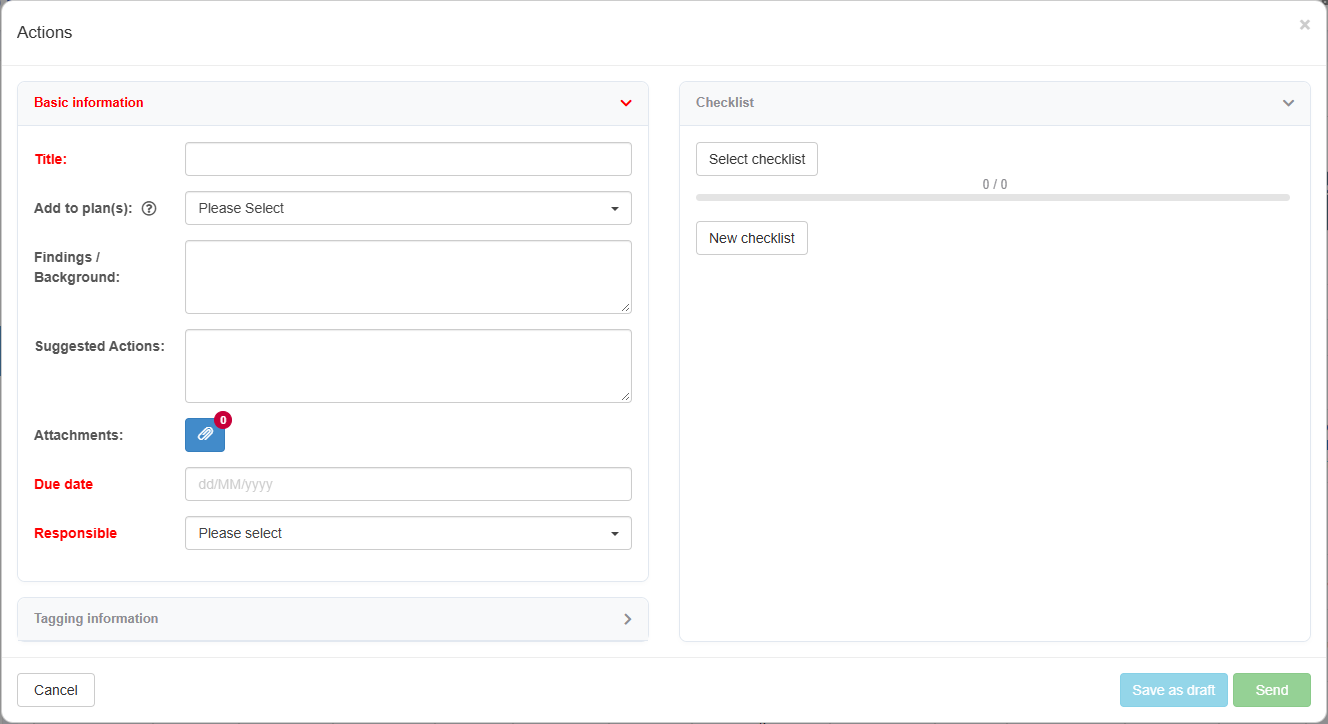
To create an action, click New action in the Action Manager (Actions in the left menu), or the flag button (Create new action) on a document in edit mode. Fill in Title:, Due date and Responsible, then click Send. The first Send creates the action and sends it in one step; the responsible gets an e-mail, unless you chose yourself, and the action shows on their dashboard if your company’s dashboard has the Actions awaiting your input box. Tagging fields and checklist templates are your company’s own setup, so the dialog may look slightly different from the example shown here.
Before you start
Section titled “Before you start”- To use New action in the Action Manager, you need the Create level or higher on the Action Manager row of your rights. The Read right on that row is enough to open the Action Manager and to use the flag on a document. By default every user has these rights, but your company may have removed them for some users; if you do not have them, ask your user administrator.
- On a document, the flag button is disabled if you do not have access to actions.
- Only one person can be responsible for an action.
-
Open the action dialog in one of these ways:
- In the left menu, click Actions to open the Action Manager, then click New action.
- On a document in edit mode, click the flag (Create new action). The action is then connected to the document; see Edit mode: buttons, the send dialog, the required-fields dialog.
-
Under Basic information, type a Title:.
-
Optionally fill in Findings / Background: and Suggested Actions:, add the action to a plan under Add to plan(s):, and add files or links with the paper clip next to Attachments:.
-
Fill in the Due date: the date the action must be done by.
-
Under Responsible, choose the person who is to carry out the action. You can choose yourself.
-
Optionally open Tagging information and fill in your company’s tagging fields, and add tasks under Checklist with Select checklist or New checklist.
-
Click Send. The button stays disabled until Title:, Due date and Responsible are filled in.
What you should see
Section titled “What you should see”The action is created with the status In progress, and the responsible now holds it. They get an e-mail that says, for example, “An action is waiting for your input”, and the action shows in Actions awaiting your input on their dashboard (if your company’s dashboard has this box). You can follow it in All Actions in the Action Manager.
Good to know
Section titled “Good to know”- Save as draft instead. Click Save as draft to keep the action without sending it. It stays with you, with the status New, and you can send it later. Save as draft needs only Title:; it is disabled until a title is filled in.
- Sending to yourself. If you choose yourself as Responsible, the action is accepted at once and no e-mail is sent. You can work on it, tick off the checklist, and close it with Complete action; see Handle an action you received.
- Actions on documents. An action connected to a document shows the document as its source and is listed in the document’s Actions view; see The document page in view mode. While it is not closed, the document cannot be published.
- Actions in other modules. Actions can also be created from a risk element, an equipment item, a person in Competency or a data sheet in the Substance register; see Follow up a risk element with actions, The equipment page, The person details page and The data sheet page.
- Deleting. In the Action Manager lists, the trash icon is shown only to users with the Create level or higher on the Action Manager row. With it, you can delete an action you created while its status is New or In progress; users with the Admin level on the Super area row can delete any action there, including a Closed one. An action connected to a document or another module cannot be deleted in the Action Manager lists. An action connected to a document can be deleted from the document’s Actions list by its creator, or by a user with the Admin level on the Super area row, while its status is New or In progress and that list shows them the row buttons; see Actions linked to documents and other modules. Deleting the document at its first step deletes its actions too; see Delete or archive a document. See also The Action Manager index: tabs, columns, filters and buttons.
Next step
Section titled “Next step”Related
Section titled “Related”- The action dialog: every field, panel and button
- Action statuses, who holds an action, and e-mails
- Work with plans
- Approve or reject a document you received
- Set up action reminders
- Actions linked to documents and other modules
- Register a nonconformity or incident and follow it to closure
- Carry out an audit or inspection in ABMS