The person details page
The details page shows one person in Competency: their personal and employment information, the actions linked to them, and every competency they hold. It opens when you click a person’s row on the User information tab, or after you add a person. The page has three sections, described below in the order they appear: User information and Competency are open when the page loads; Actions is closed.
Who can open and change the page
Section titled “Who can open and change the page”| Your right in Competency | Open | Change |
|---|---|---|
| Read | Your own record | Nothing |
| Edit or Create | Your own record | Your own record |
| Approve | Your own record and the people within your responsibility | The same |
| Manage or higher | Everyone | Everyone |
Without the Edit right, the fields are disabled. Your user administrator sets your right; users with the Manage right or higher set who is responsible for which people.
User information
Section titled “User information”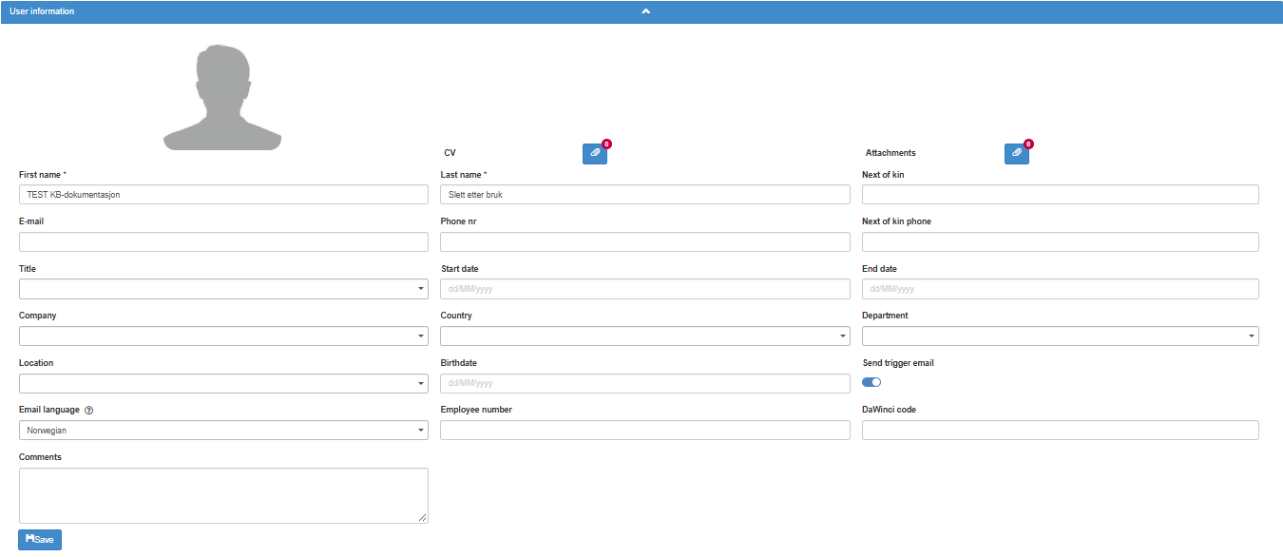
| Control | What it does | Rules |
|---|---|---|
| Profile image (tooltip “Click to upload image “) | Click to upload a picture of the person. A placeholder is shown until one is uploaded. | Edit or higher. At most 5 MB, otherwise “Profile image is bigger than 5MB”. The image is resized. |
| CV (paper clip with a count) | Opens a dialog to upload files, link to content in another ABMS module, or add external web addresses, and to close it again. Hover to see the files. | Shown only with Edit or higher. |
| Attachments (paper clip) | The same dialog, for general attachments about the person. | Shown only with Edit or higher. |
| First name *, Last name * | The person’s name. | Required. Disabled for a person linked to a login to ABMS; the names come from the login. |
| Next of kin | Name of the next of kin. | |
| The person’s e-mail address. | Must be unique in Competency: “The e-mail is already in use, please try another one.”. Disabled for a person linked to a login. Saving an e-mail that belongs to an ABMS user links the person to that login. | |
| Phone nr | Phone number. | |
| Next of kin phone | ||
| Title | The person’s title. | Can be left empty. |
| Start date, End date | Employment dates. | An end date that has passed makes the person expired; see “After saving” below. |
| Global fields | One list per global field your company uses in Competency. | Only active values. |
| Birthdate | The person’s date of birth. | |
| Send trigger email (switch) | Whether the person gets reminder e-mails about their own expiring competencies. | On for new people. The person must have an e-mail address, and e-mails are sent only when a reminder rule covers the person; see Set up reminders for expiring competencies. |
| Email language | “English” or “Norwegian”: the language of the e-mails the person gets from Competency. Tooltip: “This language is used only for emails sent from the Competency module. This field is only shown for competency users who do not have an ABMS system user.” | Shown only for a person without a login to ABMS. Norwegian for new people. |
| Employee number, DaWinci code | Numbers used in your company. | Optional. A whole number of 1 or more, at most 10 digits, otherwise “… must be natural number”. |
| Comments | Free text about the person. | |
| Save | Saves the whole section. | Disabled, with the tooltip “Please fill in all required fields to activate”, while First name or Last name is empty. |
With the Approve right (below Manage), Save may ask you to confirm first: “Please confirm that you wish to save the changes” when you save your own record, or “Selecting only areas for which you are not responsible will mean you will no longer be able to see this user. Do you wish to proceed?” when the person’s title or global fields fall outside your responsibility.
After saving, the message “User details has been saved successfully” appears. If the end date has passed, the person is hidden from the list (find them with Show expired users), from the Report and Analysis tabs and from reminder e-mails, and everything they were responsible for in Competency is removed. See Update a person’s information or end their employment.
Deleting a file from CV or Attachments asks “Please confirm that you wish to delete this file”.
Actions
Section titled “Actions”The Actions section lists the actions in the Action Manager that are linked to this person. It is shown only to users with the Read right on the Action Manager row.
| Control | What it does | Rules |
|---|---|---|
| Action list | The actions linked to the person. | |
| New action | Opens the action dialog to create an action linked to the person; see Create an action and send it to someone. | Needs the Edit right (or higher) on the Competency row. |
Competency
Section titled “Competency”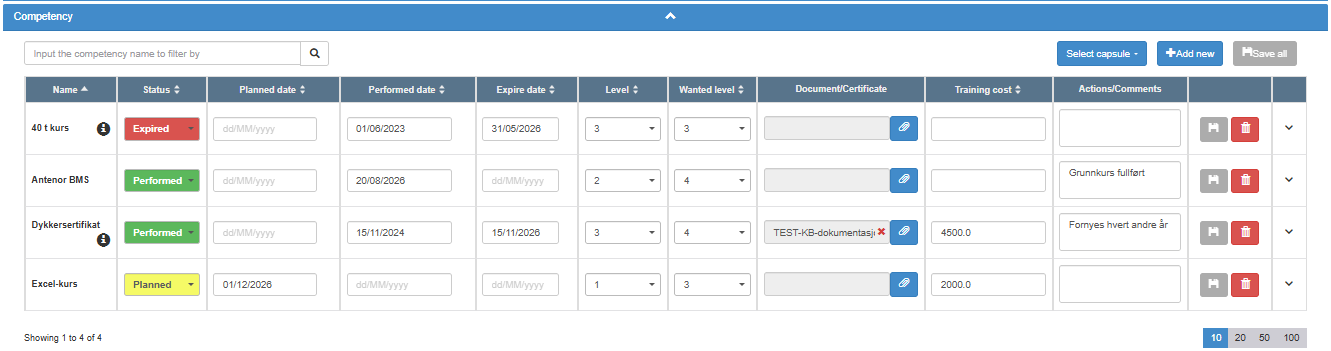
Above the table:
| Control | What it does | Rules |
|---|---|---|
| “Input the competency name to filter by” | Shows only the rows whose competency name contains what you type. | |
| Select capsule | Tick a capsule to link it to the person: every competency in the capsule that the person lacks is added as a new row and saved at once. Untick to remove the link; the rows stay. | Edit or higher. Without Edit, the person’s capsules are shown as text. |
| Add new | Adds one empty row. | Only one unsaved empty row at a time: “Please select the competency before adding a new one.” |
| Save all | Saves every changed row. | Disabled until something has changed. |
The table, one row per competency, 10 rows per page. Click a column heading to sort.
| Column | What it does | Values and rules |
|---|---|---|
| Name | The competency. On a new row, type to pick from the list of competencies (up to 8 suggestions). Typing a name that does not exist and pressing Enter creates a new competency with that name for the whole company. The info icon shows the competency’s description. | A competency the person already has is refused: “ You cannot add a competency already linked to the user”. |
| Status | The state of the competency. The Status field is coloured by its status; an empty status has no colour. | Empty, Open, Planned, Performed, Expired. Set to Expired automatically when the expire date has passed: on save, and nightly for rows with the status Open, Planned or Performed (a row with no status only on save); not set back when the expire date is moved forward. |
| Planned date | When the competency is planned. | Date. |
| Performed date | When it was carried out. | Date. |
| Expire date | When it runs out. | Date. Decides the Expired status and the reminder e-mails. |
| Level | The person’s level. | 1 up to your company’s highest level (5 unless it has been changed in the Admin tab), or N/A. |
| Wanted level | The level the person should reach. | Same values as Level. |
| Document/Certificate | The certificate. Click the paper clip to Upload a file, link to content in another ABMS module, or add an external web address (http or https). Click the name to open or download it. | Only on a saved row; before that the paper clip is disabled with “Upload is disabled until the competence is saved.”. Only the newest certificate is shown; older ones are in the history. |
| Training cost | What the training cost. | A number, at most 15 characters. |
| Actions/Comments | Free text. | |
| Save icon (tooltip Save) | Saves the row. | Enabled when the row has changed. |
| Trash icon (tooltip Remove) | Deletes the row after “Please confirm deletion of competency”. | |
| Chevron | Shows the row’s history: earlier versions of status, dates, levels, certificate, cost and comments. | N/A where a value was empty. |
After saving or removing a row, the message “User details saved successfully” appears. See Register and update a person’s competencies.
Next step
Section titled “Next step”Related
Section titled “Related”- Find a person and read their competencies
- Add a person to Competency
- The competency user list
- The action dialog: every field, panel and button
- Set up reminders for expiring competencies
- Manage competency types, capsules and levels
- Choose the language for people outside ABMS
- Competency rows: status, expiry, colours and history
- A person’s record in Competency: creation, login link, files and leaving