Draw your first flowchart
A flowchart shows the steps of a process in order, with decisions where the path splits. To draw one, click New Diagram in the diagram library, give the diagram a name, add shapes from the Antenor library in the drawing editor, write a text in each shape, connect the shapes with arrows, tidy up and click Save Diagram. The quickest way to build a chain of steps is the blue connection arrows that appear around a shape when you point at it: one click adds the next shape, already connected. This article takes you from an empty page to a saved flowchart. The editor’s menus and panels are described in The drawing editor: menus, panels and toolbar.
Before you start
Section titled “Before you start”- You need access to Diagrams; see Get access to Diagrams.
- Sketch the steps first: where the process starts, the steps in order, the decisions (points where the answer is yes or no), and where it ends.
Steps: start the diagram
Section titled “Steps: start the diagram”- In the left menu, click Diagrams, then New Diagram. The diagram page opens, with Name, Description, Cancel and Save Diagram at the top and the drawing editor below them.
- Type a name in Name, and optionally a Description. Wait until the drawing editor has loaded.
- For this walkthrough, start on the blank page. Templates are covered in Make a process map with the Antenor templates and shapes.
Steps: add shapes and text
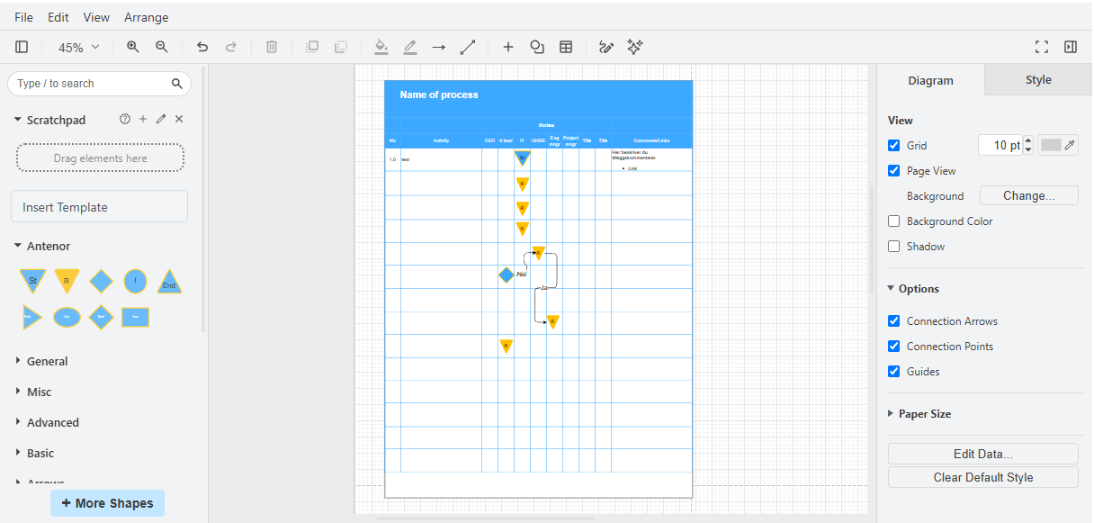
Section titled “Steps: add shapes and text”- Find the shapes in the left panel. Below the search field, Scratchpad and the Insert Template button is the Antenor library, which is open when the drawing editor starts. Point at a shape to see its name; the names are in English. For a flowchart you need Start for the start, Rectangle for each step, Diamond for each decision and End for the end. The standard libraries further down, such as General, are closed; click a library’s name to open it.
- Click Start in the Antenor library. It is added to the drawing; drag it to where you want it. You can also drag a shape from the panel straight to the right spot.
- Write the text: with the shape selected, just start typing, or double-click the shape. Enter starts a new line in the text. When you are done, press Ctrl+Enter or click an empty part of the drawing; Escape discards the change.
- Add the next step: point at the shape. Four blue connection arrows appear around it. Click the arrow in the direction the process goes; a small box of shapes appears next to the arrow. Click a shape in the box. The new shape is added in that direction, already connected with an arrow. The first choice in the box is a copy of the shape you started from. You can also drag Rectangle from the Antenor library and drop it on a blue connection arrow.
- Write the text in the new shape, and repeat for each step. For a decision, add a Diamond, write the question, and add one shape for each answer from the diamond’s connection arrows. Finish with End.
Steps: connect shapes and label the arrows
Section titled “Steps: connect shapes and label the arrows”- To connect two shapes that are already in the drawing, point at the first shape, drag from one of its blue connection arrows to the second shape, and release when the second shape’s outline turns blue. The arrow then follows the shape when you move it. To attach the arrow to a fixed point instead, release it on one of the small crosses on the shape when the cross turns green.
- To write text on an arrow, such as Yes or No after a decision, double-click the arrow where the text should be and type. Drag the small yellow diamond to move the text.
- To change how an arrow looks, such as its route, its arrowheads or a dashed line, select it and use the Style tab in the format panel on the right; the settings are listed in The drawing editor: menus, panels and toolbar. To bend an arrow by hand, drag its line. To remove the bends again, select the arrow and press Alt+Shift+R; the item for clearing bends in the Arrange menu does the same.
Steps: tidy up and save
Section titled “Steps: tidy up and save”- Select the shapes you want to line up (Ctrl+A selects everything), choose Arrange > Align, and pick the edge or centre to line up on. Arrange > Distribute gives them even spacing. More ways to tidy up: Tidy up a diagram.
- Check the name, and click Save Diagram above the drawing editor, next to Cancel. The diagram is saved and you return to the library.
What you should see
Section titled “What you should see”- After step 7, a new shape connected to the first one with an arrow.
- After saving, your flowchart in the diagram library, with a thumbnail of the drawing and the name you gave it.
Good practice for flowcharts
Section titled “Good practice for flowcharts”- One direction. Let the process run one way, top to bottom or left to right. Top to bottom suits printing; left to right suits a wide screen or a wall.
- Standard symbols. A clear start and end shape, a rectangle for each step, and a diamond for each decision with yes and no. Use the same shape for the same kind of element throughout.
- Short labels. Name each step with a verb and a noun, such as “Register nonconformity”. Keep the whole diagram at one level of detail.
- Consistent look. Give colours one meaning each, keep shapes the same size, and add a legend if the diagram is complex. A dashed arrow can mark an optional step.
- Show who does what. If several roles take part, use swimlanes; see Make a process map with the Antenor templates and shapes.
Good to know
Section titled “Good to know”- Dropping a shape on another shape replaces it. Drop new shapes on empty space or on a blue connection arrow.
- Delete, resize and turn. Delete removes the selected shape (Backspace also works). Drag the round handles to resize, and the round arrow at the top right to rotate. Ctrl+Z undoes your last change.
- Quick shapes. Double-click an empty spot in the drawing to get a box of common shapes.
- More libraries. + More Shapes at the bottom of the left panel chooses which libraries are shown, for example one with draw.io’s full set of flowchart symbols.
- Cancel loses your work. Cancel on the diagram page leaves without asking, and nothing is saved. Save before you leave.
- One page. A diagram has one page; the drawing editor has no page tabs, and you cannot add pages.
- Shortcuts. See Keyboard shortcuts in the drawing editor.
Next step
Section titled “Next step”- Make a process map with the Antenor templates and shapes
- Tidy up a diagram: align, style, group and layers