Edit a manual value in a KPI scorecard
To change a value in a KPI scorecard, open the scorecard, click the pencil in the top-left cell of the table to switch to edit mode, then click the month cell in a manual row and type the new value. Values are saved when you leave each cell. The floppy-disk icon then reloads the scorecard and leaves edit mode.
Before you start
Section titled “Before you start”- The KPI Scorecard module must be enabled for your company; Antenor enables it on request. If the menu entry is missing, either the module is not enabled, you do not have at least the Read right on the KPI row, or you have no scorecard you can read and no Create right on the KPI row: ask your user administrator first, then Antenor support.
- You need the Edit right or higher on the scorecard’s row. With Read you can open and export it, but not change values. Your user administrator sets this; see Rights, years, favourites and Excel export in KPI Scorecard.
- You can only type values in manual rows. Rows calculated from documents (system rows) fill themselves.
-
In the left menu, click KPI Scorecard. The KPI Index page opens (KPI Scorecard menu and scorecard list).
-
Click the scorecard you want to edit. It opens at the copy for the current calendar year.
-
If you need another year, choose it in Select KPI Year. Choosing a year that has no copy creates it, with the same rows and settings and empty manual values. Do not choose a year after the current one unless you mean to: the new copy then becomes the copy for the highest year, which the list and the menu take the scorecard’s name and dates from and which later year copies are made from. If that happens by mistake, contact Antenor.
-
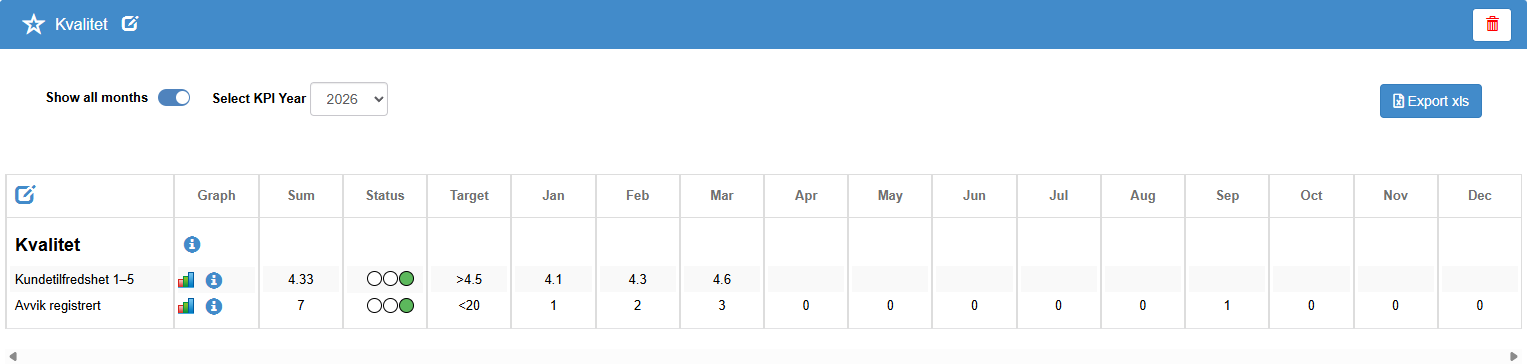
If the month columns are hidden, switch on Show all months. A new scorecard may open with them hidden.
-
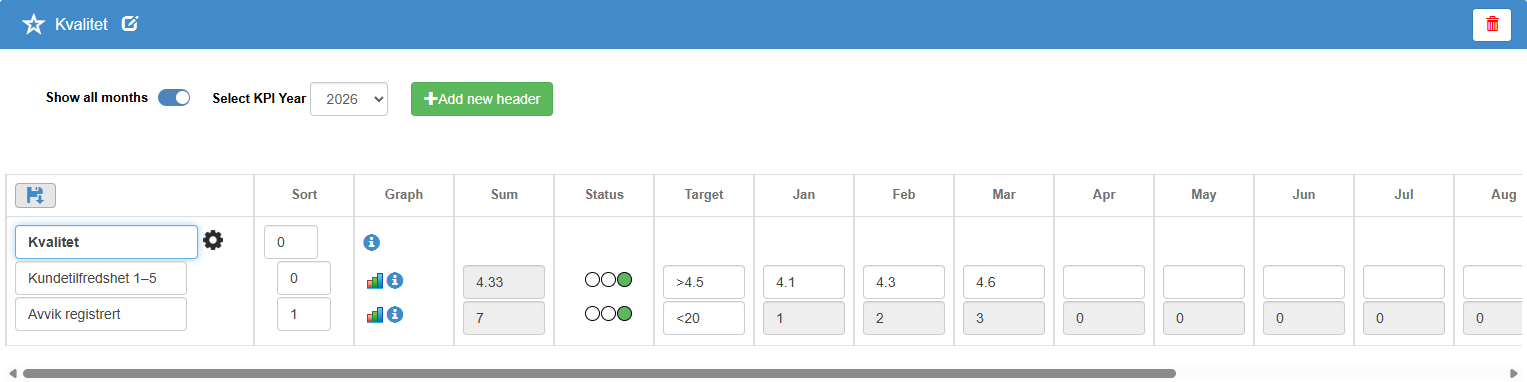
Click the pencil in the top-left cell of the table, above the first header. The values turn into input boxes, and the pencil becomes a floppy-disk icon.
-
Click the month cell in the manual row you want to change.
-
Type the new value. Use a comma or a period as decimal separator, and no thousands separator: “1,000” is read as 1.
-
Click outside the cell, or press Tab. The value is saved when the cell loses focus.
-
When you have finished, click the floppy-disk icon in the same top-left cell. It reloads the scorecard and leaves edit mode.
What you should see
Section titled “What you should see”- When you leave the cell, the Sum column for that row shows the recalculated result. There is no other confirmation message.
- When you click the floppy-disk icon, the scorecard reloads and leaves edit mode. The sum and the light in the Status column are now up to date. The light is refreshed at this point, not while you type.
- If you open the scorecard again later, the new value is in the month cell.
Good to know
Section titled “Good to know”Manual rows and system rows. In edit mode, the month cells of a system row are greyed out. Their values are counted from documents every time the scorecard is displayed.
What the Sum column shows on a manual row. It depends on the row’s calculation type; the full tables for manual and system rows are in Calculations and traffic lights in a KPI scorecard. Months you leave empty are not counted in an average (manual row). If a month’s real value is zero, type 0 rather than leaving the cell empty.
How the traffic light is decided. The light in the Status column compares the sum with the row’s green and red boundaries, and nothing else. On a manual row with Sum or Count, the boundaries are scaled by the latest filled month: if that is June, the row is compared against half of the yearly boundaries. On a manual row with Average or Show last registration, the boundaries are used as they are. The target is shown for information, with a > or < sign; it does not affect the light. A “-” in the Target column means the row has no target or does not have both boundaries. An empty boundary counts as 0, so a manual row with only a green or only a red boundary still gets a light. No light is shown on a manual row when none of its months has a value yet, or when green and red are equal, which includes a row with neither boundary filled in. A checklist is in Why is a traffic light red, yellow or missing?.
Sub-rows. Some manual rows have sub-rows that you show or hide with the small arrow next to the row name. You type values in them the same way. The row’s own sum comes from its own month cells, not from its sub-rows.
Renaming and deleting. To rename the scorecard, use the pencil next to the scorecard name, with the tooltip Edit name; this needs the Edit right or higher on the scorecard’s row. Deleting a scorecard needs the Create right or higher on its row and removes all its years.