KPI scorecard page in view mode
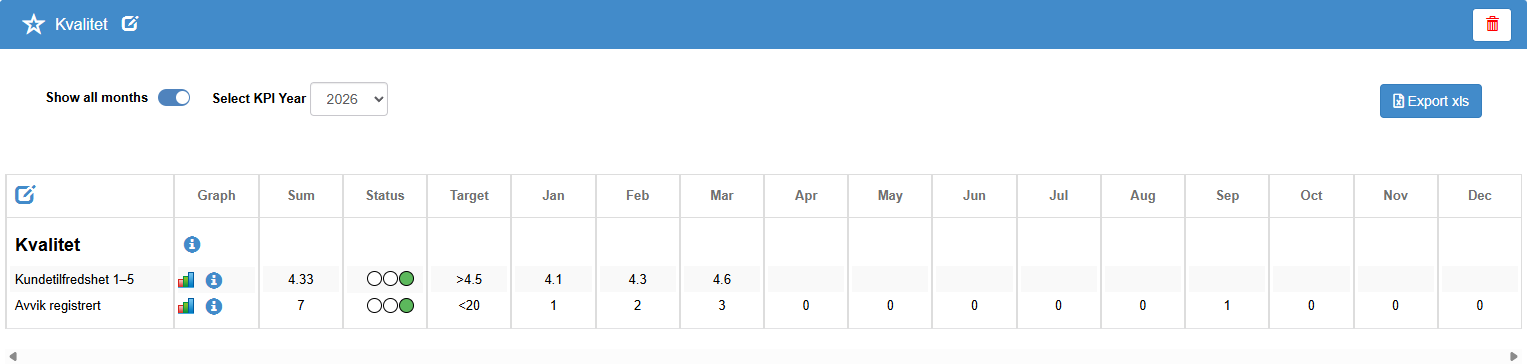
The scorecard page shows one scorecard as a table of headers, rows and months for one year. You open it by clicking a scorecard in the KPI Scorecard menu or on the KPI Index page; it opens at the copy for the current calendar year. You need at least the Read right on the scorecard’s row (Rights, years, favourites and Excel export in KPI Scorecard). This page describes the controls you see before you switch to edit mode.
Above the table
Section titled “Above the table”Star. Adds the scorecard to your favourites, which show in the favourites widget Your favourite documents on your dashboard. The tooltip is Add to favourites. When the scorecard is a favourite the star is filled; click it again to remove it.
Scorecard name and pencil. The pencil next to the name, with the tooltip Edit name, is shown if you have the Edit right or higher on the scorecard’s row. The first click turns the name into a text box. Type the new name in the box. Click the icon with the tooltip Save to save. The new name applies only to the copy for the year you are looking at; it changes the name and the Document updated date in the list only when that is the copy for the highest year.
Trash button. At the right end of the title bar, shown if you have the Create right on the scorecard’s row. Opens the Delete KPI dialog: Are you sure you want to delete KPI “<name>”?, with No and Yes. Yes deletes the scorecard with all its years and takes you to the dashboard.
Show all months. A switch that shows or hides the twelve month columns. Your choice is saved for you on this scorecard. A new scorecard may open with the months hidden; switch this on to see them.
Select KPI Year. Chooses which year’s copy you see. The list contains the current year, every year since your company’s oldest module was created, and years found in the date fields that the scorecard’s system rows use. It opens at the current calendar year. Choosing a year that has no copy creates that copy; anyone with Read can do this. Do not choose a year after the current one unless you mean to: its copy then becomes the copy for the highest year, which the list and the menu take the scorecard’s name and dates from and which later year copies are made from. If that happens by mistake, contact Antenor. See Rights, years, favourites and Excel export in KPI Scorecard.
Export xls. Downloads an Excel file of the year you are looking at. Hidden in edit mode. Needs Read.
The table
Section titled “The table”Pencil in the top-left cell. Shown if you have the Edit right or higher on the scorecard’s row. Switches to edit mode; see Edit mode in a KPI scorecard.
The columns, from left to right:
| Column | What it shows |
|---|---|
| Sort | Only shown in edit mode. |
| Graph | On a header: an i icon that opens its info text. On a row or sub-row: a small graph icon and an i icon. |
| Sum | The row’s figure for the year, according to its calculation type. Read-only. See Calculations and traffic lights in a KPI scorecard. |
| Status | The traffic light: three circles, one lit red, yellow or green, or none lit. See Why is a traffic light red, yellow or missing?. |
| Target | The target with a > or < sign (a target of 0 has no sign), or “-” if the row has no target or does not have both boundaries. In edit mode the cell can be edited when both boundaries are set; otherwise it is disabled with the tooltip “Open configuration using the cog to set target and colour thresholds”. |
| Jan … Dec | Twelve month cells. Shown when Show all months is on. |
Chevron next to a row name. Shown on rows that have sub-rows. A right-pointing chevron expands the row; a down-pointing chevron collapses it. Whether a row is open is saved for you. Expanding a row also calculates its sub-rows’ values.
Graphs
Section titled “Graphs”Clicking a row’s graph icon draws a chart of that row’s twelve months below the table. The chart is a bar chart (Bar) unless the row has another saved graph type. Rows with sub-rows also offer Stacked bar and Pie, which show the sub-rows. Each chart has a settings icon and a remove icon; clicking the chart’s header also removes it.
The settings icon opens the graph settings dialog:
| Control | Options and effect |
|---|---|
| Choose graph type: | Bar, Line, and for rows with sub-rows also Stacked bar and Pie. Changes the chart type. |
| Choose year to compare with : | A year to draw against the current one. Choosing a year here also switches the whole page to that year, and creates that year’s copy if it has none, so the same care applies as in Select KPI Year. |
| And type | Bar or Line, for the comparison. |
| Cancel | Closes without changes. |
| Apply | Draws the chart with your choices. |
Dialogs
Section titled “Dialogs”Info dialog. Opens with the i icon. The title is the header or row name, and the dialog shows the info text with OK. In edit mode it has a text box with Cancel and Save instead.
No-access dialog. Shown if you open a scorecard you do not have Read on. It lists, by first and last name, the active users at your company who have the Admin level on the Super area row, that is your user administrators, and has a close button.
Numbers and printing
Section titled “Numbers and printing”Numbers follow your user language. With Norwegian, month cells and targets use a decimal comma (4,1 and >4,5), while the Sum column shows a period (4.33) in both languages. When you type, use a comma or a period as decimal separator, and no thousands separator: “1,000” is read as 1.
There is no print button. If you print the page from your browser, the buttons and controls are left out of the printout.
Next step
Section titled “Next step”Related
Section titled “Related”- KPI Scorecard menu and scorecard list
- Calculations and traffic lights in a KPI scorecard
- Why is a traffic light red, yellow or missing?
- Rights, years, favourites and Excel export in KPI Scorecard
- When does “Document updated” change in the KPI list?
- KPI list and scorecard page: display details
- KPI year copies and access: detailed rules