KPI Scorecard menu and scorecard list
The KPI Scorecard entry in the left menu and the KPI Index page are where you find, open, create and delete scorecards. You reach the list by clicking KPI Scorecard in the left menu. You see only the scorecards you have at least Read on, and only if you also have at least Read on the KPI row; the rights are explained in Rights, years, favourites and Excel export in KPI Scorecard.
The module must be enabled for your company; Antenor enables it on request. If the menu entry is missing, either the module is not enabled, you do not have at least the Read right on the KPI row, or you have no scorecard you can read and no Create right on the KPI row: ask your user administrator first, then Antenor support.
Left menu
Section titled “Left menu”KPI Scorecard. Lists every scorecard you can read as a sub-item. Clicking a scorecard opens it at the copy for the current calendar year. The entry is hidden when you do not have at least the Read right on the KPI row, and when you have no scorecard you can read and no Create right on the KPI row.
New scorecard. Opens the new-scorecard dialog described below. Requires the Create right (or higher) on the KPI row.
The KPI Index page
Section titled “The KPI Index page”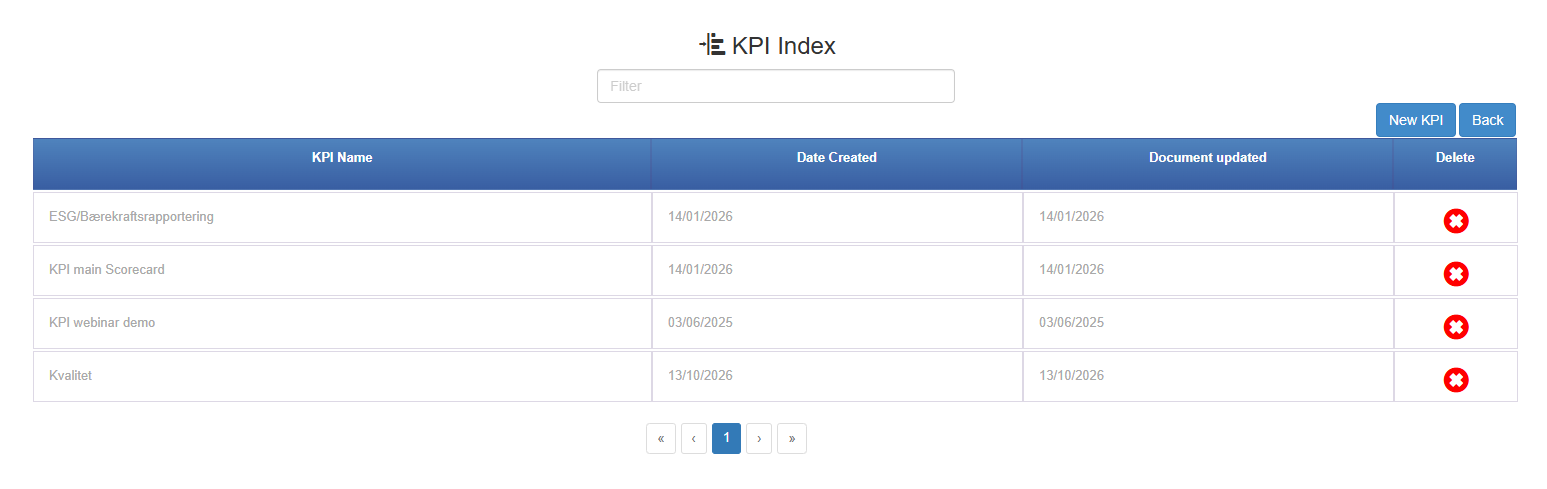
The controls, from the top:
Filter. A text box that filters the list on any text in a row. While it has text in it, paging is switched off and all matching scorecards are shown on one page.
New KPI. Opens the same dialog as New scorecard in the menu. Shown only with the Create right (or higher) on the KPI row.
Back. Takes you to the company menus page.
The list has one row per scorecard:
| Column | What it shows |
|---|---|
| KPI Name | The scorecard name. Click the row to open the scorecard. |
| Date Created | The creation date of the scorecard’s copy for the highest year. Hidden on phone and tablet screens. |
| Document updated | The last-updated date of that same copy. Hidden on phone and tablet screens. See When does “Document updated” change in the KPI list?. |
| Delete | A red icon that opens the delete dialog. Shown only on scorecards where you have Create (or higher). |
Dates are shown without a time: 13.10.2026 if your user language is Norwegian, otherwise 13/10/2026.
Paging. The list shows 10 scorecards per page, with page links including first and last page.
Delete dialog
Section titled “Delete dialog”Opens from the red icon in the Delete column. The title is Delete KPI, and the text asks: Are you sure you want to delete KPI “<name>”?
- No closes the dialog without deleting.
- Yes deletes the scorecard with all its year copies and all rights given on it. A confirmation banner shows for about three seconds, and the scorecard disappears from the list.
New-scorecard dialog
Section titled “New-scorecard dialog”Opens from New scorecard in the menu or New KPI on the list page.
| Control | What it does |
|---|---|
| Title Add KPI | |
| KPI Name | The scorecard’s name. Required. |
| Cancel | Closes the dialog without creating anything. |
| Save | Disabled until a name is typed. Creates the scorecard for the current calendar year, gives you the Create right on its row, adds it to the left menu and opens it. |
The new scorecard is empty. Headers and rows are added in edit mode by someone with the Manage right on the KPI row; see Build a useful KPI scorecard.