Add a person to Competency
To add a person, open Competency, click Add user on the User information tab, fill in at least First name and Last name, and click Submit. If the person already has a login to ABMS, pick their e-mail address from the list instead: their name, title and global fields are filled in, and the person is linked to their login. The person’s details page then opens, ready for their competencies. Add user needs the Approve right (or higher) on the Competency row.
Before you start
Section titled “Before you start”- You need the Approve right or higher on the Competency row. With Read, Edit or Create, Add user is not shown. Your user administrator sets this.
- A person in Competency is a record of an employee and their competencies. It does not give them a login to ABMS; a login is a separate user, see Add a user.
- People cannot be deleted from Competency later. Check that the person is not already there, also among people who have left (Show expired users); see Find a person and read their competencies.
- With the Approve right, you see only the people within your responsibility. Give the new person a title or global-field value you are responsible for, or you will not see them after creating them.
-
In the left menu, open Competency. The User information tab opens.
-
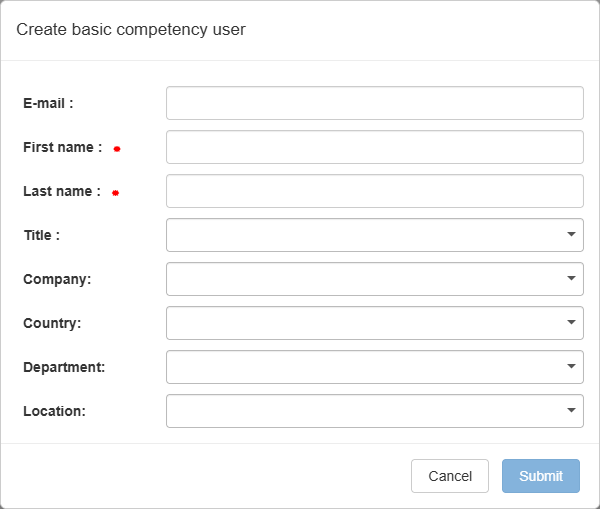
Click Add user. The dialog Create basic competency user opens.
-
Under E-mail, start typing:
- If the person has a login to ABMS, the list shows matching users as “e-mail - first name last name”. Pick the person. Their name, title and global fields are filled in for you.
- If the person has no login, type their e-mail address, or leave the field empty. The e-mail is optional.
-
Fill in First name and Last name if they are empty. Both are required.
-
Optionally choose a Title and a value in each of your company’s global fields.
-
Click Submit. The button stays disabled until both names are filled in and the e-mail is either empty or a valid address. Click Cancel to close without creating.
-
With the Approve right (not Manage or higher), a confirmation always follows: “Selecting only areas for which you are not responsible will mean you will no longer be able to see this user. Do you wish to proceed?”. Check the title and global fields, and click Yes to create the person, or Cancel to go back.
What you should see
Section titled “What you should see”The message “The competency user was created” appears, and the new person’s details page opens. The person has no competencies yet; see Register and update a person’s competencies.
For a new person:
- Send trigger email is on. The person then gets reminder e-mails about their own expiring competencies, but only when a reminder rule covers them and they have an e-mail address; see Set up reminders for expiring competencies.
- Email language is Norwegian. It applies only to people without a login to ABMS and decides the language of the reminders they get; people with a login get e-mails in their own ABMS language.
Good to know
Section titled “Good to know”- E-mail must be unique. If another person in Competency already has the e-mail address, you get “The e-mail is already in use, please try another one.” and the person is not created.
- Only users not yet in Competency are offered. The e-mail list shows active ABMS users of your company who are not already a person in Competency.
- Linking happens on e-mail. When a person’s e-mail matches an ABMS user, the person is linked to that login, and their first name, last name and e-mail come from the login from then on.
- No deleting. A person cannot be deleted. When someone leaves, set their end date instead; see Update a person’s information or end their employment.