Ask colleagues to confirm they have read a document
To ask colleagues to confirm that they have read a published document, open the document and click the Read & understood button in the view-mode button bar. In the dialog, tick the users you want to ask, add a message if you like, and click Invite selected. About two minutes later each of them gets an e-mail with a link to the document, and the request shows on their dashboard if your company’s dashboard has the Actions awaiting your input box. They confirm in the document with Accept contents. Until they do, they get a reminder e-mail once a week. Sending requests needs the Edit right on the row of the document’s module.
Before you start
Section titled “Before you start”- The document must be published. The button is not shown on a document that has never been published.
- Read & understood must be turned on for the module. If you do not see the button on a published document, ask your user administrator; see Turn Read & understood on for a module.
- You need the Edit right on the module’s row. Your user administrator sets this.
- The colleagues you ask need at least the Read right on the module’s row. Only active users with the Read right on the module’s row are listed.
-
Open the published document.
-
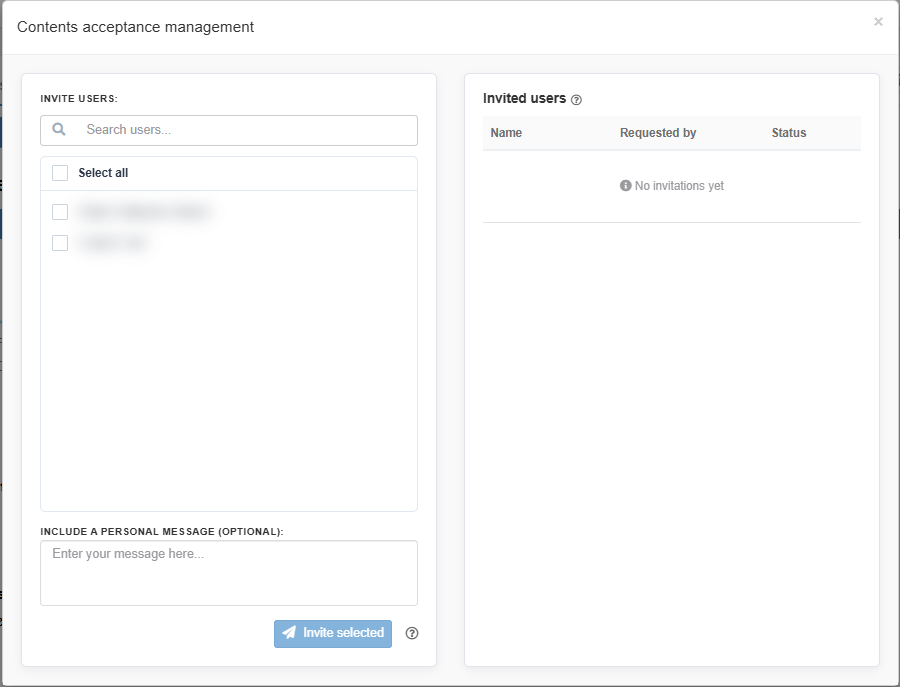
Click Read & understood in the view-mode button bar. The dialog Contents acceptance management opens.
-
Under Invite users:, find the people to ask: type in Search users… to narrow the list by name, then tick each user. Select all ticks every user in the list. The number of ticked users is shown, for example “3 selected users”.
-
Optional: write a message in Include a personal message (optional):. It is included in the invitation e-mail.
-
Click Invite selected.
What you should see
Section titled “What you should see”- The message “Invited successfully!”.
- The users move from the list on the left to the table Invited users on the right, with the status Pending, your name under Requested by, and the date you invited them in the tooltip of the status (“Invited at”).
- About two minutes later, each invited user gets the e-mail “A document is awaiting your accept” with your message and a button that opens the document. The request also appears under their notification bell and in Actions awaiting your input on their dashboard (if your company’s dashboard has this box).
Good to know
Section titled “Good to know”- Two minutes to change your mind. Invitations are sent about two minutes after you click Invite selected. If you cancel a request within that time, the user is not told. See Follow up Read & understood confirmations.
- One revision at a time. A request applies to the revision of the document that is published when you send it. When a new revision is published, the earlier requests end and nobody is asked again automatically. Invite the users again on the new revision; the dialog helps you find the people you asked last time. See Follow up Read & understood confirmations.
- Who is not in the list. Users who have already been asked about this revision, whether they have confirmed or not, are not listed again. Nor are deactivated users or users without the Read right on the module’s row.
- Weekly reminders. A user who has not confirmed gets a reminder e-mail in the morning, once a week, until they confirm or the request is cancelled.
- Following up. You are not sent an e-mail when someone confirms. Open the dialog again to see who has confirmed, or use the overview tab in a report for the module.