Add a safety data sheet to your register
Click New datasheet on the Index tab and start typing the article number or name. If the product is already in the shared library, pick it from the list, check the preview and copy it to your register. If it is not, fill in the dialog, upload the data sheet file, tick the Accept box confirming that you have read through and checked the sheet, approve, and click Save.
Data sheets in the Substance register are shared by all companies that use the Substance register. A sheet you create is added to the shared library at once, and other companies can find and copy it. There is no option to keep a new sheet private.
Before you start
Section titled “Before you start”- You need the Create right on the Substance register row. Without it, New datasheet is not shown. Your user administrator sets the right.
- Have the supplier’s safety data sheet file ready, in Norwegian, English or both. Each file can be up to 20 MB.
- Check the register first, so you do not add a substance your company already has; see Find a substance and read its safety data sheet.
Copy a sheet from the shared library
Section titled “Copy a sheet from the shared library”- On the Index tab, click New datasheet. A dialog titled Risk analysis opens.
- Start typing in Article number or Name. A list shows up to 10 matching sheets from the shared library, with article number and name.
- Pick the sheet. If your register already has it, the dialog says “This substance already exists for this customer.” with the link “Click here to view it”. Otherwise a Preview dialog shows all fields of the shared sheet, read-only, with an Important notice: “Antenor does NOT take responsibility for any errors or inaccuracies in this datasheet.”
- Check that the preview is the right product and that the data sheet is current. Then click the copy button.
The sheet is added to your register and opens. Copying does not change the shared library.
Create a new sheet
Section titled “Create a new sheet”-
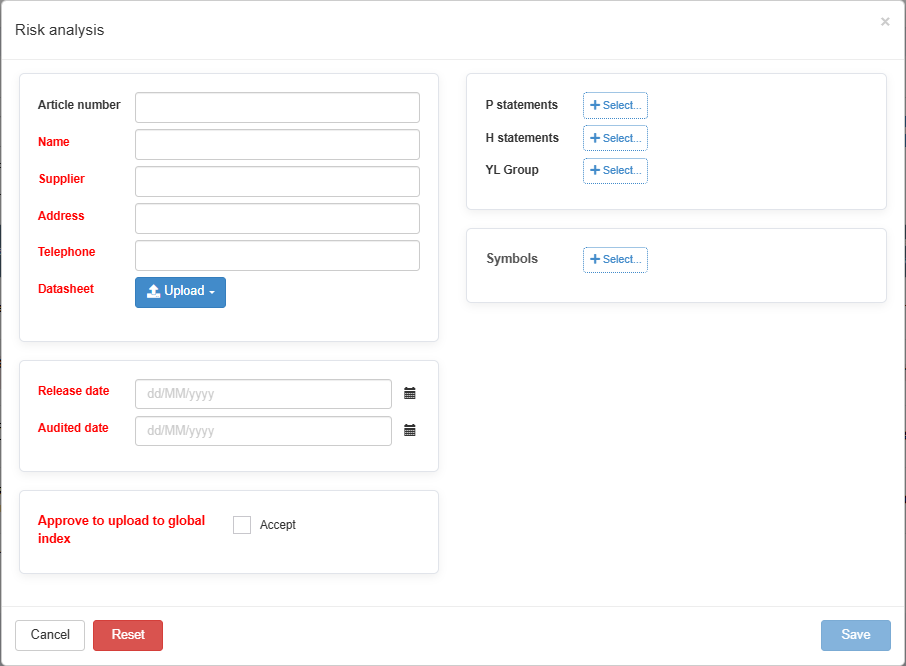
On the Index tab, click New datasheet. The Risk analysis dialog opens.
-
Fill in Article number, Name, Supplier, Address and Telephone. In this dialog, Name and Supplier are required; Address and Telephone are not. Fill them in anyway if you can: the sheet’s edit form requires them, so the first time anyone edits a sheet without them, they must fill them in.
-
Next to Datasheet, click Upload and choose Norwegian datasheet or English datasheet, then pick the file. Repeat for the other language if you have it. At least one file is required. Click the x next to a file to remove it before saving.
-
Set Release date and Audited date. The form asks for both dates, and both are required.
-
Next to P statements, H statements and YL Group, click Select… and click the codes that apply. Next to Symbols, click Select… and pick the hazard pictograms on the product.
-
Under Approve to upload to global index, tick the Accept box, which confirms that you have read through and checked the sheet. The Read through and approve dialog opens. It says “Your data sheet will be uploaded to the global index, so others can use”, and shows your name, your company and today’s date. Click I approve. (Close unticks the box.)
-
Click Save. Save is enabled only when Name, Supplier, a file, Release date and Audited date are filled in and the Accept box is ticked.
What you should see
Section titled “What you should see”The new data sheet page opens on the Datasheet tab, and the substance is listed on the Index tab with Active status.
Good to know
Section titled “Good to know”- The article number must be new. If the article number already exists, in your register or in the shared library, the sheet is not saved. An error dialog names the existing sheet and offers Use. This switches the form to using that existing sheet instead of creating a new one. Check the sheet and the fields shown in that mode before you click Save. If the existing sheet is the product you want, you can instead pick it from the list in Article number or Name and copy it, as described above.
- Release date and Audited date are recorded as typed and shown in the register. ABMS does not compare them with today, and nothing reminds anyone when they get old.
- R and S codes cannot be added to new sheets in the Substance register; those statement types are no longer in use.
- Files over 20 MB are not uploaded to a sheet in the Substance register: “The following files size are bigger than 20MB and were not uploaded:”.
- Reset clears the dialog; Cancel closes it without saving.
- Global index. Users with the Admin right on the Substance register row can also browse the whole shared library and copy from there; see Find and copy sheets in the global index.
- A sheet cannot be deleted. If you added the wrong substance, deactivate it; see Deactivate a data sheet.