The substance register index
The Index tab is the page you land on when you open the Substance register. It lists the data sheets in your company’s register, with a toolbar for search, columns, filters, export and sharing. You need the Read right on the Substance register row to open it; without it, a dialog lists your company’s user administrators to contact. Some controls need a higher right, as noted below. Your user administrator sets the rights.
This page describes the index as you see it in a wide browser window, control by control, from the top.
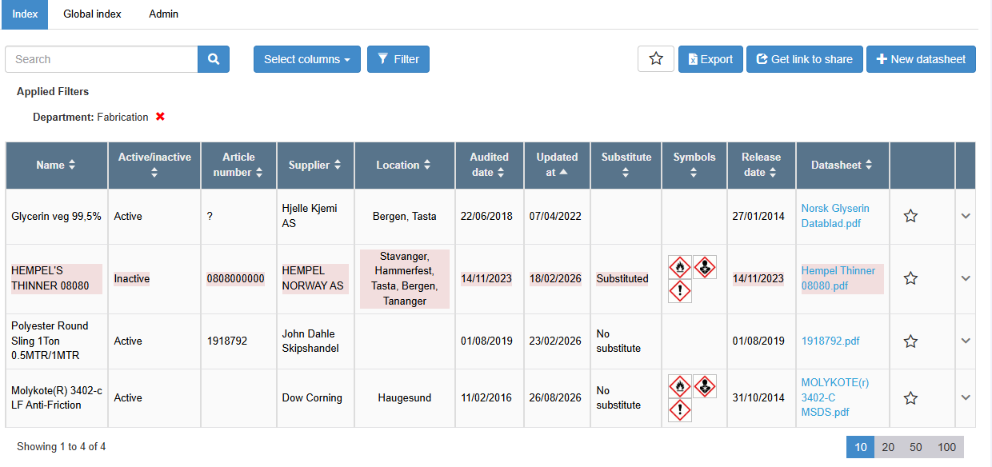
| Tab | What it shows | Shown to |
|---|---|---|
| Index | Your company’s register, described on this page. | Users with the Read right on the Substance register row. |
| Global index | The shared data sheets of all companies. See The global index and Admin tabs. | Users with the Admin right on the Substance register row. |
| Admin | Dropdowns and matrices for the usage rows. See The global index and Admin tabs. | Users with the Admin right on the Substance register row. |
The tab you last selected is kept while you stay on the index, and resets when you leave it.
Shared-index banner
Section titled “Shared-index banner”When you open the index from a link someone shared, a banner at the top reads “This is a shared Index. Any changes won’t be saved. If you want the configuration to be saved, click here to get back to Personal index”. The index shows the columns, filters, search text and sort order of the person who shared it. Clicking “here” takes you back to your own index with your own saved settings. See Export and share the substance register.
Toolbar
Section titled “Toolbar”| Control | What it does | Values and default | Shown to |
|---|---|---|---|
| Search (box with magnifier) | Press Enter or click the magnifier to list the sheets whose name, article number, supplier, data sheet file name (Norwegian or English), symbol names, status word (active or inactive), R, S, P, H or YL codes, or the dropdown values on their usage rows contain your text. A full date matches Release date, Audited date or Updated at. The x clears the search. | Empty. Upper and lower case are ignored. | Everyone. |
| Select columns | Chooses which columns the table shows and in which order. Your choice is saved for your user and also decides the columns in the Excel export. | Only Name is shown until you choose more. | Everyone. |
| Filter | Adds a filter on one column; choose the column from the list. See “Filters” below. | No filters. | Everyone. |
| Bell icon (tooltip Add to favourites / Remove from favourites) | Adds the register to your favourites on the dashboard, or removes it. | — | Everyone. |
| Export | Downloads the list as the Excel file “Datasheet.xlsx”, with your columns, filters, search text and sort order, and all matching sheets, not only the current page. | — | Users with the Create right on the Substance register row. |
| Get link to share (tooltip “Get link to share this filtered index”) | Makes a link to the index as you see it, with your columns, filters, search text and sort order, and opens the QR Code for This Page dialog with a QR code for the link, Copy and Download. | — | Everyone. |
| New datasheet | Opens the dialog for adding a data sheet. See Add a safety data sheet to your register. | — | Users with the Create right on the Substance register row. |
Filters
Section titled “Filters”Each filter you add appears as a line for its column. The filters available:
| Column | Filter control | Which sheets remain |
|---|---|---|
| Name, Article number, Supplier, Datasheet | Text box; press Enter. | Sheets whose value contains the text, regardless of case. For Datasheet, the Norwegian or the English file name. |
| Release date, Audited date, Updated at | From and To dates. | Sheets with a date in the range, both days included. |
| R, S, P, H and YL settings | Multi-select (Select Value), with a switch to include deactivated codes. | Sheets that have all the selected codes. |
| Symbols | Select symbols button showing the hazard pictograms. | Sheets with any of the selected symbols. |
| Active/inactive | Active or Inactive. | Sheets with that status. |
| Substitute | One of the substitute values. | Sheets whose most recently created usage row has that substitute value. |
| A dropdown field of the usage rows (global field) | Multi-select. | Sheets with at least one usage row that has one of the selected values. |
Applied Filters shows each filter with an x to remove it. Your filters are saved for your user. A sheet must match all filters and the search text.
Columns you have not selected are available in a panel that opens when you expand a row.
| Column | Content |
|---|---|
| Name | The substance name. Click it to open the sheet; see The data sheet page. An inactive sheet has a red background. |
| Article number | The product’s article number. |
| Supplier | The supplier (manufacturer) of the product. |
| Release date | The date entered as release date on the sheet. |
| Audited date | The date entered as audited date on the sheet. |
| Updated at | When the sheet in your register was last changed: saved, updated to a newer version, activated or deactivated, or given a new file. |
| Dropdown fields (global fields) | One column per dropdown field of the usage rows, showing the values used on the sheet’s usage rows. |
| Datasheet | The data sheet file name in your language, or in the other language if there is no file in yours. Click it to download the file. |
| Symbols | The hazard pictograms, with the symbol name as tooltip. |
| Substitute | The substitute value of the sheet’s most recently created usage row. |
| R, S, P, H and YL settings (in the index the headings read, for example, R Settings and YL Settings) | The sheet’s codes, comma-separated. |
| Active/inactive | Active or Inactive. |
| Column without heading | This whole column, with both its icons, is shown only to users with the Create right on the Substance register row. It holds a star to add the sheet to your favourites, and an orange “!” when a newer version of the sheet exists, with the tooltip “A newer version of this datasheet is available”. See Update a data sheet or use a newer version. |
- Sorting: click a column heading. Text sorts regardless of case. The sort order is saved for your user.
- Moving columns: drag a column heading (tooltip “Drag’n’drop”) to change the order. The order is saved.
- Paging: 10 sheets per page by default. The page and page size are kept while you stay in the browser tab.