Register and update a person's competencies
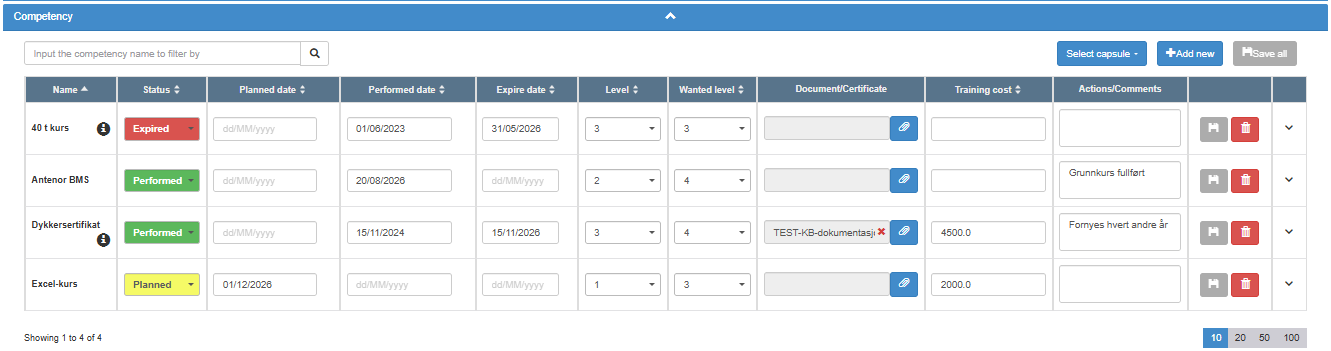
Open the person’s details page and go to the Competency section. Click Add new, pick the competency from the list as you type, fill in Status, dates and levels, and click the save icon on the row (or Save all). To give someone all the competencies of a role at once, tick a capsule under Select capsule. A certificate can be added only after the row has been saved.
Before you start
Section titled “Before you start”- You need the Edit right (or higher) on the Competency row, and the person must be someone you may edit: with Edit or Create, only yourself; with Approve, yourself and the people within your responsibility; with Manage or higher, anyone. Your user administrator sets your right.
- Open the person’s details page; see Find a person and read their competencies.
- The list of competencies and capsules is kept by users with the Manage right or higher; see Manage competency types, capsules and levels.
Add a competency
Section titled “Add a competency”-
In the Competency section, click Add new. An empty row is added to the table.
-
In the row’s name field, start typing the competency’s name. The list shows matching competencies (up to 8). Pick the right one.
Take care to pick from the list. If you type a name that does not exist and press Enter, a new competency is created with that name for your whole company, and it shows up for everyone. A misspelling or a variant name (“First aid” and “First-aid course”) gives a duplicate competency that reports and reminders treat as a different one. If it has happened, remove the wrong row from the person, add the right competency, and ask a user with the Manage right or higher to delete the duplicate in the Admin tab; see Manage competency types, capsules and levels.
-
Choose a Status: Open, Planned, Performed or Expired, or leave it empty.
-
Fill in the dates that apply: Planned date, Performed date and Expire date. The expire date decides when the competency expires and when reminders are sent.
-
Choose the Level the person has and the Wanted level they should reach: from 1 up to your company’s highest level, or N/A.
-
Optionally fill in Training cost (a number) and Actions/Comments (free text).
-
Click the save icon (tooltip Save) at the end of the row. To save several changed rows at once, click Save all above the table.
Add the certificate
Section titled “Add the certificate”- When the row is saved, click the paper clip in Document/Certificate and choose one of the options: Upload a file, link to content in another ABMS module, or add an external web address (it must start with http or https). Before the row is saved, the paper clip is disabled with the tooltip “Upload is disabled until the competence is saved.”
Add a whole capsule
Section titled “Add a whole capsule”- Open Select capsule and tick a capsule (for example a role). The capsule is linked to the person, and every competency in the capsule that the person does not have yet is added as a new row and saved at once. Fill in status, dates and levels on the new rows, and save them.
Update or remove a competency
Section titled “Update or remove a competency”- To update, change the fields on the row and click the save icon on the row, or Save all. The earlier values are kept in the row’s history (the chevron at the end of the row).
- To remove a row, click the trash icon (tooltip Remove) and confirm “Please confirm deletion of competency”.
What you should see
Section titled “What you should see”The message “User details saved successfully” appears after each save and remove. The row shows the new values, and its Status field is coloured by its status. Save all is disabled again until something else changes.
Good to know
Section titled “Good to know”- Expired is set automatically, but not undone. For a competency row, the status is set to Expired when the expire date has passed: when the row is saved, and in a nightly run for rows with the status Open, Planned or Performed. A competency row with no status becomes Expired only when it is saved. When you renew a competency and move the expire date forward, the status stays Expired: change Status by hand (for example to Performed) and save.
- One empty row at a time. If you click Add new while an empty row is waiting, you get “Please select the competency before adding a new one.”
- No duplicates per person. A competency the person already has cannot be added again: “ You cannot add a competency already linked to the user”.
- Unticking a capsule only removes the link between the person and the capsule. The competency rows it added stay; remove them one by one if they should go.
- Only the newest certificate is shown. Uploading a new certificate replaces the one shown; the older ones are kept in the row’s history.
- Reminders. Reminders about a competency row stop when its expire date is moved so that the competency is no longer due. Changing the status or uploading a certificate alone does not stop them. Reminder e-mails are set up by users with the Manage right or higher; see Set up reminders for expiring competencies.