Company settings: logo and e-mail address policy
Your company’s logo and the rule for how users’ e-mail addresses are formed are set under Super > System settings. To change the logo, click it and upload a new image. To change users’ addresses, go to Company e-mail address settings, choose the name parts and delimiter, check the Resulting e-mail address preview, click Save and confirm. The change is made for all affected users at once, cannot be undone, and can take up to three minutes to reach the whole system.
Before you start
Section titled “Before you start”- You need the Admin level on the Super area row of your rights; this is what shows the Super menu. Your user administrator sets this; see The Users page and the rights table.
- For the logo, have a PNG or JPEG file ready. A size of at least 440 x 106 pixels is recommended.
- A change to the e-mail address policy changes the e-mail addresses, and with them the usernames, of many users at once, and it cannot be undone. Tell your users before you save.
Steps: change the logo
Section titled “Steps: change the logo”- In the left menu, click Super > System settings.
- Under Logo, click the logo (“Click on logo to change”).
- Choose the new image file.
- Click Save in the Logo section.
Steps: change users’ e-mail addresses
Section titled “Steps: change users’ e-mail addresses”-
In the left menu, click Super > System settings.
-
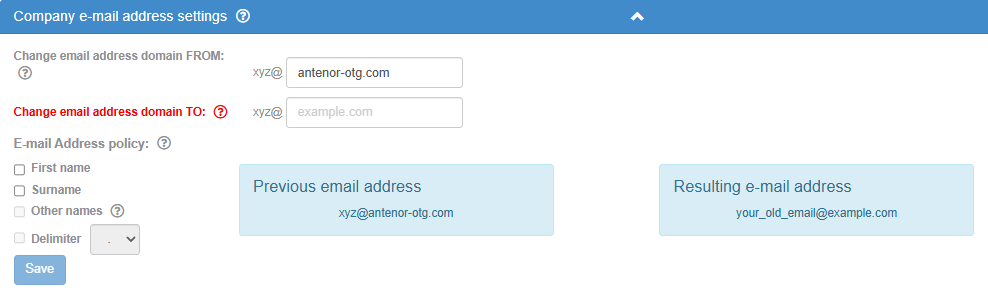
Go to Company e-mail address settings.
-
Use the fields Change email address domain FROM: and Change email address domain TO: to change the domain, the part after the @.
- Change email address domain FROM: the current domain, for example example.com. The field is filled in for you.
- Change email address domain TO: the new domain. The field is empty each time you open the page. A domain must contain a dot; a label turns red while its domain is not valid. Save stays disabled until this field has a valid domain, so if you only want to change the address format, type the current domain here.
-
Under E-mail Address policy:, choose how the part before the @ is built from each user’s name. Leave all boxes unticked to keep the part before the @ as it is.
- First name: use the first name. When ticked, you can also tick First letter of first name to use only its first letter.
- Surname: use the surname. When ticked, you can also tick First letter of surname.
- Other names: use every name the user has in the first name and surname fields, not only the first one. Available when First name or Surname is ticked.
- Delimiter: put a character between the parts, . or _. Available only when both First name and Surname are ticked.
-
Compare Previous email address with the Resulting e-mail address preview, shown in blue.
-
Click Save.
-
In the dialog Confirm email changes, which warns that the changes cannot be reversed, click Yes to go ahead or Cancel to stop.
What you should see
Section titled “What you should see”After saving the address policy, the message “Your changes have been saved. It can take up to 3 minutes to update the entire system. Meanwhile, feel free to keep working.” The addresses are then changed in the background.
Each user whose address is changed gets an e-mail at the new address with the subject “Your e-mail address has been changed”. It names you as the person who made the change, shows the old and the new address, says that the change also affects the username, and asks the user to contact you if they believe it is a mistake.
Good to know
Section titled “Good to know”- Who is affected. The change applies to users whose e-mail address is at the old domain (the FROM domain) and who have both a first name and a surname. Deactivated users are included.
- Who gets no e-mail. Deactivated users and users who log in with Office 365 are not told about the change by e-mail. A user who logs in with Office 365 needs an ABMS address that matches their Microsoft account; see Let a user log in with Office 365.
- How names become addresses. For a user, the new part before the @ is written in lower case. Without Other names, only the first word of the first name and of the surname is used. With Other names, every word is used, joined by the delimiter when Delimiter is ticked and run together when it is not. First letter of first name and First letter of surname take the first letter of every word used. Letters such as æ, ø and å are replaced with plain letters, so check the addresses of users with such names afterwards.
- Addresses already in use. If a user’s new address is already used by another user, that user keeps the old address. Check afterwards that everyone got the address you expected.
- Competency. The e-mail address on a user’s Competency record and the e-mail lists in Competency reminders are updated too.
- One user only. To change one user’s address, edit that user instead; see Add a user.
- The dashboard section. The page also has a section for the dashboard; see Choose the dashboard widgets for your company. Every control on the page is listed in The System settings page.