The System settings page
Super > System settings holds settings that apply to your whole company: the logo, the dashboard and the rule for users’ e-mail addresses. You need the Admin level on the Super area row of your rights; this is what shows the Super menu. Your user administrator sets this. The page has three sections, described below in the order they appear.
| Control | What it does |
|---|---|
| The logo (“Click on logo to change”) | Click it to choose a new image. PNG or JPEG; at least 440 x 106 pixels is recommended. |
| Save | Saves the new logo for your company. |
See Company settings: logo and e-mail address policy.
Dashboard
Section titled “Dashboard”The widgets every user in your company sees on the dashboard, and their layout. The section shows the widgets on the dashboard now, Add widgets to add one, and Save. Some companies also see Use old dashboard, which concerns the older dashboard layout; switching layouts is done by Antenor. How to choose widgets, and what each one shows, is described in Choose the dashboard widgets for your company.
Company e-mail address settings
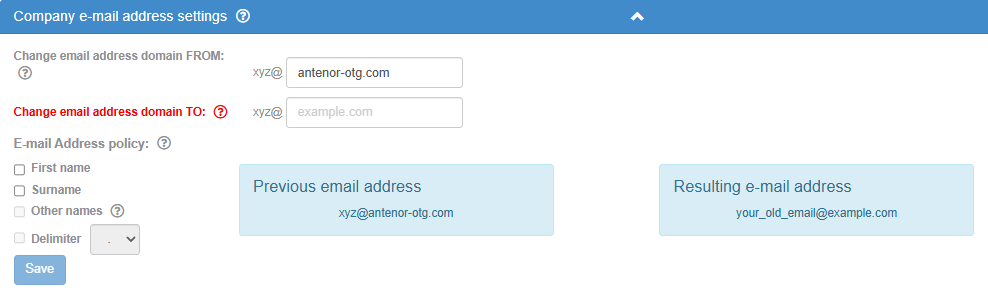
Section titled “Company e-mail address settings”This section changes the e-mail addresses of many users at once. Users’ e-mail addresses are also their usernames. A help icon next to the heading explains the domain change and the address pattern, and warns that the changes cannot be undone.
| Control | What it does | Values and default | When available |
|---|---|---|---|
| Change email address domain FROM: | The domain the addresses have now (the part after the @, shown after “xyz@”). Users with an address at this domain are the ones changed. Help text: “Set the part of the e-mail which appears behind the @ symbol here.” | Filled in for you: the domain saved last time, or the most used domain among your active users. | Disabled if your company has no users. |
| Change email address domain TO: | The new domain. | Empty each time you open the page. A domain must contain a dot; the label turns red while it is not valid. If you only want to change the address format, type the current domain here, because Save needs a valid domain in this field. | As the FROM field. |
| E-mail Address policy: | Heading for the name parts below. Its help text ends: “PS! If you do not change anything in this section the first part of the e-mail address will remain as before.” | ||
| First name | Builds the part before the @ from the first name. | Off | |
| First letter of first name | Uses only the first letter of the first name. | Off | Shown when First name is ticked. |
| Surname | Builds the part before the @ from the surname. | Off | |
| First letter of surname | Uses only the first letter of the surname. | Off | Shown when Surname is ticked. |
| Other names | Uses every word in the first name and surname, not only the first. | Off | Disabled until First name or Surname is ticked. |
| Delimiter | Puts a character between the parts; choose it in the dropdown next to the box. | . (default) or _ | Disabled until both First name and Surname are ticked. |
| Previous email address (blue box) | An example of an address as it is now: xyz@ followed by the current domain. | ||
| Resulting e-mail address (blue box) | A pattern of the new address, built from placeholders for the first name, surname or first letters, or for the old address when no name part is ticked, followed by @ and the new domain. | ||
| Save | Starts the change, after a confirmation. | Disabled until Change email address domain TO: has a valid domain. |
After clicking Save
Section titled “After clicking Save”- The dialog Confirm email changes warns that the changes cannot be reversed. Yes goes ahead; Cancel stops.
- The message “Your changes have been saved. It can take up to 3 minutes to update the entire system. Meanwhile, feel free to keep working.” The addresses are changed in the background.
- Each changed user gets an e-mail at the new address, “Your e-mail address has been changed”, naming you, with the old and the new address. Deactivated users and users who log in with Office 365 get no such e-mail.
What changes for a user:
- The change covers users with an address at the FROM domain who have both a first name and a surname, including deactivated users.
- With no name part ticked, only the domain is replaced.
- With a name part ticked, the part before the @ is rebuilt from the user’s name in lower case. Without Other names, only the first word of each name is used. With it, every word is used, joined by the delimiter when Delimiter is ticked and run together when it is not. A “first letter” option applies to every word used. Letters such as æ, ø and å are replaced with plain letters.
- A user whose new address is already used by another user keeps the old address.
- The address on the user’s Competency record and the e-mail lists in Competency reminders are updated too.