Assess original and residual risk
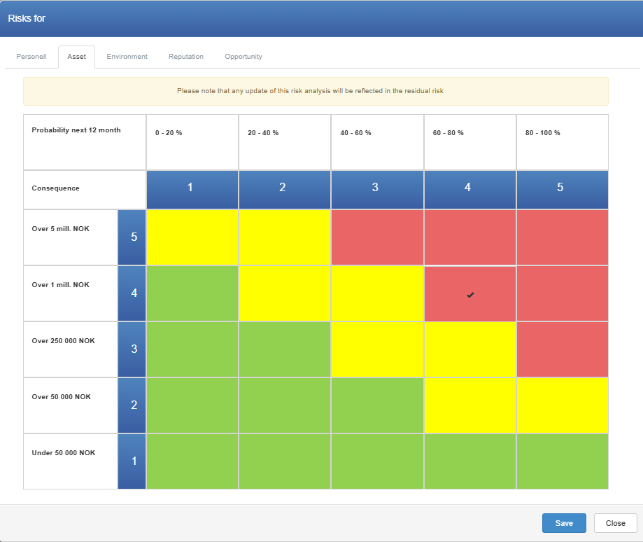
In Edit mode, click a risk element’s cell under Risk analysis to set its original risk, or under Residual risk to set its residual risk. A risk picker opens with one tab per risk type in the analysis matrix; click a cell in the grid for each type you want to assess, then save. Set the original risk first: for a risk element, saving the original risk replaces the residual values on every tab with the original values.
Before you start
Section titled “Before you start”- Risk management appears in the left menu only if your company has the module and you have at least the Read right on its row. If you don’t see it, contact your user administrator. See The top bar and the left menu.
- You need the Edit right on the Risk management row. Your user administrator grants it; see Give a user access rights.
- The risk element must be saved: it needs some text, for example a Risk area. See Add and edit risk elements.
- Read the matrix details on Information to know what the probability and consequence levels mean for this analysis. See The analysis information form.
Set the original risk
Section titled “Set the original risk”- Click Edit mode.
- Expand Risk analysis under Column sections, so that one column per risk type is shown. The columns are headed by the first letter of each risk type; hover over a letter to see the full name.
- On the risk element’s row, click a risk-type cell under Risk analysis.
- If you are asked whether to update the analysis to a new matrix version, answer it. Yes switches the whole analysis, for all users, to the newest version of the matrix; if you are unsure, answer no and ask the analysis facilitator (see Good to know). The risk picker then opens.
- In the picker, select the tab for a risk type. The grid shows consequence as rows, with the highest at the top, and probability as columns, using the matrix’s own descriptions.
- Click the cell that matches your assessment. A check mark shows the selected cell. To clear a value, click the selected cell again.
- Repeat for the other tabs you want to assess. Tabs you do not touch keep their values.
- Click the save button at the bottom of the picker. The picker closes.
Set the residual risk
Section titled “Set the residual risk”- Still in Edit mode, expand Residual risk.
- On the same row, click a risk-type cell under Residual risk.
- Choose cells per tab as for the original risk, and click the save button at the bottom of the picker.
What you should see
Section titled “What you should see”For that risk element, each risk-type cell shows probability × consequence in the matrix colour, and Sum under Risk analysis and under Residual risk are recalculated at once. For a risk element, each Sum adds probability × consequence across the matrix’s risk-type tabs; see Understand original risk, residual risk and Sum. Updated at for the risk element changes. No message is shown.
Good to know
Section titled “Good to know”- Original overwrites residual. For a risk element, saving the original risk copies the original values of every tab into the residual risk, replacing residual values you set earlier. The original picker shows the note “Please note that any update of this risk analysis will be reflected in the residual risk”. Saving the residual risk does not change the original risk.
- Residual whenever you like. In Risk management, you can change a risk element’s residual risk at any time in edit mode, whatever its status. Residual risk is not required for any status.
- New matrix version. If the matrix used by the analysis has been changed since the analysis was set up, clicking an original-risk cell in edit mode asks: “There is a new version of the matrix used in this risk analysis. Would you like to update this analysis to reflect the changes?” Answering yes switches the whole analysis, for everyone, to the latest matrix version and then opens the picker. Answering no opens the picker with the current version, and the question comes back next time. Values already saved are not converted. Because yes changes the analysis for all users, agree with the analysis facilitator before choosing it. A new version appears every time someone with the Admin right on the Risk management row saves a matrix that analyses already use, even without changes; see Set up risk matrices.
- View mode is read-only. In view mode, clicking a risk cell opens the picker so you can see the selected cells, but you cannot change them and there is no save button.
- A zero is not an assessment. A cell shows a grey 0 when no consequence has been set for that risk type.