Risk-element dialogs
This page describes the dialogs and the panel that open from a risk analysis’s Risk tab: the new-element dialog, the risk picker for original and residual risk with its matrix-version prompt, the copy dialog and its list of analyses, the attachments dialog with its link dialogs, the actions panel, and the delete confirmation. The controls are listed in the order they appear. Where a control has no fixed label, it is described by its icon or function.
None of these dialogs shows a message when it saves, except where noted. Most of them change data only in Edit mode, which needs the Edit right on the Risk management row. Some actions need the Create right as well. Your user administrator grants these rights.
New risk element dialog
Section titled “New risk element dialog”Opens with New risk element in the analysis header, in both view mode and edit mode. The button is shown to users with the Create right (which includes Edit). The dialog title is “Add new risk management items”.
| Control | What it does |
|---|---|
| Risk area | Free text. |
| Risk factor | Free text. |
| Potential consequence field | Free text for the potential consequence. |
| Cause | Free text. |
| Status | The element’s starting status. Choices: Open, Pending, No action. Default Open. |
| Button to cancel | Closes the dialog without creating an element. |
| Button to save | Creates the element, places it last in the analysis’s custom order and reloads the table. |
No field is required: saving an empty dialog creates an empty element. Existing barriers and Actions / comments are not in this dialog; fill them in directly in the table in edit mode.
Risk picker
Section titled “Risk picker”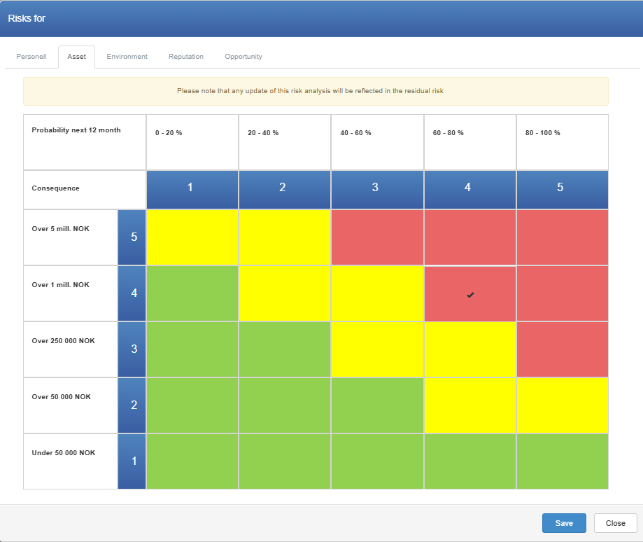
Opens when you click a risk-type cell in the Risk analysis section (original risk) or the Residual risk section of a row. In view mode the picker is read-only. In edit mode on a blank, unsaved row, the original-risk cells show a grey 0 with the tooltip “Add information about the item to enable risk analysis” and cannot be clicked.
| Control | What it does |
|---|---|
| Risk-type tabs | One tab per risk type in the analysis’s matrix. Select a tab to set the value for that type. |
| Note (original risk only) | “Please note that any update of this risk analysis will be reflected in the residual risk”. Shown in the original-risk picker, also in view mode. |
| Matrix grid | Consequence levels as rows, highest at the top, and probability levels as columns, numbered from 1. The axis words and cell texts come from the matrix. The current value is marked with a check. In edit mode, click a cell to set the probability and consequence for that tab; click the checked cell again to clear the value. You can set several tabs before saving. |
| Button to save | Shown only in edit mode, to users with the Edit right. Saves the tabs you clicked in this dialog. |
| Button to close | Closes the picker without saving. |
After saving the picker for a risk element: the dialog closes, the row’s values and both Sum columns are recalculated, and Updated at changes. Saving the original risk copies the original values of every tab into the residual risk, replacing residual values already set. Saving the residual risk does not change the original risk. In Risk management, a risk element’s residual risk can be set at any time in edit mode, whatever the element’s status.
Matrix-version prompt
Section titled “Matrix-version prompt”Appears in edit mode when you click an original-risk cell and the matrix used by the analysis has been updated since. It does not appear for residual-risk cells or in view mode.
| Control | What it does |
|---|---|
| Title and text | “New matrix version”; “There is a new version of the matrix used in this risk analysis. Would you like to update this analysis to reflect the changes?” |
| Button to decline | Opens the picker with the matrix the analysis uses now. The prompt appears again next time. |
| Button to accept | Switches the whole analysis, for all users, to the latest matrix version, updates the tabs and colours, and opens the picker. Needs the Edit right. Values already set on the elements are not converted. |
Copy dialog
Section titled “Copy dialog”Opens with the copy icon at the end of a row. In view mode the icon is shown to users with the Edit right while no status filter is active; it is also shown in edit mode.
| Control | What it does |
|---|---|
| Risk area field | One line, filled in from the row. |
| Risk factor field | One line, filled in from the row. |
| Potential consequence field | Filled in from the row. |
| Cause field | Filled in from the row. |
| Existing barriers field | Filled in from the row. |
| Actions / comments field | Filled in from the row. |
| Status | Choices: Open, Pending, No action, Actions in progress. Default Open. A copy given Actions in progress has no linked actions. |
| Button to cancel | Closes the dialog without copying. |
| Button to copy here | Creates the copy directly below the original in this analysis, clears any status filter and reloads the table. Needs the Create right; without it the copy is not carried out. |
| Button to copy to other analyses | Opens the list of other analyses (below). Copying to other analyses works for everyone who sees the copy icon. |
A copy gets only the texts and the status in the dialog. Original and residual risk values, files and links, linked actions and the Top 10 flag are not copied.
Copy-to list
Section titled “Copy-to list”| Control | What it does |
|---|---|
| Analysis buttons | One button per analysis, excluding the current one. The list follows your saved filters on Index. An analysis without a title shows “Area is missing”. Click to select; click again to deselect. |
| Button to copy | Creates an element with the dialog’s texts and status in each selected analysis. The dialogs close when it succeeds; no message is shown. |
Attachments dialog
Section titled “Attachments dialog”Opens with the paperclip in the Attachment/Link cell. In view mode it is read-only. In edit mode the paperclip is disabled on unsaved rows and for users without the Edit right. The title is “Attachments / Internal Modules / External URLs”.
| Control | What it does |
|---|---|
| List of files and links | One entry per item, by name. A file has a download icon. A link to an internal document has a link icon and opens in a new tab. An external URL has a new-window icon and opens in a new window or tab. |
| Pencil (edit mode, external URLs only) | Opens Add / Edit External URL for that link. |
| × (edit mode) | Removes the file or link after the confirmation “Please confirm that you wish to delete this file”. Afterwards “The attachment has been removed.” is shown. |
| Upload (edit mode) | Uploads one file per selection. A number is added to the file name before the extension. No message is shown. |
| Link to internal document (edit mode) | Opens the internal-document picker (below). |
| External URLs (edit mode) | Opens Add / Edit External URL for a new link. |
On the row, the paperclip shows a red badge with the number of files and links together; hovering lists their names. Adding or removing files and links does not change the element’s Updated at.
Internal-document picker
Section titled “Internal-document picker”| Control | What it does |
|---|---|
| Module choice | Choose the module the document belongs to. |
| Document list | Click a document to link it. Click an already linked document to remove the link; there is no confirmation. |
Add / Edit External URL
Section titled “Add / Edit External URL”| Control | What it does |
|---|---|
| URL | The web address. Required; must be a valid URL. |
| Text to display | The text shown for the link. Required. |
| Save | Saves the link. It always opens in a new window or tab. |
| Button to close | Closes the dialog without saving. |
Actions panel
Section titled “Actions panel”Opens below a saved row when you click its Actions cell. The cell shows “closed actions / all linked actions” and an arrow with the tooltip “Click here to open the actions menu”. Only one row’s panel is open at a time.
| Control | What it does |
|---|---|
| New action (edit mode only) | Opens the action dialog, prefilled with you as creator and as next editor (the person who holds the action), status New, and a connection to this risk element. Fill in the rest of the action there. |
| Action list | The actions linked to this risk element, 10 per page, with columns for ID, action title, creator, recipient, next editor, created date, updated date, performed date, due date, status and accepted. Click a row to open the action. |
| Copy icon (edit mode) | Copies the action. Shown to the action’s creator and to your user administrator (the Admin level on the Super area row). |
| Delete icon, tooltip “Delete action” (edit mode) | Deletes the action. Shown to the action’s creator and to your user administrator (the Admin level on the Super area row), for actions that are new or in progress. |
After an action is saved or deleted, the counts in the Actions cell and the element’s status update. For a risk element, the status becomes Actions in progress while any linked action is not closed, and Actions completed when all are closed. Deleting the only linked action returns the element to Open. In Action Manager, the linked record is shown as the analysis title followed by the element’s risk area.
Delete confirmation
Section titled “Delete confirmation”Opens with the trash icon at the end of a row. For a risk element, the icon is shown only on saved rows with status Open or No action; in view mode only to users with the Edit right while no status filter is active. On a blank row the icon is disabled with the tooltip “No need to delete, blank rows aren’t saved”.
| Control | What it does |
|---|---|
| Title and text | “Delete risk management item”; “Are you sure you want to delete risk management item” followed by the element’s risk area. |
| Button to decline | Closes without deleting. |
| Button to confirm | Deletes the risk element and the actions linked to it in Action Manager. Rows below move up. Deleting cannot be undone. Needs the Create right; without it the risk element is not deleted. |