The data sheet page
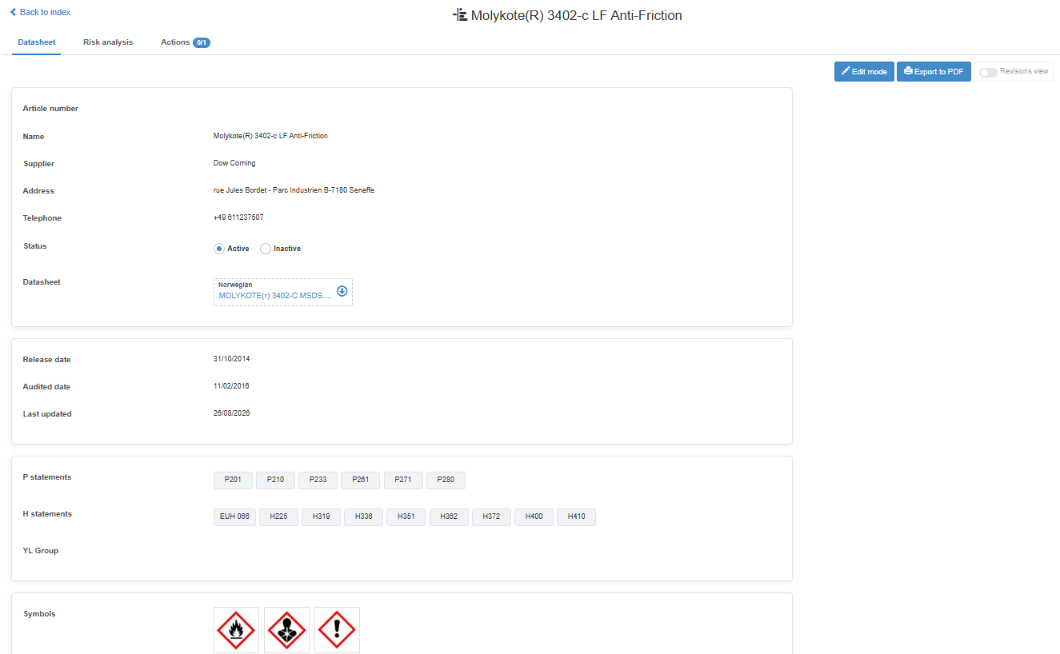
The data sheet page opens when you click a substance’s Name on the Index tab of the Substance register. At the top are a link back to the index and the substance name. Below are the tabs Datasheet (the product information and files, described here), the use and analysis tab (your company’s usage rows, see The Use and analysis tab) and, for users with the Read right on the Action Manager row, Actions. The page opens on Datasheet.
Data sheets are shared by all companies that use the Substance register. The product information on the Datasheet tab is the shared part: saving it adds a new version to the shared library, which other companies that have the sheet are offered. The active status, the usage rows and the actions are your company’s own.
Rights
Section titled “Rights”The rights levels are Read, Edit, Create, Approve, Manage, Archive and Admin, in that order; each level includes the ones before it. In the Substance register, every change (to a sheet, its status, its files or its usage rows) needs the Create right. The Edit right only makes a person selectable as Responsible on usage rows.
| Right on Substance register | What it allows on this page |
|---|---|
| Read | Open the page, read all fields, download the data sheet files, Export to PDF, Revisions view. |
| Edit | Nothing more on this page. It makes the person selectable as Responsible on usage rows. |
| Create | Also Edit mode and Save, uploading files, setting Active or Inactive, and being offered and using newer versions. |
| Admin | Nothing more on this page. On the index it adds the Global index and Admin tabs; see The global index and Admin tabs. |
Approve, Manage and Archive give nothing beyond the Create right on the Substance register row. Your user administrator sets these rights.
| Tab | Contents | When it is shown |
|---|---|---|
| Datasheet | The product information and data sheet files. Default tab. | Always. |
| Use and analysis (second tab) | Your company’s usage rows and risk assessments. | Always. |
| Actions | Actions linked to the sheet, with a count of closed actions / all actions. New action creates an action linked to the sheet; see Create an action and send it to someone. | With the Read right on the Action Manager row. New action needs the Create right on the Substance register row and an active sheet. |
Datasheet tab toolbar
Section titled “Datasheet tab toolbar”| Control | What it does | When it is shown or disabled |
|---|---|---|
| Edit mode / View mode | Switches the tab between reading and editing. | With the Create right. Disabled while the sheet is inactive, with the tooltip “You need to activate this substance before you can edit it”. |
| Export to PDF | Downloads a PDF of the sheet’s registered fields, with your company logo at the top and a page footer. Usage rows are not included. | Everyone who can open the page. Hidden in Revisions view. |
| Revisions view | Shows two versions of the sheet side by side (see Revisions view below). | Disabled for a sheet that has only one version, with the tooltip “This datasheet does not have a revision yet”. |
Fields in view mode
Section titled “Fields in view mode”Fields are listed in the order they appear.
| Field | Contents |
|---|---|
| Article number | The product’s article number. A new sheet cannot use an article number that already exists. |
| Name | The product name. |
| Supplier | The supplier (manufacturer) of the product. |
| Address | The supplier’s address. |
| Telephone | The supplier’s telephone number. |
| Status | Active or Inactive. Users without the Create right on the Substance register row see the text. Users with the Create right see two radio buttons; a change is saved at once and does not create a new version. Reactivating a sheet opens the New version detected dialog if a newer version exists. See Deactivate a data sheet. |
| Data sheet files | A Norwegian and an English link to the files that exist. Click to download. |
| Release date | One of the two required dates the form asks for, as typed when the sheet was saved. Not compared with today. |
| Audited date | The other required date, as typed when the sheet was saved. Not compared with today. |
| Last updated | When your company’s copy of the sheet was last saved or switched to a newer version. It also changes when the sheet is activated or deactivated, or a file is uploaded. |
| R and S statement codes | Shown only if the sheet has any. These statement types are no longer in use. |
| P and H statement codes, YL group | Lists of codes, for example H225 or P280. Only the codes are stored; the statement text is in the data sheet file. A code that is no longer in use shows “ [Deactivated]“. |
| Symbols | The hazard pictograms on the product, from a fixed set of nine. |
Fields in edit mode
Section titled “Fields in edit mode”Edit mode shows the same fields as editable controls. Nothing is saved until you click Save, except Status. This form requires Address and Telephone, which the New datasheet dialog does not; the first time someone edits a sheet created without them, they must fill them in before saving.
| Control | Allowed values | Required |
|---|---|---|
| Article number | Text. | No |
| Name, supplier, Address, Telephone | Text. | Yes |
| Status | Active or Inactive; saved at once. | |
| Upload next to the data sheet files | Norwegian datasheet or English datasheet, then a file up to 20 MB. The new file replaces that language’s file when you save. A file cannot be removed, only replaced. Larger files are refused: “The following files size are bigger than 20MB and were not uploaded:”. | |
| Release date, Audited date | Date picker. | Yes |
| Last updated | Read-only. | |
| R and S statement codes | Shown only if the sheet has any; read-only, with “This setting was phased out in 2017 and can no longer be updated”. | |
| P and H statement codes, YL group, symbols | The select button next to each field opens a list; click a code or pictogram to add or remove it. Codes no longer in use are hidden unless the sheet already has them. | |
| Accept box (read-through check) | Confirms that you have read through and checked the sheet. Ticking it opens Read through and approve: “Your data sheet will be uploaded to the global index, so others can use”, with your name, your company and today’s date. I approve confirms; Close unticks the box. | Yes |
| Save | Enabled when all required fields are valid. Saves a new version of the sheet to the shared library and to your register, uploads the chosen files and reloads the page. Your usage rows and linked actions stay with the sheet. |
Your save becomes the newest shared version. Its content is built from the version you had open, while the data sheet files are carried over from the newest shared version unless you upload a new file. If a later version was saved after the one you had open, its content changes are not in your save, and other companies that have the sheet are offered your version. Take over a newer version with Use before you edit. See Update a data sheet or use a newer version.
New version detected dialog
Section titled “New version detected dialog”When you have the Create right and a newer version of the sheet exists in the shared library, this dialog opens every time you open the sheet. On the Index tab, the same sheets have an orange “!” with the tooltip “A newer version of this datasheet is available”. Users without the Create right on the Substance register row are not told.
| Item | What it shows or does |
|---|---|
| Text | “A newer version of this datasheet is available”. |
| Details | Updated by and Company: who saved the newest version. Updated at: when. |
| Important notice | “Antenor does NOT take responsibility for any errors or inaccuracies in this datasheet.” |
| Close | Keeps your current version. The dialog appears again the next time you open the sheet. |
| Preview | Shows your version and the newest version side by side, with changed fields highlighted. |
| Use | Switches your register to the newest version and keeps your active status. Message: “Datasheet has been updated to the latest version”. |
Revisions view
Section titled “Revisions view”Revisions view lists every saved version of the sheet in the shared library, newest first, marked Current version, Newer version or Version with its number, each with the date it was saved and who saved it. Choose two versions to show them side by side; the swap arrow (⇄) changes sides. Click Revisions view again to return.