Edit mode in a KPI scorecard
Edit mode is where you change values, names and targets in a scorecard and, with the right level, its headers and rows. You enter it with the pencil in the top-left cell of the table, above the first header. The pencil is shown if you have the Edit right or higher on the scorecard’s row. The rights are explained in Rights, years, favourites and Excel export in KPI Scorecard.
Who can use what
Section titled “Who can use what”| Control in edit mode | Available to |
|---|---|
| Pencil (edit mode), month cells, target cells, header names, row and sub-row names, Sort, graph icon, i icons | Anyone with the Edit right or higher on the scorecard’s row. |
| Add new header, the cog next to a header and the rows dialog | In addition, the Manage right on the KPI row. |
Row and sub-row names, Sort, Add new header and the cog work only when the selected year is the current calendar year. In any other year, target cells are read-only too.
Entering and leaving
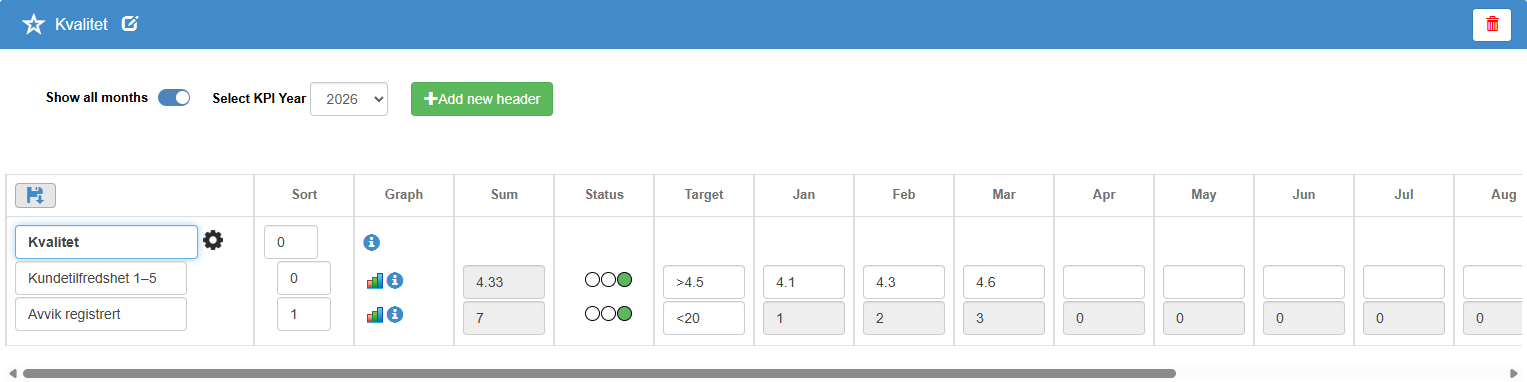
Section titled “Entering and leaving”Pencil in the top-left cell. Switches the table to edit mode. Names, values and targets become text boxes, and the pencil is replaced by a floppy-disk icon.
Floppy-disk icon in the same cell. Values are saved when you leave each cell. The floppy-disk icon then reloads the scorecard and leaves edit mode, which also refreshes sums and traffic lights.
Controls in edit mode
Section titled “Controls in edit mode”Add new header. Next to Select KPI Year. Adds an empty header at the bottom of the table. Shown only with the Manage right on the KPI row and when the selected year is the current calendar year. Export xls is hidden while you are in edit mode.
Header name. Type the name directly in the header. It is saved when you leave the box or move the mouse away from it.
Cog next to a header. Opens the rows dialog for that header (below). Shown only with the Manage right on the KPI row, in the current year. If the header has no name yet, an alert in English says “you must add a name before you can add a subcategory”.
Row and sub-row names. Can be changed directly in the table, in the current year only. Sub-rows created by a split on a system row cannot be renamed here.
Sort. A number on each header, row and sub-row. Change the number and leave the box to move the item. Current year only.
Graph icon. In edit mode, the graph icon on a row opens Choose graph type: and saves your choice as the row’s default graph.
Month cells. Can be typed in on manual rows only; on system rows they are greyed out. Use a comma or a period as decimal separator and no thousands separator (“1,000” is read as 1). Each cell is saved when you leave it, and the row’s Sum, and its sub-rows’ sums, update straight away. The traffic light updates when the floppy-disk icon reloads the page.
Target cells. Can be typed in only when the row has both a green and a red boundary, in the current year.
i icons. Open the info text as a text box with Cancel and Save.
Rows dialog (cog)
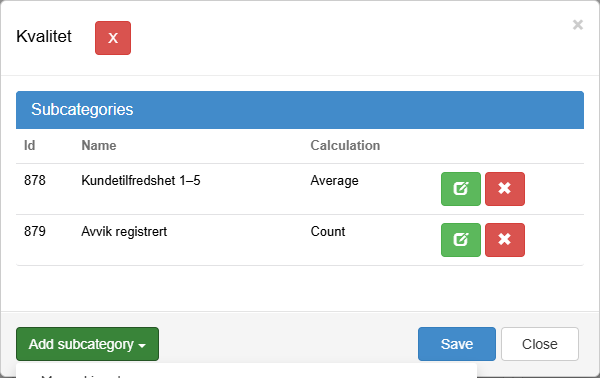
Section titled “Rows dialog (cog)”The rows dialog lists the rows under one header and is where you add, edit and remove them.
| Control | What it does |
|---|---|
| Title | The header’s name. |
| Red X next to the title (tooltip “Delete category”) | Deletes the whole header with its rows, after a confirmation dialog. |
| Subcategories | The panel listing the rows, with the columns Id, Name, the row’s light, and Calculation. |
| Green pencil on a row | Opens the row’s own dialog; see Manual row dialog in a KPI scorecard, System row dialog in a KPI scorecard and Get data from a module, filtered by one value in a drop-down menu. |
| Red X on a row | Deletes the row immediately, without asking. |
| Add subcategory | A dropdown with three options: Manual input (a manual row), Get data from module and show all values from a drop-down menu (a system row, optionally split into sub-rows) and Get data from a module, filtered by one value in a drop-down menu (a system row limited to one value). Each opens the matching row dialog. |
| Save | Closes the dialog. Rows are already saved from their own dialogs. |
| Close | Closes the dialog. |
Be careful with the red X on a row: the row is deleted at once.
Next step
Section titled “Next step”- Manual row dialog in a KPI scorecard
- System row dialog in a KPI scorecard
- Get data from a module, filtered by one value in a drop-down menu