System row dialog in a KPI scorecard
The system row dialog sets up a row whose values are counted from documents in one module, optionally split into one sub-row per option of a choice field. It opens from the rows dialog (the cog next to a header in edit mode): choose Get data from module and show all values from a drop-down menu in Add subcategory for a new row, or click the green pencil on an existing system row. You need the Manage right on the KPI row and the Edit right or higher on the scorecard’s row (Rights, years, favourites and Excel export in KPI Scorecard), and the selected year must be the current calendar year. The dialog title is New subcategory.
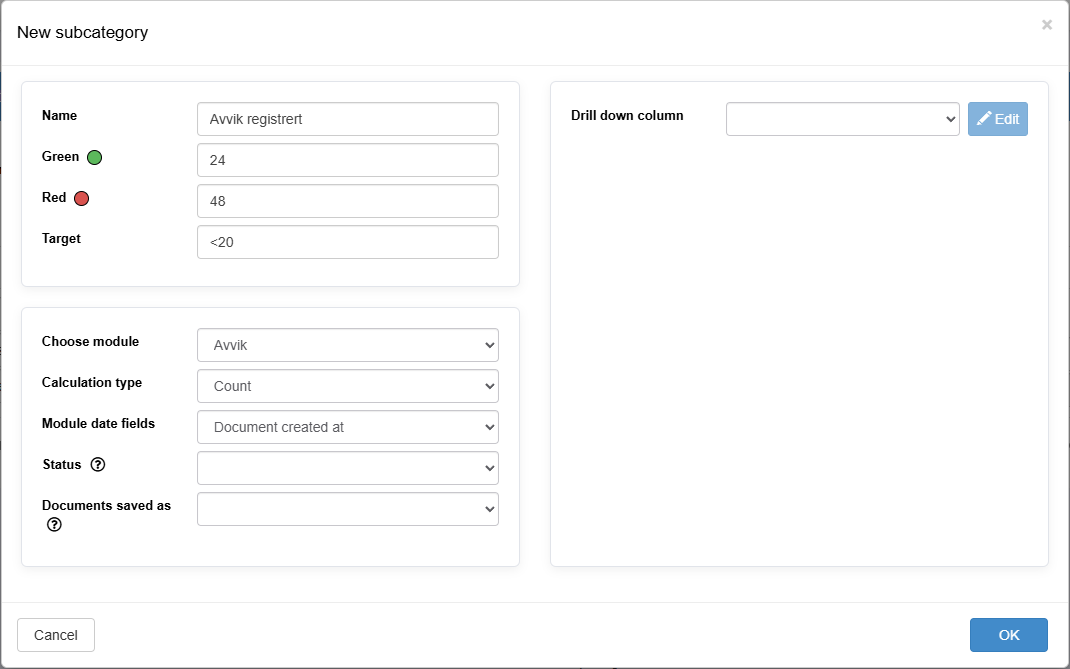
Fields
Section titled “Fields”| Field | Required | Values and behavior |
|---|---|---|
| Name | Yes | Free text. The label turns red while the box is empty. |
| Green | No | The green boundary. A number; comma or period as decimal separator, no thousands separator. |
| Red | No | The red boundary. A number. |
| Target | No | Disabled until both boundaries are filled, with the tooltip “Set the colour thresholds to enable setting a target”. Shown with > or < depending on whether green is higher or lower than red; a target of 0 is shown as 0 without a sign. Display only; it does not affect the light. |
| Choose module | Yes | One entry per document module, in its latest version. If an existing row uses an older version of a module, that version is listed with “ old version” after the name. |
| Calculation type | Yes | Count is always offered. Sum, Average, Average - Sum on months and Show last registration are offered only when the module has number fields. Changing the type clears the chosen field in Module fields. |
| Module date fields | Yes | Decides which date places a document in a month: Document created at, Document updated, or one of the module’s own date fields. |
| Status | No | Empty (no filter), New, or one of the module’s own workflow statuses. Only one status per row. New counts documents that are at the first workflow step and not yet published; any other status counts only documents with that status. Help text: “Only documents with the selected status will be included in the results.” If the module has no statuses, the box shows “No available module statuses”. |
| Documents saved as | No | Empty, or one of your company’s document types, for example Observation. Help text: “By selecting ‘Observation’, only documents saved as observation will be included in the results.” If there are none, the box shows “No avaliable document types”. |
| Module fields | Yes, unless Count | A radio list of the field to sum, average or show: Number and Decimal fields, plus dropdown and radio fields whose option values are numbers. Not shown for Count. |
| Drill down column | No | A choice field to split the row by: a dropdown, checkbox, radio (with or without translation), connected dropdown or global field. Text, info, label, e-mail, user and upload fields are not offered. Edit next to it opens the options dialog. |
OK is disabled until the name, calculation type, module, date field and, unless the type is Count, the field in Module fields are set, and the target is valid. Cancel closes without saving.
Options dialog
Section titled “Options dialog”The options dialog, titled New drilldown, decides which options of the split field become sub-rows.
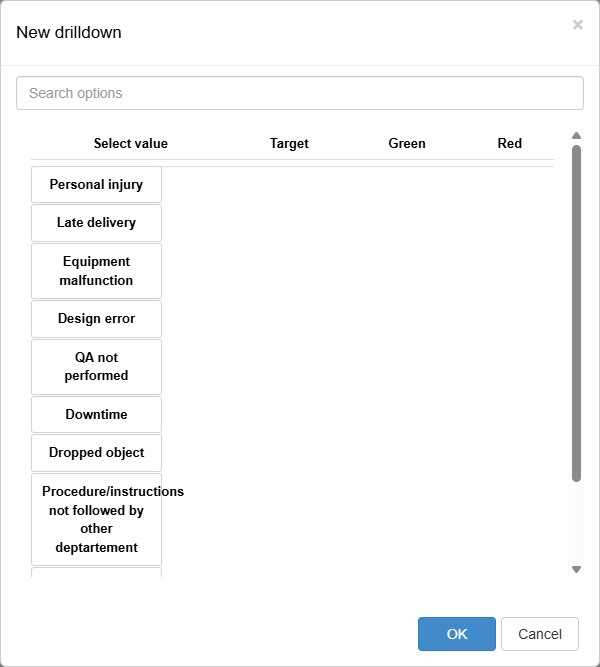
| Control | What it does |
|---|---|
| Search options | Filters the option list. |
| Select value | The column with the options. Click an option to select it; click it again to deselect it, which also clears its values. For connected dropdowns and global fields, the options come from those lists; see Add a value to a global field, with or without translation. Deactivated options may show with the suffix [Deactivated]. |
| Per selected option: Target, Green, Red | The sub-row’s own target and boundaries. |
| Cancel | Closes without changes. |
| OK | Keeps your selection. |
If you change the split field on a row that is already saved, you are asked “Are you sure you want to delete all selected values?” Confirming removes the old sub-rows.
What a split does
Section titled “What a split does”Without a split, the row counts all matching documents. With a split, each selected option becomes a sub-row that counts only the documents where the split field has that option. The sub-rows copy the row’s module, number field, date field, Status and Documents saved as, and get their own target and boundaries from the options dialog. Sub-rows created by a split cannot be renamed in the table.
On a row with a split, use the figures on the sub-rows. The row’s own cells do not add up its sub-rows.
Example: a row counting nonconformities, split by a department dropdown, gets one sub-row per selected department.
After saving
Section titled “After saving”The row appears under its header with one sub-row per selected option. Its month cells are filled from documents straight away and are greyed out in edit mode. The values are recalculated every time the scorecard is shown; which documents count, and how each calculation type works, is described in Calculations and traffic lights in a KPI scorecard.