The equipment page
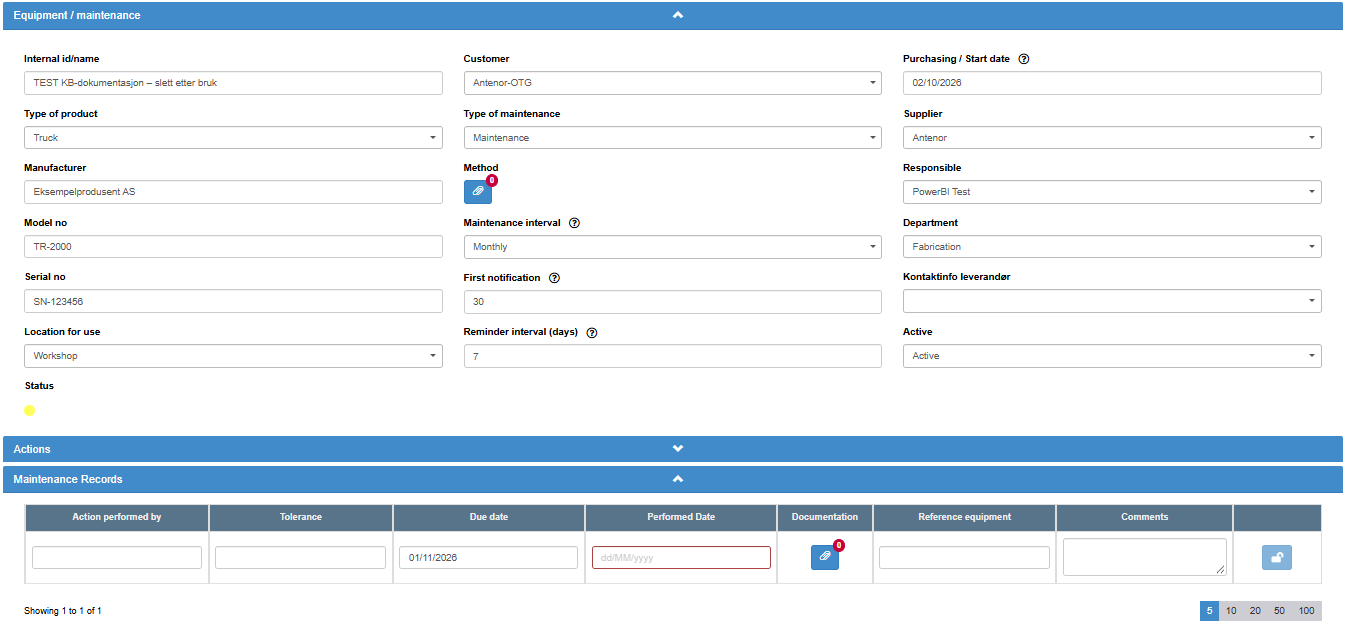
The equipment page shows one equipment item. You open it by clicking the item’s row in the list on the Index tab (see Find equipment and check when maintenance is due). The browser tab shows “ABMS - “ followed by the item’s Internal id/name. The page has three sections: Equipment / maintenance with the item’s fields (open), Actions (closed), and Maintenance Records (open). Every change is saved as soon as you leave the field; the page has no Save button. This page describes the wide desktop layout.
Rights
Section titled “Rights”| Right on Equipment | What it allows on the page |
|---|---|
| Read | Open the page, read the fields and maintenance records, and open attachments. All fields are disabled. |
| Edit | Also change the item’s fields, fill in, complete and unlock maintenance records, delete whole maintenance records (with their files), add and remove the item’s attachments, add attachments to maintenance records, and use New action. |
| Create | Also delete single files from a maintenance record’s Documentation. Create includes Edit. |
So deleting a whole maintenance record needs only the Edit right, while deleting one file from a record’s Documentation needs the Create right.
The Actions section is shown only to users with the Read right on the Action Manager row. Your user administrator sets these rights.
Autosave note
Section titled “Autosave note”At the top of the page, a note says “Not to worry, all changes you make will be automatically stored!”. Click its x to hide it. It stays hidden for you on all equipment pages.
Equipment / maintenance
Section titled “Equipment / maintenance”The item’s fields are laid out in three columns. Which dropdown fields you see depends on the dropdowns your company has added to Equipment. Fields with a ? show a tooltip when you point at the question mark.
A field is saved when you click outside it, move the mouse away from it, or pick a date, if its value has changed.
| Field | What it holds | Values | Tooltip |
|---|---|---|---|
| Internal id/name | The product name, shown in the list and in reminder e-mails. | Free text. Required in the New Equipment dialog; on this page it can be changed freely, even cleared. | |
| Model no | A free-text field, for example for the model number. | Free text. | |
| Manufacturer | The manufacturer. | Free text. | |
| Serial no | The item’s serial number. | Free text. Not copied when the item is copied. | |
| Dropdown fields | Values your company has defined for Equipment. | The active values of the dropdown. A deactivated value that is already set stays visible but cannot be chosen again. A blank choice appears only when a value is set, so you can clear it. | |
| Active | Whether the item is in use. | Active (default) or Inactive. For an inactive equipment item, no reminder e-mails are sent and the status colour is not updated daily. | |
| Method | The item’s attachments, for example the maintenance method. A paperclip with the number of attachments; point at it to see the file names. Click it to open the attachments dialog (see below). | ||
| Maintenance interval | How often maintenance should take place. | One of the intervals your company has set up. No blank choice: once set, it can be changed but not cleared. | “The interval with which maintenance should take place” |
| First notification | How many days before the due date the reminders start, and when the status turns yellow. | Whole number. Default 0. | “Number of days prior to due date to start the notifications” |
| Reminder interval (days) | How often the reminder is repeated after the first one. | Whole number. Default 0 (no repeats). | “Leave this at 0 to not be reminded after the first notification e-mail” |
| Purchasing / Start date | The purchase date, or the start date for the maintenance interval. The first maintenance record’s Due date is counted from it. | Date picker. | “Use this field to add the purchasing date or the start date for the maintenance interval” |
| Responsible | The user who gets the reminder e-mails for this item. | Users who are not deactivated and have the Edit right or higher on the Equipment row, including users from another company account or from Antenor who have been given access to your company. A user who is already Responsible for the item stays selectable for it even after losing that right. | |
| Status | The item’s status colour. | A coloured dot only: green, yellow or red. Calculated, not editable. The date is shown in the list on the Index tab. |
For an equipment item, the status colour compares its next due date with today and with First notification: green when the next due date is more than that number of days away, yellow when it is that number of days away or fewer but not today, red when it is today or has passed. Saving a field recalculates the item’s status and next due date.
When maintenance records start. As long as the item has no maintenance records and Purchasing / Start date, Maintenance interval or Responsible is empty, Maintenance Records shows “Please fill in Purchasing / Start date, Maintenance interval and Responsible above to start maintaining the equipment”. When all three are filled in, the next saved change creates the first maintenance record, with a Due date of Purchasing / Start date plus the interval’s number of days.
Actions
Section titled “Actions”The Actions section lists the actions in the Action Manager that are linked to this equipment item, as an Action Manager action list. New action creates a new action linked to the item; it needs the Edit right on the Equipment row. For the action dialog, see Create an action and send it to someone; for the columns and buttons of an action list, see The Action Manager index: tabs, columns, filters and buttons.
Deleting the equipment item also deletes the actions linked to it, also for a user who cannot see this section.
Maintenance Records
Section titled “Maintenance Records”Maintenance records are listed newest first, 5 per page by default. The number per page you choose is remembered for you. The newest record is the open one; older records are completed and locked. See Register maintenance.
| Column | What it holds | Values and behaviour |
|---|---|---|
| Action performed by | Who did the maintenance. | Free text. |
| Tolerance | Tolerance for the check. | Free text. |
| Due date | When this maintenance is due. | Set automatically when the record is created: for the first record, Purchasing / Start date plus the interval’s days; after that, the previous record’s Performed Date plus the interval’s days. Can be edited while the record is open or unlocked. Changing the interval later does not move it. |
| Performed Date | When the maintenance was done. | Date. Red frame while empty. Required to complete the record. |
| Documentation | Files and links for this record. | Paperclip with the number of attachments. Opens the attachments dialog. Works on locked records too. |
| Reference equipment | The equipment used for the check. | Free text. Copied into the next record when this record is completed. |
| Comments | Comments. | Free text. |
Each field is saved when you leave it, and the status dot under Equipment / maintenance is updated.
Record buttons
Section titled “Record buttons”| Button | Where | What it does |
|---|---|---|
| Open lock (tooltip Complete record) | The open record | Completes the record: locks it and creates the next record, with Due date = this Performed Date + the interval’s days and Reference equipment copied. Disabled until Performed Date is filled in, with the tooltip “Set a performed date to complete this record”. Needs the Edit right. |
| Lock (tooltip “Edit”) | A completed record | Unlocks the record so you can change it. Needs the Edit right. |
| Open lock (tooltip Save) | An unlocked completed record | Locks the record again. The changes were already saved when you left each field. |
| Trash icon (tooltip Delete) | Completed records only | Asks “Do you really want to delete action?” in the dialog Delete action (“action” here means the maintenance record). When you confirm, the record and its uploaded files are deleted; actions in the Action Manager are not. Needs the Edit right. The item’s status and next due date are updated at the next save, or by the daily update for active items. |
Changing a completed record’s Performed Date does not move the Due date of the open record.
Attachments dialogs
Section titled “Attachments dialogs”The Method paperclip (item) and the Documentation paperclip (maintenance record) open a dialog headed Attachments / Internal Modules / External URLs. Both dialogs have the same controls.
| Control | What it does | Who sees or can use it |
|---|---|---|
| Attachment name | A file opens as a download. An internal link (link icon) or external address opens in a new browser tab. | Everyone who can open the page. |
| Pencil | Opens Add / Edit External URL for an external address. | Edit right. |
| x | Deletes the attachment after “Please confirm that you wish to delete this file”. An uploaded file is removed for good. | On the item (Method): Edit right. On a maintenance record (Documentation): Create right. |
| Upload | Uploads one or more files. Files larger than 20 MB are not uploaded; the message “The following files size are bigger than 20MB and were not uploaded:” lists them. | Edit right. |
| Link to internal document | Opens a picker for linking to an ABMS document. | Edit right. |
| External URLs | Opens Add / Edit External URL. | Edit right. |
| Close | Closes the dialog. | Everyone. |
Add / Edit External URL has two required fields: URL (a valid web address) and Text to display (the name shown in the list). Click Save to add or update the link, or Close to cancel.
Next step
Section titled “Next step”Related
Section titled “Related”- Find equipment and check when maintenance is due
- The equipment list
- Copy, deactivate or delete equipment
- Manage equipment dropdowns and intervals
- Create an action and send it to someone
- Deactivate or reactivate a user
- Rights in Equipment Management, action by action
- Equipment attachments in detail
- Actions linked to documents and other modules