The equipment list
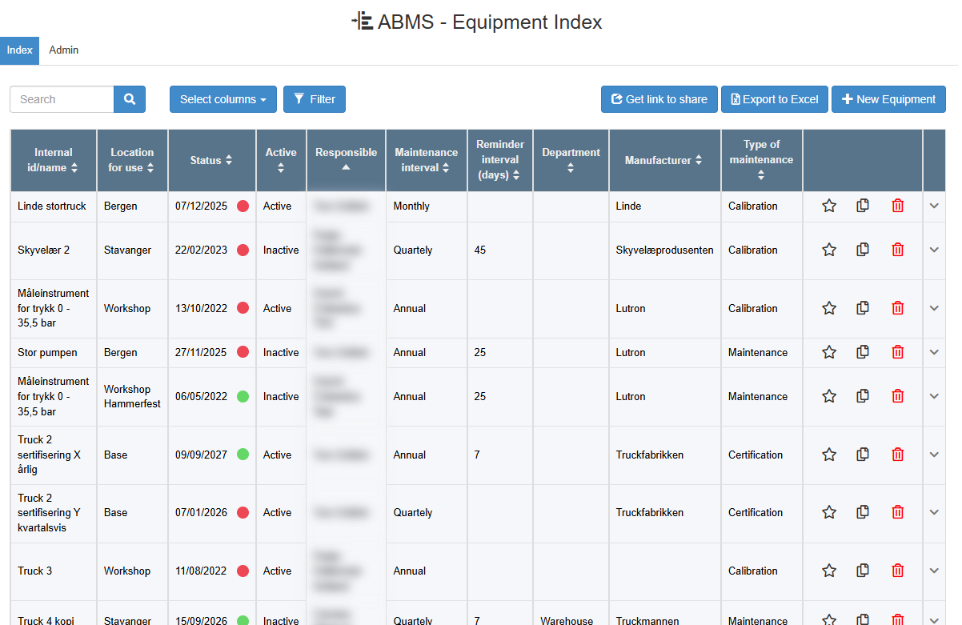
The equipment list is the Index tab of Equipment Management, under the heading Equipment Index. It lists all equipment items of your company, active and inactive, with a toolbar for searching, filtering, choosing columns, exporting and sharing. You need the Read right on the Equipment row to open it; your user administrator sets this. A second tab in Equipment Management, Admin, is shown only to users with the Admin right on the Equipment row; see The equipment Admin tab.
This page describes the list as you see it in a wide browser window.
Toolbar
Section titled “Toolbar”| Control | What it does | Shown when |
|---|---|---|
| Search box (Search), with a magnifier and an x | Press Enter or click the magnifier to search. Finds items where any of these contains your text, regardless of upper and lower case: the Responsible’s name, Internal id/name, Manufacturer, Model no, Serial no, Reminder interval (days), First notification and every dropdown value. Typing red, yellow or green in English finds items with that status. The list goes back to page 1. The x clears the search. The search stays while you open an item and come back, and is cleared when you leave Equipment Management. | Always. |
| Select columns | A list of all columns, sorted by name. Tick or untick columns to show or hide them in the list. Saved for you. | When the browser window is at least 992 pixels wide; see Equipment Management on a phone or narrow screen. |
| Filter | Choose a column to filter on. A filter box for that column appears below the toolbar; see “Filters” below. | Always. |
| New Equipment (+) | Opens the New Equipment dialog, where you enter Internal id/name and click Save (disabled while the name is empty) or Cancel. The new item opens in a new browser tab. See Add equipment. | You have the Create right on the Equipment row. |
| Export to Excel | Downloads the list as an Excel file. See Export and share the equipment list. | Always. |
| Get link to share | Opens the QR Code for This Page dialog with a link and a QR code that open the list with your current columns, filters, search and sort order. The dialog has the link with a copy icon, an information icon, a button that copies the QR code as an image (a short message confirms the copy) and a button that downloads it. | Always. |
| Personal index, with an information icon | Takes you back to your own saved list (tooltip “Go back to your personal configuration”). The information icon explains: “This is a shared Index. Any changes won’t be saved. If you want the configuration to be saved, go back to Personal Filter or get a new shared link”. | Only when the list was opened from a shared link. |
Filters
Section titled “Filters”Choosing a column under Filter shows a filter box for it. The kind of box depends on the column:
| Column | Filter box | Rule |
|---|---|---|
| A dropdown field | Select Value, a list where you can pick several values. | Applied at once. Items with any of the chosen values remain. |
| Responsible | A list of users where you can pick several. | Applied at once. |
| Status | Green, Yellow, Red; pick one or more. | Items with that status colour remain. |
| Maintenance interval | A list of intervals; pick one or more. | Applied at once. |
| Active | Active, Inactive; pick one or both. | Applied at once. |
| Model no, Internal id/name, Manufacturer, Serial no | A text box. Click Add filter or press Enter. | Items whose value contains the text, regardless of upper and lower case. |
| First notification, Reminder interval (days) | A number box (1 or more). Click Add filter. | Items with exactly that number. A value of 0 cannot be filtered on; sort by the column instead. |
| Purchasing / Start date | From and To dates. Click Add filter. | Items with a date in the range; both days are included. |
The filters in use are listed after Applied Filters, each with an x that removes it. The x next to Applied Filters (tooltip “Remove all filters”) removes them all. An item must match all filters and the search.
Your filters, columns, column order and sort order are saved for you and are there next time you open the list. In a shared view they are not saved.
Columns
Section titled “Columns”For a new user, the list shows Internal id/name, Model no, a location dropdown (if your company has one in Equipment), Status, Active and Responsible. The other columns can be added with Select columns. Dropdown fields are inserted after the second column.
| Column | Shows |
|---|---|
| Model no | Free text from the item. |
| Internal id/name | Free text from the item. |
| Manufacturer | Free text from the item. |
| First notification | How many days before the due date the first reminder is sent. |
| Reminder interval (days) | How many days between repeated reminders; 0 means no repeats. |
| Purchasing / Start date | The purchase or start date, in your date format. |
| Maintenance interval | The name of the item’s maintenance interval. |
| Active | Active or Inactive. |
| Serial no | Free text from the item. |
| Responsible | The name of the user who gets the reminders. Empty when the item has no Responsible, and also when its Responsible user has been deactivated. |
| Status | The item’s next due date, with a dot coloured green, yellow or red. Green: the due date is more than the item’s First notification days away. Yellow: it is that many days away or fewer, but not today. Red: it is today or has passed. |
| Dropdown columns | The item’s value in each dropdown field assigned to Equipment, in your language. |
Working with the list
Section titled “Working with the list”| Action | Result |
|---|---|
| Click a column heading | Sorts ascending; click again for descending. Text is sorted regardless of upper and lower case. Sorting on Status sorts by next due date. The sort order is saved for you. |
| Drag a column heading | Moves the column. The new order is saved for you. |
| Click any cell in a row | Opens the item page in the same browser tab. See The equipment page. |
| Arrow on a row | Shows the values of the columns you have hidden, under the row. The arrow column appears only when some columns are hidden. |
| Paging controls below the list | The list shows 10 items per page by default. The page you are on is kept while you open an item and come back. |
Row icons
Section titled “Row icons”| Icon | What it does | Shown when |
|---|---|---|
| Star (tooltip Add to favourites, or Remove from favourites when filled) | Adds the item to, or removes it from, your favourites on the dashboard. | Always. |
| Copy icon (tooltip Copy equipment) | Opens the Copy dialog with the same Internal id/name. Saving creates a new item with all field and dropdown values, including Purchasing / Start date and Active, except Serial no, and opens it in a new browser tab. Maintenance records, attachments and actions are not copied. | You have the Create right on the Equipment row. |
| Trash icon (tooltip Delete equipment) | After the confirmation “Are you sure you want to delete this equipment item and all the related actions and attachments?”, deletes the item with its maintenance records, attachments and linked actions, also actions you cannot see without the Read right on the Action Manager row. | You have the Create right on the Equipment row. |
Copying, deactivating and deleting are described step by step in Copy, deactivate or delete equipment.