The field types in a document form
A document form in a standard document module is built from a set of field types: text boxes, lists, tick boxes, dates, numbers, calculated results, upload fields, tables and a few fields that only show information. This page describes every field type, what it looks like in edit mode, what it accepts, how it counts as filled when it is required, and what it shows in view mode. Antenor places the fields in each module for your company, and your company decides labels, help texts, list values and which fields are required. Your forms therefore use only some of these types, and the labels you see are your company’s own. The types are listed below in a fixed order, not in the order of any particular form. For a walkthrough, see Fill in the fields of a document.
You can fill in fields when you own the current step of the document and have the Edit right on the module’s row; your user administrator sets the rights.
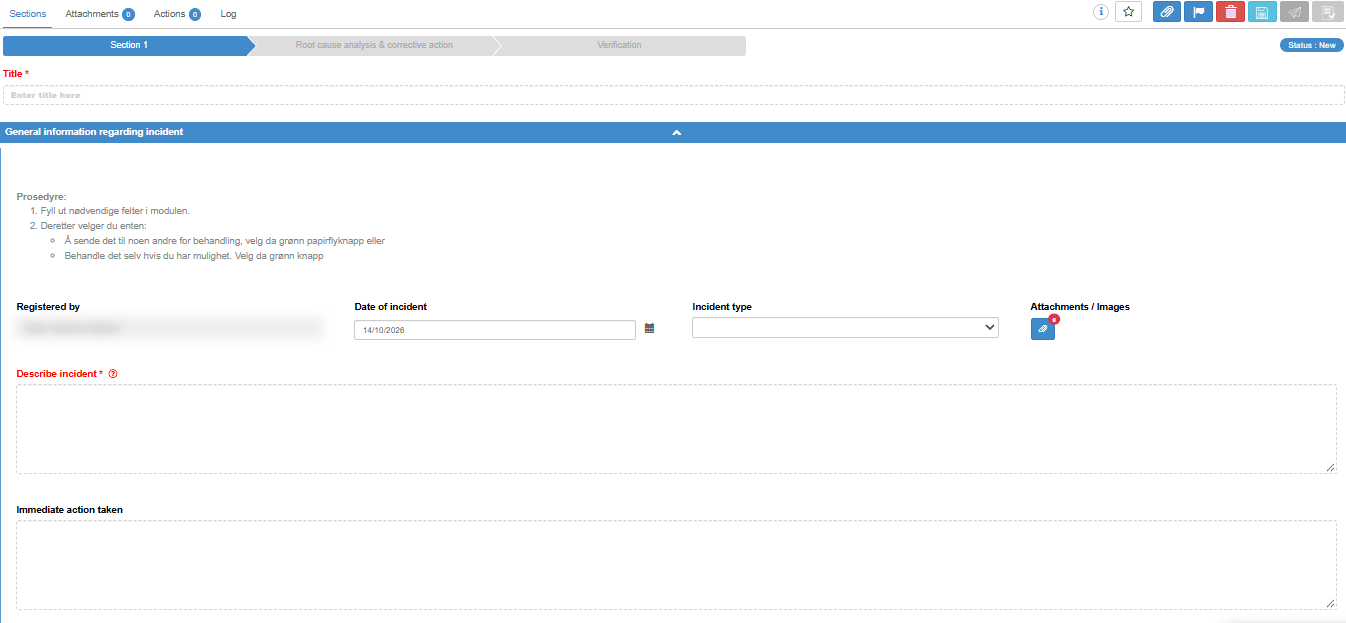
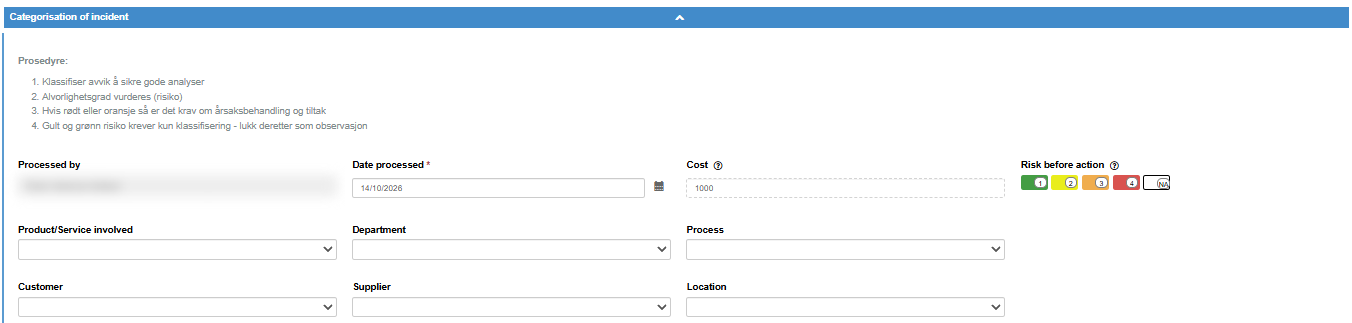
What every field has
Section titled “What every field has”| Part | What it does |
|---|---|
| Label | The name of the field, above the control, in your language. |
| * | Marks a required field (tooltip Required). The paper-plane button (Send for approval) stays disabled until every required field of your section has a value. |
| Question mark in a circle | Shown after the label when your company has written a help text for the field. Hover over it to read the text; it disappears when you move the mouse away. |
| Default value | Some fields are filled in when your section opens: a default text, a date a set number of days from today, a preselected option, a preselected person or a risk value. You can change it. |
| Saving | A field is saved on its own when you leave it: you click elsewhere, press Tab or move the mouse away from it. Lists, tick boxes, option buttons, the risk field and a date picked in the calendar are saved the moment you choose. Unsaved changes are also saved every 60 seconds while the browser window is the active window. The top bar shows “Autosaving…” and then “Last save at:” with the time. |
| Refused value | If a value is refused, a message names the field and the reason; the value you typed stays in the field so you can correct it, but it is not saved. If a value cannot be saved for another reason, the message is “Error saving field” with “Failed to save the field. Please contact support if the problem persists.”, and the field goes back to its last saved value. See Field values: saving, refused values, defaults and special cases. |
Overview
Section titled “Overview”| Field type | How you recognise it | Counts as filled when |
|---|---|---|
| Heading bar | A coloured bar with a title; nothing to fill in. | Not an input. |
| Information text | Fixed text from your company; nothing to fill in. | Not an input. |
| Single-line text | A one-line text box. | It has text. |
| Multi-line text | A larger text box. | It has text. |
| Text editor | A text box with a formatting toolbar. | It has text. |
| Name of the person working on the step | A grey box with a person’s name. | Filled in for you. |
| Person list | A dropdown of people. | A person is chosen. |
| Tick boxes | Boxes to tick, or a list where you can choose several. | At least one is ticked. |
| Risk field | A row of coloured numbered boxes and an NA box. | A box is chosen. |
| Checklist | A list of tasks with tick boxes, often with a progress bar. | At least one task is ticked. |
| Dropdown | A dropdown, or a text box that searches a list as you type. | A value is chosen. |
| Option buttons | A row of buttons where you choose one. | One is chosen. |
| Date | A text box with a calendar icon. | It has a date. |
| Whole number, decimal number | A text box for a number. | It has a number. |
| Calculated field | A grey box with a number worked out from other fields. | Not an input. |
| E-mail address | A text box for an e-mail address. | It has a valid address. An invalid address blocks sending even when the field is not required. |
| Upload field | A list of files and links, opened by clicking it. | Depends on the setup; ask your user administrator if a required upload field blocks sending. |
| Company | A grey box with a company name. | Filled in for you. |
| Connected dropdown | A Select… button that opens a menu with sub-menus. | At least one value is chosen. |
| Global field | A dropdown or multi-choice list with your company’s global values. | At least one value is chosen. |
| Table | A grid with column headings and rows. | Every cell of every row has a value; see The table field for what that means for each column type. |
| Expandable box | A coloured header with an arrow that opens and closes a group of fields. | Not an input; the fields inside it count. |
Heading bar
Section titled “Heading bar”A bar with a title, grey with black text unless the module uses other colours. It divides the form and looks the same in edit and view mode.
Information text
Section titled “Information text”Fixed, formatted text written by your company, sometimes with a background colour or links to files. If the text exists in both English and Norwegian, you see the one for your language; when your language has no text, the other one is shown. It looks the same in edit and view mode.
Single-line text
Section titled “Single-line text”| Accepts | Up to 512 characters on one line. The box stops taking more. |
| View mode | The text. |
Multi-line text
Section titled “Multi-line text”| Accepts | Text over several lines, with no set length limit. |
| View mode | The text, with its line breaks. |
Text editor
Section titled “Text editor”A text field with a menu bar and a formatting toolbar. Some have “English” and “Norwegian” buttons for text in both languages. See The text editor and Write and format a document.
Name of the person working on the step
Section titled “Name of the person working on the step”A grey box you cannot type in. When the owner of the step opens it in edit mode, the box is filled with their first and last name and saved, replacing any earlier name, so it always shows the latest person who edited that step. In some older forms the box is instead filled once, with the first person who opens the step, and keeps that name afterwards.
Person list
Section titled “Person list”| Control | A dropdown of people, sorted by name. The first entry is “None”. |
| Who is listed | Set per field: either the members of a chosen access group, or the active users who have exactly a chosen right on the module. A user with a higher right than the chosen one is not listed. If someone is missing, contact your user administrator. |
| Default | Can be a preselected person. |
| View mode | The chosen name. |
A company field linked to the person list shows the chosen person’s company.
Tick boxes
Section titled “Tick boxes”| Control | A set of tick boxes in one or more columns, or, if the field is set up as a list, a list with the placeholder “Nothing selected” where you can choose several. |
| How to fill in | Tick as many as apply; tick again to remove. Each tick is saved at once. Options that your company has deactivated are not shown. |
| Language | Options with English and Norwegian texts are shown in your language. |
| View mode | The boxes with your choices ticked, or the chosen values separated by commas. |
Risk field
Section titled “Risk field”| Control | A row of coloured boxes numbered 1 to 4 (or 1 to 3, if the field is set up with three colours) and a grey “NA” box. Normally 1 is red and the highest number green; a field can be set up with the colours the other way round. |
| How to fill in | Click a box to choose it; click the chosen box again to clear it. Saved at once. |
| Effect | The value decides whether the document can be saved as an observation; see Save a document as an observation. In a calculated field, NA counts as 0. |
| View mode | One coloured box with the value. |
Checklist
Section titled “Checklist”| Control | A list of tasks with sub-tasks, each with a tick box, and, if switched on, a progress bar showing tasks done out of the total. Expand and Collapse open and close the sub-tasks. |
| How to fill in | Tick the tasks you have done. Ticking a task ticks all its sub-tasks; when all sub-tasks of a task are ticked, the task is ticked too. |
| Counts as filled | At least one task is ticked. |
| View mode | The list, read-only, with the progress bar if it is switched on. |
Dropdown
Section titled “Dropdown”A dropdown comes in two variants, set per field.
| Plain dropdown | Click and choose an option. The first entry is empty; choosing it clears the field. |
| Search-as-you-type dropdown | A text box. Type part of a value and the list shows the options that contain it. Show all lists every option. Text that is not one of the options is not accepted: when you leave the box, it is cleared and a message asks you to choose a value from the list; Close closes it. Pressing Backspace, Delete or Space in an empty box clears the stored value. |
| Options | Sorted as your company set up the field. Deactivated options are not offered, and a value that is no longer an option is cleared when the form opens. Options with English and Norwegian texts are shown in your language. |
| Effect | In some forms a choice shows or hides rows of fields below it (see “Rows that appear and disappear” below). Options that are numbers can be used by a calculated field. |
| View mode | The chosen option, in the reader’s language. |
Adding a value from the form. In a search-as-you-type dropdown, users with exactly the Manage right on the module’s row (not a higher level) also get an entry in the list for adding a new value. It opens a dialog with either a Value box, or Norwegian and English boxes (both required) for a field with translations. Add adds the value, chooses it in your document and adds it to the field’s list of options for everyone; “Value already exists!” means the value is already in the list. Close closes the dialog without adding.
Option buttons
Section titled “Option buttons”| Control | A row of buttons, one per option. Long option texts are shortened; hover to see the full text. Deactivated options are not shown. |
| How to fill in | Click an option to choose it; click the chosen one again to clear it. |
| Effect | Like a dropdown, a choice can show or hide rows below, and options that are numbers can be used by a calculated field. |
| View mode | The chosen option, in the reader’s language. |
| Control | A text box with a calendar icon. The placeholder shows the format: “dd/MM/yyyy” with English language, “dd.MM.yyyy” with Norwegian. A field with time adds “ hh:mm” and a time picker. |
| How to fill in | Type the date with the separator shown and a four-digit year, or click the calendar icon and pick the date. The calendar weeks start on Monday; Clear empties the date and Close closes the calendar. A date typed in another format shows “Invalid date” and is not taken. Emptying the box clears the date. |
| Default | Can be today plus a set number of days. |
| View mode | The date in your format, with the time for a field with time. |
Whole number and decimal number
Section titled “Whole number and decimal number”| Whole number | Takes digits and a leading minus sign only; other keys do nothing. |
| Decimal number | Also takes a decimal separator. With Norwegian language you type and see a decimal comma; with English, a point. |
| Effect | A change updates any calculated field that uses the number at once. |
| View mode | The number. |
Calculated field
Section titled “Calculated field”A grey box you cannot type in. It shows the result of a formula that Antenor has set up for your company over number fields, number options in dropdowns and option buttons, and risk fields in this and earlier sections. The result has two decimals (a decimal comma with Norwegian language) and is worked out again whenever one of those fields changes. It stays empty until every field the formula uses has a value; in a risk field, NA counts as 0.
E-mail address
Section titled “E-mail address”| Accepts | One e-mail address, up to 256 characters. |
| Rule | An address that is not valid keeps the send button disabled, even when the field is not required, and it is not saved. |
| View mode | The address. |
Upload field
Section titled “Upload field”Shows the files and links already added. Click the field to open the Attachments / Internal Modules / External URLs dialog:
| Control | What it does | When it is shown |
|---|---|---|
| Upload | Uploads one or more files. Uploaded files also appear in the document’s attachment list, marked as coming from an upload field. | Always. |
| Link to an internal document | Adds a link to a published document in a module where you have Read. | Not on forms sent to people outside your company, and not if the field is set up without it. |
| External URLs | Opens Add External URL, where you give the web address and the text to show. | Only if the field allows web links. |
| Per item | Download or open the file, edit a web link, and delete the item with the ×. | For each item. |
| Close | Closes the dialog. | Always. |
See also Add attachments to a document.
Company
Section titled “Company”A grey box you cannot type in. It shows the company of the person in a linked person field: for a person list, the company of the chosen person; for a name that is filled in for you, that person’s company. If no company is found, it shows your own company’s name.
Connected dropdown
Section titled “Connected dropdown”| Control | A Select… button that opens a menu. Options that have sub-options open a sub-menu when you hover over them. |
| How to fill in | Click an option at any level to tick it; click it again to untick it. Unless the field allows only one choice, you can tick several. Within one branch you choose one level: ticking an option removes its parent and its sub-options from your choice. Deactivated options are not shown. |
| Display | The chosen values are listed under the button, with the full path (“Parent - Child”) if the field is set up that way. |
| Values | Maintained under Super > Field Settings by someone with the Admin level on the Super area row. |
| View mode | The list of chosen values. |
Global field
Section titled “Global field”| Control | A dropdown with an empty first entry, or, if the field allows several values, a list with the placeholder “Nothing selected” where you can choose several. |
| Values | The active values of one of your company’s global fields, the same lists that are used across modules. They are maintained under Super > Global Fields by someone with the Admin level on the Super area row; see Add a value to a global field, with or without translation. |
| View mode | The chosen values, separated by commas. |
A grid where each row is one entry, with columns for text, numbers, e-mail addresses, tick boxes, option buttons, links, attachments and actions. See The table field.
Expandable box
Section titled “Expandable box”A coloured header with an arrow and the text “[Click on box header to expand/collapse]”. It groups the fields below it. Click the header to open or close the box; a box can start closed. The required fields inside a closed box still count: open every box in your section to find them.
Rows that appear and disappear
Section titled “Rows that appear and disappear”A form can be set up so that a choice in a dropdown or with option buttons shows or hides rows of fields below it. Hidden rows do not need to be filled in and are left out of the PDF. If a new choice would hide rows that already have values, a Confirmation dialog asks whether to go on: if you confirm, those values are cleared; Cancel keeps your earlier choice.
View mode and changes after publication
Section titled “View mode and changes after publication”In view mode, each field shows its label and value as text; a choice shows the option’s text in the reader’s language.
In a module without revisions, a published document can have a small pencil next to its fields, for the users described in Rights needed for each action on a document; fields that make other rows of the form appear or disappear have none. Clicking it opens that one field for editing, with a floppy disk to save and a red cross to cancel next to the label; nothing is saved until you click the floppy disk. Saving a change this way needs the Approve right on the module’s row, or the Admin level on the Super area row; ask your user administrator. A field that has been changed after publication shows a history icon next to its label. It lists who changed the field, when, and the earlier value; the first row is “Original value”. See Edit a published document and see earlier revisions.
Next step
Section titled “Next step”Related
Section titled “Related”- The table field
- The text editor
- Edit mode: buttons, the send dialog, the required-fields dialog
- Add attachments to a document
- Save a document as an observation
- Edit a published document and see earlier revisions
- Add a value to a global field, with or without translation
- Give a user access rights
- Field values: saving, refused values, defaults and special cases