The Competency Admin tab
The Admin tab in Competency holds the settings that apply to the whole company: reminder rules, the list of competencies and capsules, the highest level, titles and global-field values, and who is responsible for which people. The Competency Admin tab is shown to users with the Manage right or higher on the Competency row; your user administrator sets that right.
The tab has five sections, described below in the order they appear: Trigger, Competencies, Capsules, Organisations and Access Right (which also holds Other rights). All sections are closed when the tab opens; click a heading to open it. Several sections can be open at the same time. For step-by-step help, see Set up reminders for expiring competencies, Manage competency types, capsules and levels and Give managers access to people in Competency.
Trigger
Section titled “Trigger”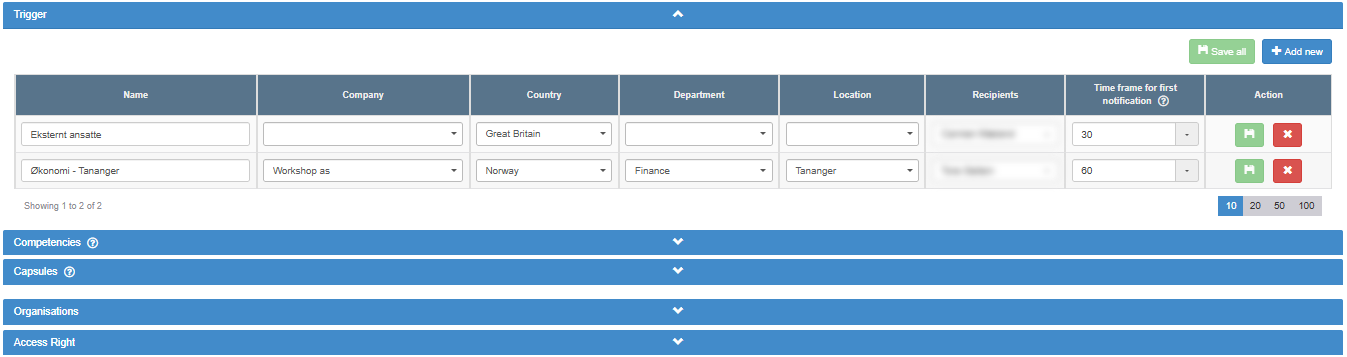
The reminder rules. Each rule sends e-mails about competencies that are about to expire; see Set up reminders for expiring competencies for how sending works.
Above the table:
| Control | What it does | Rules |
|---|---|---|
| Add new | Adds one empty rule row, with a time frame of 7 days. | Only one unsaved rule at a time: “Please save the trigger before adding a new one”. |
| Save all | Saves every rule on the page in one go, then reloads the list. Message: “The trigger has been updated”. | Shown only when there are rules. Disabled until at least one rule has changed. While any rule is incomplete, nothing is saved. |
The table, one row per rule, 10 per page:
| Column | What it does | Values and rules |
|---|---|---|
| Name | The rule’s name. | Free text. Required. |
| One column per global field (the field’s name as heading) | Limits the rule to people with that value. | One of the field’s active values, or empty. One value per column. Empty = everyone. Values in several columns combine: a person must match all of them. |
| Recipients | The people who get the rule’s e-mail. | Choose one or more. Lists the people in Competency who are linked to a login to ABMS and have an e-mail address, by name. At least one is required. |
| Time frame for first notification (with a question mark) | How many days before the expire date the first e-mail is sent. Tooltip: “This field defines how many days before a competency expires the first notification email should be sent. After the first notification, reminder emails will continue to be sent every 14 days until the competency is renewed or updated.” Reminders stop when the expire date is moved so that the competency is no longer due, when the person’s end date passes, or when the rule is deleted; changing the status or uploading a certificate alone does not stop them. | Pick 7, 30 or 365, or type a number of days. 7 for a new rule. Required. |
| Action: save icon (tooltip Save) | Saves this rule. Message: “The trigger has been updated”. | Enabled when the rule has a name, a time frame and at least one recipient, and (for a saved rule) has changed. |
| Action: cross (tooltip Remove) | Asks “Please confirm that you wish to delete this trigger” in a dialog titled Delete; click Yes to delete the rule or No to keep it. Message: “The trigger has been deleted”. | Always shown. |
A rule has no on/off switch. To stop a rule, delete it.
Competencies
Section titled “Competencies”The list of competencies (competency types) your company uses. The question mark next to the heading explains: “To add a competence to a capsule simply drag and drop it to the relevant capsule in the Capsules section. To add a certificate to several users click the paperclip of the relevant competence. Select the certificate file from your computer, and then select the users to attach the certificate to. Once saved this file will appear on the relevant competence for each of the selected users”
Top row:
| Control | What it does | Values and rules |
|---|---|---|
| Max level | The highest level in Level and Wanted level for every competency row in the company. | A whole number of 1 or more. 5 unless changed. |
| Save | Saves Max level. The level lists everywhere then run from 1 to the new value. Message: “The max level value has been updated”. | Empty, 0 or less: “Max level must be natural number”. Lowering the value does not change levels already recorded on people’s rows. |
| Show deactivated competencies (switch) | Off: the grid shows active competencies. On: the grid shows only deactivated competencies, without the Add new cell. |
The grid has one cell per competency, sorted by name. The first cell is Add new, which opens an empty edit panel for a new competency. Controls on a competency’s cell:
| Control | What it does | Shown for |
|---|---|---|
| Name | Hover to see “Linked Capsules:” with the capsules the competency is in. Double-click to rename it in place; the name is saved when you leave the box, with the same checks and confirmation as Save in the edit panel. Drag the cell onto a capsule in Capsules to link it. | Active and deactivated |
| Cross (tooltip Delete competency) | Deletes the competency; see “Deleting a competency” below. | Active and deactivated |
| Ban icon (tooltip Deactivate competency) | Deactivates the competency after “Do you really want to deactivate ‘<name>’?”. Message: “The competency has been deactivated.” | Active |
| Pencil (tooltip Edit mode) / eye (tooltip View mode) | Opens or closes the edit panel under the cell. | Active |
| Paper clip (tooltip Attach document or certificate) | Opens the panel for attaching a certificate to many people. | Active |
| Flash icon (tooltip “Trigger”) | Opens the competency’s own reminder time frame. | Active |
| Tick icon (tooltip Activate competency) | Activates the competency again after “Do you really want to activate ‘<name>’?”. Message: “The competency has been activated.” The grid stays on the deactivated list. | Deactivated |
Edit panel
Section titled “Edit panel”| Control | What it does | Values and rules |
|---|---|---|
| Title | The competency’s name. | Required. Shown when Translations is off; the same name is used in both languages. |
| Translations (switch) | Gives the name in each language. | Off: one name box. On: English title and a box for the Norwegian name. |
| Description | Explains the competency. Shown as the info icon next to the competency’s name in a person’s competency table. | Free text. |
| No. of Employees | How many people the company wants to hold the competency. Used in the Analysis charts that compare the actual number with the desired number. | A whole number of 1 or more, or empty; otherwise “No. of Employees must be natural number”. |
| Save icon (tooltip Save) | Saves the competency. New: “The competency has been created.”. Existing: asks “When a competency’s name is changed all users will see its new name” (No / Yes), then “The competency has been updated.”. | Empty name: “Competency name is required.”. A name that already exists in either language: “Value is already in Competency name”. |
| Capsules (right column) | The capsules the competency is in. Hover a capsule and click its cross to remove the link, after confirming. | Removing the link does not change any person’s competency rows. |
Renaming a competency changes the name everywhere: on every person who holds it, in the Report and in Analysis.
Deactivating a competency
Section titled “Deactivating a competency”A deactivated competency disappears from the grid (unless Show deactivated competencies is on), from the list when adding competencies on a person’s page, from the Report columns and pickers, and from capsule lists. People’s rows of that competency are kept and still show on their pages.
Deleting a competency
Section titled “Deleting a competency”| Who holds the competency | What happens |
|---|---|
| One or more active people (end date not passed) | A dialog lists their names, with only an Ok button. The competency is not deleted. |
| Only people whose end date has passed | A dialog lists their names: “If this competency is connected to any expired users, those users will lose this competency when you delete it.” Click Delete to go ahead or Cancel. |
| Nobody | Confirm “Do you really want to delete ‘<name>’?” (No / Yes). |
When deleted, the competency, its links to capsules and the remaining rows of it (on people whose end date has passed) are all removed. Capsule links do not stop a deletion.
Attaching a certificate to many people (paper clip)
Section titled “Attaching a certificate to many people (paper clip)”| Control | What it does | Values and rules |
|---|---|---|
| Selected file | Shows the chosen file or link. | Read-only. |
| Upload | Choose a file from your computer. | At most 20 MB: “File size is too large. Maximum size is 20 MB”. Choosing a file clears the people already ticked. |
| Internal link button | Links to a document elsewhere in ABMS as the certificate. | |
| External URLs | Adds a web address as the certificate. | Must start with http or https. |
| Selected users | The people to attach the certificate to, with a search box. | Lists only active people who already have a row of this competency. Empty: “–No users assigned to this competency–”. |
| Save | Adds the file or link as the newest certificate on the competency row of each ticked person. Their previous certificate stays in the row’s history. | Disabled until a file or link and at least one person are chosen. The certificates are added in the background and can take a moment to appear. |
| Cancel | Closes the panel. |
The competency’s own reminder time frame (flash icon)
Section titled “The competency’s own reminder time frame (flash icon)”| Control | What it does | Values and rules |
|---|---|---|
| Time frame for first notification | Days before the expire date for rows of this competency. | Pick 7, 30 or 365, or type a number. 7 by default. Saved as soon as it changes. |
| Activate/deactivate (switch) | Turns the competency’s own time frame on or off. | Off by default. Saved as soon as it changes. |
Each change shows “Trigger updated”. When it is on, every reminder rule uses the longer of the rule’s and the competency’s time frame for rows of this competency. It never shortens the lead time, and it sends nothing without a rule in Trigger.
Capsules
Section titled “Capsules”Capsules are named groups of competencies, for example everything a role needs. The question mark next to the heading explains: “To add a competency to a capsule simply drag and drop it from the relevant competence in the Competences section.” The grid is sorted by name; the first cell is Add new.
| Control | What it does | Rules |
|---|---|---|
| Name | Hover to see “Linked Competencies:” with the capsule’s competencies. Double-click to rename it in place; saved when you leave the box. | |
| Cross (tooltip Delete capsule) | Deletes the capsule; see “Deleting a capsule” below. | |
| Pencil (tooltip Edit mode) / eye (tooltip View mode) | Opens or closes the edit panel. | |
| Drop a competency on the cell or its open panel | Links the competency to the capsule: “Competency linked to capsule”. | Already linked: “The competency is already linked to this capsule.” |
Linking a competency to a capsule adds an empty row of that competency, in the background, to every person linked to the capsule who does not have it yet.
Edit panel
Section titled “Edit panel”| Control | What it does | Values and rules |
|---|---|---|
| Title | The capsule’s name. | Required. |
| Translations (switch), English title, Norwegian name | As for competencies. | |
| No. of Employees | A number for the capsule. | A number; it is not checked. The Analysis charts do not use it; they use the number set on each competency. |
| Save icon (tooltip Save) | Saves the capsule. New: “The Capsule has been created.”. Existing: “The Capsule has been updated.”. | Empty name: “Capsule name is required.”. Existing name: “Value is already in Capsule name”. |
| Competencies (right column) | The capsule’s competencies. Click a competency’s cross to remove the link, after confirming. | People’s competency rows stay. |
Deleting a capsule
Section titled “Deleting a capsule”| Who is linked to the capsule | What happens |
|---|---|
| One or more active people | A dialog lists their names, with only an Ok button. The capsule is not deleted. |
| Only people whose end date has passed | A dialog lists their names: “If this capsule is connected to any expired users, those users will lose this capsule when you delete it.” Delete or Cancel. |
| Nobody | Confirm “Do you really want to delete ‘<name>’?” (No / Yes). |
When deleted, the capsule and its links to competencies and people are removed; people’s competency rows stay. Message: “The Capsule has been deleted.”. Linked competencies do not stop a deletion.
Organisations
Section titled “Organisations”The global fields your company uses in Competency, plus Titles, sorted by name in two columns. These are the fields shown as columns, filters and person fields in Competency, and in the Trigger and Access Right sections. Each has a searchable list of values. A field that is a shared global field has “(global)” after its name.
| Item | What you can do | Rules |
|---|---|---|
| Global field values | The same value list as in Super > Global Fields: add, edit, activate or deactivate, delete and merge values; see Add a value to a global field, with or without translation. | Needs the Admin level on the Super area row of your rights; your user administrator sets this. Without it, the values are read-only, the field cannot be renamed, and the warning “You must have Super user access rights to modify Global Fields.” is shown. Fields cannot be added to or removed from Competency here. |
| Titles: Add new | Adds a title, with a Translation switch for English and Norwegian names, and Save. Message: “The title has been created.”. | Empty name: “Title is required.”. |
| Titles: pencil (tooltip Edit) | Renames a title. Message: “The title has been updated.”. | |
| Titles: trash icon (tooltip Delete) | Deletes a title after “Please confirm deletion of the title”. Message: “The title has been deleted.”. | Refused while any person in Competency, active or not, has that title. Deleting a title removes every Access Right assignment for it. Titles cannot be deactivated. |
Access Right
Section titled “Access Right”Who is responsible for which people. A user with the Approve right sees their own record plus everyone whose title or global-field value they are responsible for; see Give managers access to people in Competency.
| Control | What it does | Values and rules |
|---|---|---|
| Select Dropdown | Choose Title or one of the global fields. | Title first, then one entry per global field. |
| Table: Value, Responsible users | One row per title, or per active value of the field, with the names of the users responsible for it. | “Loading…” while the list is fetched. |
| Pencil (tooltip Edit) | Opens the dialog “Responsible users - <value>”. |
The dialog:
| Control | What it does | Values and rules |
|---|---|---|
| Assigned users | The users responsible for the value. The trash icon next to a user removes them at once: “The access right has been removed”. | Empty: “No users assigned”. |
| Available users (with a question mark) | Users you can assign. Tooltip: “To add users to this list, go to the system’s access rights page (super -> users) and add minimum the Approve access level to the users.” | Active people in Competency (no end date, or an end date today or later), linked to an ABMS login whose login has the Approve right or higher on the Competency row, and who are not yet assigned. None: “No users available”. |
| “Search users…” | Filters Available users by name. | |
| Tick boxes | Select several users; a counter shows how many. | |
| Assign selected users | Assigns the ticked users: “The access right has been added”. | Disabled until at least one user is ticked. |
| Close / × | Closes the dialog. | Clicking outside the dialog does not close it. |
A person whose end date is saved as a date that has passed loses all their assignments.
Other rights
Section titled “Other rights”| Control | What it does | Values and rules |
|---|---|---|
| View Report (with a question mark) | The only special right. Click it to show the list of users. Tooltip: “In this section people who otherwise do not have access to the report tab can be given access to view the report. They will not be able to edit any data, nor will they be able to view user information data.” | |
| Select Responsible User | The users who can get View Report, with a search box (placeholder “Search”). A tick marks those who have it. Click a user to give the right (“The access right has been added”) or take it away (“The access right has been removed”). | Lists active people in Competency (no end date, or an end date today or later), linked to an ABMS login whose login has exactly the Read right on the Competency row. In practice, holders cannot edit anything or open a person’s details page, but they can expand the name column in the report to see phone, e-mail and next of kin, and export those fields. |
A user with View Report sees the Report tab with all active people. They cannot open a person’s details from it, but they can expand the name column to see phone, e-mail and next of kin, and export those fields. Nothing else changes for them.
Next step
Section titled “Next step”- Set up reminders for expiring competencies
- Manage competency types, capsules and levels
- Give managers access to people in Competency