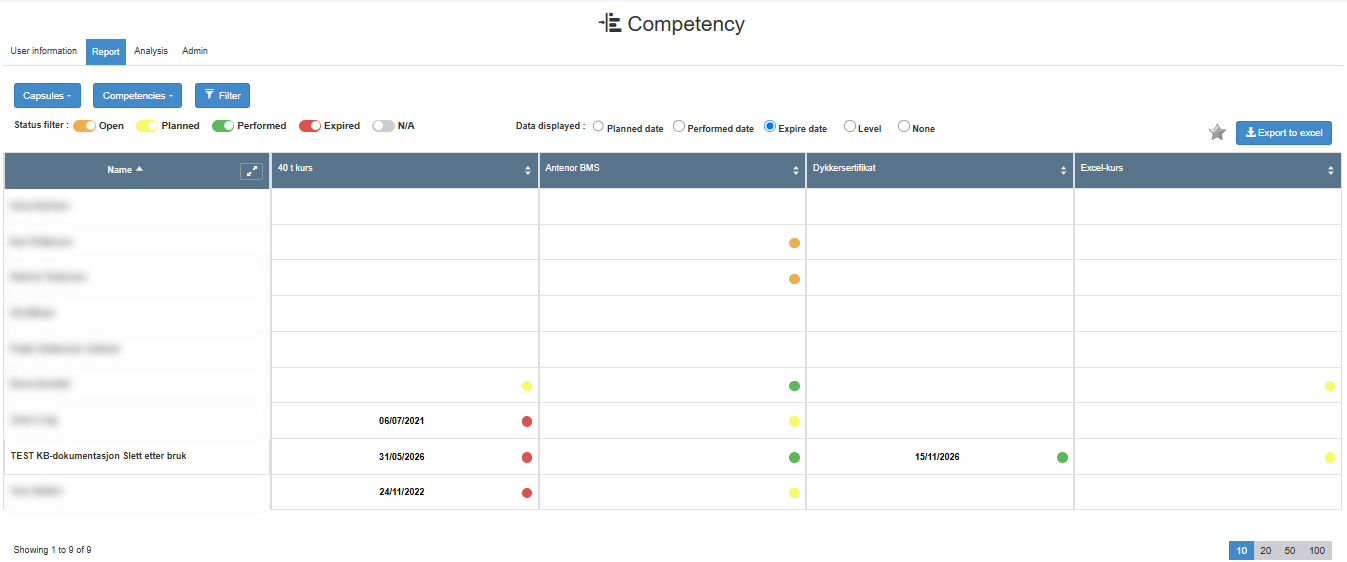
The Report tab in Competency is a table with one row per person and one column per competency you select. Everything you choose on the tab (capsules, competencies, filters, status toggles, data choice and sort) is saved for you only and comes back next time; it never changes the report for anyone else. For a walk-through, see Use the competency report.
| Your access in Competency |
Tab |
People in the report |
Can open a person’s details |
| Read, Edit or Create only |
Not shown |
|
|
| Read plus the View Report right |
Shown |
All active people |
No: names are not clickable |
| Approve |
Shown |
Your own record and the people within your responsibility |
Yes |
| Manage or higher |
Shown |
Everyone |
Yes |
- With the Approve right, the tab is greyed out until a responsibility has been assigned to you, unless you also have the View Report right. Responsibilities and the View Report right are given in the Competency Admin tab by users with the Manage right or higher; see Give managers access to people in Competency.
- With the View Report right you cannot edit anything or open a person’s details, but you can use the expand button next to a name to see phone, e-mail and next of kin, and these fields are included in the export.
- A person whose end date has passed is never included.
| Control |
What it does |
Default and notes |
| Capsules |
A list of capsules to tick. Ticking a capsule adds all its competencies as columns, grouped under the capsule’s name. |
Saved for you. |
| Competencies |
A list of competencies to tick. Each ticked competency becomes a column. |
Saved for you. Competencies that are not in any selected capsule are grouped under “Selected competencies outwith a capsule”. |
| Control |
What it does |
Default and notes |
| Filter |
Choose what to filter on: a competency, level, wanted level, expire date, capsules, planned date, performed date, or one of your global fields. Then set the value. |
No filter. Status is not in this list; it has its own toggles. |
| Add filter |
For a text filter: applies the text you typed. Pressing Enter does the same. |
|
| Applied Filters |
Lists the active filters. Click the x on a filter to remove it. |
Saved for you. |
Status filter has one toggle per competency status: Open, Planned, Performed, Expired and N/A (no status set). Each toggle includes or leaves out competencies with that status.
- All toggles are on by default.
- If you switch every toggle off, the report shows no data.
- The toggles are saved for you.
Data displayed chooses what each competency cell shows. Choose one:
| Option |
The cell shows |
| Planned date |
The planned date of that person’s competency. |
| Performed date |
The performed date. |
| Expire date |
The expire date. |
| Level (default) |
The actual level and the wanted level as “actual/wanted”, for example 3/4. Hover over the numbers to see the tooltips Actual level and Wanted level. |
| None |
No value. |
Whatever you choose, each cell also has a coloured dot that shows the status of that person’s competency.
| Control |
What it does |
| Export to excel |
Downloads CompetencyReport.xlsx. It has one sheet with the values chosen under Data displayed (no such sheet when None is chosen) and a sheet named “Status”. Columns: name, phone, e-mail and next of kin, followed by the selected competencies. The export follows your filters. |
| Star (Add to favourites) |
Adds the Report tab to your favourites. |
| Part |
What it does |
| Name column |
The person’s name. Click the header to sort by name. Click a name to open the person’s details page in a new browser tab; see The person details page. Names are not clickable for users who have only the View Report right. |
| Expand button next to the name |
Shows the person’s Phone nr, E-mail and Next of kin. You can sort by these as well. Also available with only the View Report right. |
| Competency column headers |
One per selected competency, grouped under the capsule name or under “Selected competencies outwith a capsule”. Click a header to sort the people by that competency. |
| Cells |
The value chosen under Data displayed, plus the status dot. |
| Paging |
10 people per page by default. |
competency, competence, training, certificate, course