The module Admin tab: statuses, comments box, Read & understood, revisioning, checklist templates
Open a module under Super > Modules and click the Admin tab to change the module’s settings. The tab has five sections, described below in the order they appear. The switches on this tab save as soon as you change them; you do not need the module’s Save button. This page also describes the Status dialog, which you open with the blue Status button at the top of the editor. The Index tab is described in The module editor: module list, Index tab and field panels.
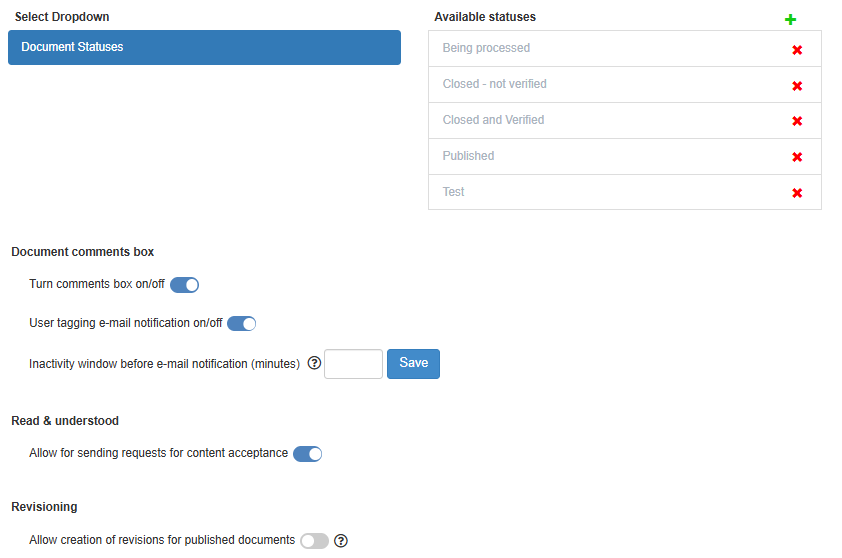
Document statuses
Section titled “Document statuses”The status names your documents can show. The list is shared by all modules in your company: a status you add, rename or delete here changes for every module that uses it.
| Control | What it does |
|---|---|
| Select Dropdown | The left list. It has one entry, Document Statuses, which is always selected. |
| Available statuses | The middle list: every status in your company, each with an x. |
| “+” | Opens the panel Add new value. |
| Add new value: English, Norwegian, Add value | Type the status name in both languages and click Add value (or press Enter). The status is added to the list at once. Fill in both boxes before you add it. |
| Click a status | Opens the panel Update with the status name in English and Norwegian. Change the text and click the Update button. Pressing Enter in these boxes adds a new status instead of changing this one. |
| x | Deletes the status at once, without asking, when no module uses it. If a module uses it, the dialog Can’t delete value lists those modules, with a Close button, and the status is kept. |
Which statuses a module starts with depends on how Antenor set it up.
The Status dialog
Section titled “The Status dialog”Opened with the blue Status button at the top of the module editor. Here you choose which status each section gives a document.
| Control | What it does |
|---|---|
| “Select Section” | The sections of the module, by number (1, 2, 3 …). Choose the section to set. |
| “Select Status” | Every status from Available statuses, plus None. Choosing one saves it at once for that section. |
| Close | Closes the dialog. |
The statuses are stored for the module’s current number of sections. If Antenor later changes the number of sections in the module, set the statuses again.
How the statuses show in lists, reports and on the document: a document at its first step shows New; a step that has been sent but not approved shows the earlier status followed by “- Waiting For Approval”; once a section is approved, the document shows that section’s status; if the section has no status, “Status not set in module”. See Workflow steps, statuses, receivers and notifications. Statuses are also used by the status filter in KPI scorecard rows.
Document comments box
Section titled “Document comments box”| Control | Default | What it does |
|---|---|---|
| Turn comments box on/off | On | On gives every document in the module a comments panel. Off hides it; a document that already has comments still shows them, but nobody can write. Saves at once. |
| User tagging e-mail notification on/off | On | On sends an e-mail to a user who is mentioned with @ in a comment, in addition to the bell notification. Saves at once. |
| Inactivity window before e-mail notification (minutes) | 10 | How long the module waits between comments before the other participants get an e-mail about new comments. To change it, contact Antenor. |
See Choose how comments notify people.
Read & understood
Section titled “Read & understood”| Control | What it does |
|---|---|
| Allow for sending requests for content acceptance | When on, published documents in the module show the Read & understood control, and a report made for this module alone can offer it. Saves at once. See Turn Read & understood on for a module. |
Revisioning
Section titled “Revisioning”| Control | What it does |
|---|---|
| Allow creation of revisions for published documents | When on, users can start a new revision of a published document in the module. When off, users cannot create new revisions; users with the Approve right on the module’s row, or the Admin level on the Super area row, can still change a published document directly with the small pencil on a field. Saves at once, and applies to the whole module, including documents already published. See Allow or stop new revisions of published documents in a module. |
Checklist Templates
Section titled “Checklist Templates”The same checklist templates as under Super > Templates and on the Admin tab of the Action Manager. They are shared by your whole company, not tied to this module: a change here changes the template everywhere. See Create and manage checklist templates.
Good to know
Section titled “Good to know”- Due-date approval for actions. Whether a change of an action’s due date needs approval is not set here. It is one setting for your whole company, on the Admin tab of the Action Manager; see Change the due date of an action.
- Other settings. Workflow steps, receivers, e-mail triggers and the module’s name and icon are set up by Antenor. Contact Antenor to change them.
Next step
Section titled “Next step”- Set the document statuses for a module
- Allow or stop new revisions of published documents in a module
- Choose how comments notify people