The Global Fields page
Super > Global Fields holds your company’s global fields: shared dropdown lists, such as location or department, whose values are stored once and used by every module that has the field. Here you create, rename and delete fields, and manage each field’s values. You need the Admin level on the Super area row of your rights; this is what shows the Super menu. Your user administrator sets this. If Global Fields is missing from your Super menu, contact Antenor support. Other users see “You must have Super user access rights to access Global Fields.” instead of the page.
This page lists every control in the order it appears. The tasks are described in Create, rename or delete a global field, Add a value to a global field, with or without translation and Change, deactivate, delete or merge values in a global field.
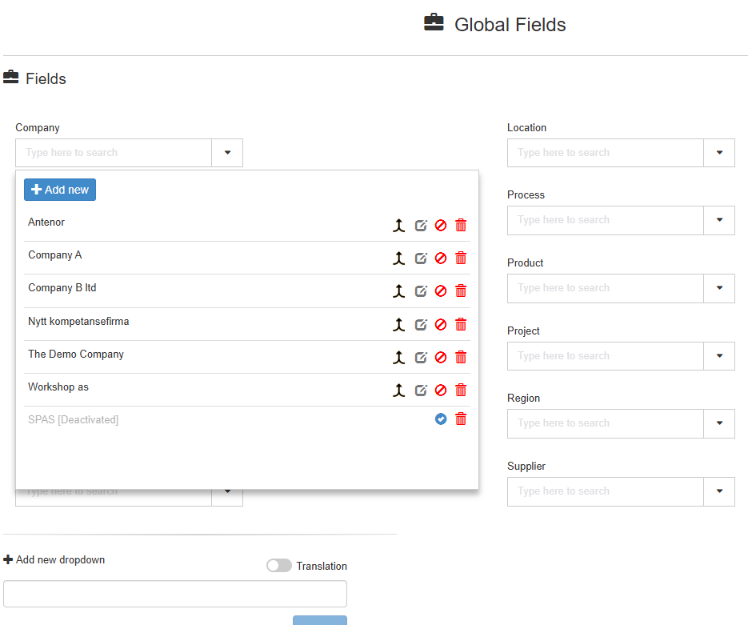
The field list
Section titled “The field list”| Control | What it does | Values and default | Hidden or disabled when |
|---|---|---|---|
| Page title Global Fields (briefcase icon) | Names the page. | ||
| Fields | Heading of the list. | ||
| Field list | One row per field, in two columns, sorted alphabetically by the name in your language. | Shows “No items” when there are no fields. | |
| Value box (“Type here to search”) | Opens the field’s value list, described below. Typing filters the list. | ||
| Pencil (tooltip Edit) | Opens the Edit Field dialog for renaming the field. | Shown when you point at the row; in a window narrower than about 1330 pixels it is always shown. Hidden while values are being merged. | |
| Trash icon (tooltip Delete) | Deletes the field after the confirmation “Do you really want to delete?” (No / Yes). Deleting is not blocked when the field is in use, and it cannot be undone; delete only a field that no module uses. | Hidden while values are being merged. | |
| Greyed trash icon | Does nothing. Tooltip: “This drop down cannot be deleted as it is required in some of the modules”. | Shown instead of the trash icon for the nine fields that cannot be deleted: location, department, process, supplier, customer, product, country, document status and activity. |
Add new dropdown
Section titled “Add new dropdown”At the bottom of the page. Creates a new global field.
| Control | What it does | Values and default | Hidden or disabled when |
|---|---|---|---|
| Add new dropdown (plus icon) | Heading of the create area. | Hidden while values are being merged. | |
| Translation | Switches between one name for both languages and separate names. | Off by default. Off: one box. On: two boxes. | |
| Name box, or English and Norwegian | The new field’s name. With Translation off, the one text is used in both languages. | Must differ from every existing field name in both languages, ignoring case and surrounding spaces. | |
| Create | Creates the field. | Disabled until the box, or both boxes with Translation on, has text. |
After Create, the field is added to the list with no values, the boxes are cleared and Translation is switched off. A name already in use is refused with “The field was not updated because a global field with the same name already exists”. The new field is not in any module until it is placed there; see Create, rename or delete a global field.
The Edit Field dialog
Section titled “The Edit Field dialog”Opened with the pencil next to a field.
| Control | What it does | Hidden or disabled when |
|---|---|---|
| Title Edit Field, with a Translation switch | With Translation on, the dialog has an English and a Norwegian box. | |
| Field name | The field’s name. | |
| Note | “Editing the value will affect all modules in which it is in use. Are you sure you would like to continue?” | |
| Cancel | Closes the dialog without changes. | |
| Update | Saves the new name. | Disabled while a required box is empty. |
The new name shows on this page, on the Admin tabs of the modules that use the field, and where those modules show the field’s name. In document forms the field’s caption is the label set in the module, which does not change. A name already in use is refused with the same message as when creating.
The value list
Section titled “The value list”Opens below a field’s value box. Active values come first, sorted by name, then deactivated values.
| Control | What it does | Shown when |
|---|---|---|
| Add new | Opens an input row at the top of the list for a new value: a text box, Translation (giving English and Norwegian boxes), Save and Cancel. See Add a value to a global field, with or without translation. | Always, except while values are being merged. |
| Merge… | Opens the Merge fields dialog for the ticked values. | Two or more values are ticked with the merge checkbox. |
| Value name | The value’s text in your language. A deactivated value has “[Deactivated]” after it. | Always. |
| Merge checkbox (small square, tooltip Merge) | Ticks the value for merging. | Active values. |
| Pencil (tooltip Edit) | Opens an edit row under the value: the text box (or English and Norwegian with Translation on), the warning “Editing the value will affect all modules in which it is in use. Are you sure you would like to continue?”, Translation, Cancel and Update. Opening it clears any merge ticks. | Active values. |
| Deactivate icon (circle with a line, tooltip Deactivate) | Deactivates the value after the confirmation “Are you sure you want to deactivate this value? Doing so will remove this value from all drop down menus, in edit mode, in all modules.” (No / Yes). | Active values. |
| Activate icon (circle with a tick, tooltip Activate) | Activates the value at once, without confirmation. | Deactivated values. |
| Trash icon (tooltip Delete) | Deletes the value after the confirmation “Deleting the value will affect all modules in which it is in use. Are you sure you would like to continue?” (No / Yes). Refused while anything uses the value, with “Cannot delete record because it’s being used in: “ followed by where it is used. | All values. |
While values are being merged, the list is read-only: Add new, the merge checkboxes and the icons are hidden.
What changes:
- Edit: the new text shows everywhere the value is used, including documents already published, other modules, reports and user profiles.
- Deactivate: the value stays on every record that already has it, but is no longer offered in document dropdowns in edit mode.
- Delete: the value is removed from the field. Only possible when nothing uses it.
The Merge fields dialog
Section titled “The Merge fields dialog”Opened with Merge….
| Control | What it does | Values and default |
|---|---|---|
| Warning | “Merging values will overwrite current value everywhere they are in use” | |
| Fields to merge | One checkbox per ticked value. Untick a value to leave it out. | All ticked values are checked. |
| Select a name | One radio button per value: the value that is kept. | The first value you ticked. |
| Use new name, with Translation | The kept value’s text, which you can change. With Translation on, separate English and Norwegian texts. | The kept value’s current text. |
| OK | Starts the merge. | Disabled until a kept value, at least one other value and a name are chosen. |
| Cancel | Closes the dialog. |
If any of the values are used in documents, a second dialog lists the modules where they are used, with a button to go ahead and Cancel.
After the merge, everything that used the merged values uses the kept value, and the merged values are removed. A merge cannot be undone. It runs in the background; until it is finished, the pencils, trash icons and Add new dropdown on this page are hidden, the value lists are read-only, and the buttons for saving and editing documents in the modules that use the field are disabled.
Next step
Section titled “Next step”- Create, rename or delete a global field
- Add a value to a global field, with or without translation
- Change, deactivate, delete or merge values in a global field
Related
Section titled “Related”- The module editor: module list, Index tab and field panels
- Manage the risk dropdown lists
- Manage equipment dropdowns and intervals
- The Competency Admin tab
- The Field Settings page: connected dropdowns
- Manage substance register dropdowns and matrices
- Manage tagging fields and due-date approval in the Action Manager
- Manage competency types, capsules and levels
- Global field and connected dropdown values: what each change does to existing data