The Field Settings page: connected dropdowns
Super > Field Settings is where you build your company’s connected dropdowns: dropdowns whose values are grouped in levels, where each value can have values under it, to any depth. You need the Admin level on the Super area row of your rights; this is what shows the Super menu. Your user administrator sets this. A connected dropdown reaches users only after Antenor has placed it in a module form; you then manage its values here. How to set one up is described in Set up a connected dropdown.
This page lists every control in the order it appears.
The page
Section titled “The page”| Control | What it does | Values and default | Hidden or disabled when |
|---|---|---|---|
| Page title Field Settings | Names the page. | ||
| Left column Field Settings | Lists the settings on the page. Its only entry, Connected dropdown, is already selected. | ||
| Button with a plus icon, top right of the panel | Opens the dialog Add dropdown. | ||
| List of dropdowns | Your company’s connected dropdowns, each with its values as a tree below it. Names show the translated text when the dropdown or value has With translation on. | 10 dropdowns per page, with page buttons when there are more. | |
| Chevron (per dropdown or value) | Shows or hides the values under it. | Collapsed by default. | Shown only when there are values under it. |
| Plus icon (tooltip Add) | On a dropdown: adds a first-level value. On a value: adds a value under it. Opens the dialog Add node. | ||
| Pencil (tooltip Edit) | Opens Edit dropdown or Edit node. | ||
| Ban icon (tooltip Deactivate), values only | Deactivates the value at once, without confirmation; click again to activate it. Only the icon’s style shows that a value is deactivated. | Active by default. | |
| Cross (tooltip Delete) | Deletes the dropdown or the value after a confirmation. | ||
| Drag a value | Changes the value’s place in its level, or moves it under another value of the same dropdown or to the first level. A value cannot be moved to another dropdown. | For a first-level value, press and hold for half a second before dragging. |
The dropdown dialog
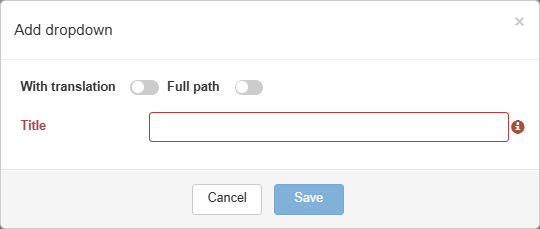
Section titled “The dropdown dialog”Title Add dropdown when you add, Edit dropdown when you edit.
| Control | What it does | Values and default | Hidden or disabled when |
|---|---|---|---|
| With translation | Switches between one name and separate English and Norwegian names. | Off by default. When you switch it on for a dropdown saved without translation, the boxes start empty. | |
| Full path | On: documents, print and reports show a chosen value with all the values above it, “Parent - Child - Grandchild”. Off: only the chosen value is shown. | ||
| Title | The dropdown’s name. | Required. | Shown when With translation is off. |
| English, Norwegian | The dropdown’s name in each language. | Both required. | Shown when With translation is on. |
| Cancel, or × | Closes the dialog without changes. | ||
| Save (add) / Update (edit) | Saves the dropdown. | Disabled while a required box is empty. |
A dropdown can be edited while it is in use. The new name and the Full path setting apply at once, also to how existing documents show the chosen values.
The value dialog
Section titled “The value dialog”Title Add node when you add, Edit node when you edit. It has the same With translation switch and the same Title, English and Norwegian boxes as the dropdown dialog, but no Full path switch, and the buttons Cancel and Save (when you add) or Update (when you edit).
A new value is added last at its level, and the page reloads.
When a value or dropdown is in use
Section titled “When a value or dropdown is in use”| Action | When it is refused | What you see |
|---|---|---|
| Edit a value | The value itself is selected in a document. | Dialog Node can’t be edited: “This node can’t be edited because it’s used in the following documents”, with a table of Document Name and Value, 5 rows per page. Click a row to open the document in a new tab. Close closes the dialog. |
| Delete a value | The value or any value under it is selected in a document. | Dialog Node can’t be deleted: “This node can’t be deleted because this value or some of the children are used in documents”, with the same table and Close. |
| Delete a dropdown | The dropdown is placed in any module, even if no document uses it. | Dialog Connected dropdown can’t be deleted: “Connected dropdown can’t be deleted because it’s used in modules”, with Close. Contact Antenor to remove the dropdown from the module. |
Editing a value higher up in the tree is allowed even when values under it are in use, and moving a value to another place in the tree is always allowed. Both change how existing documents show the full path.
Deleting
Section titled “Deleting”| Action | Confirmation | Result |
|---|---|---|
| Delete a value | Delete Connected Dropdown Node: “Are you sure you want to delete this node?” (Cancel / Yes) | The value and all values under it are deleted. |
| Delete a dropdown | Delete Connected Dropdown: “Are you sure you want to delete this connected dropdown?” (Cancel / Yes) | The dropdown and all its values are deleted. |
What users see in a document
Section titled “What users see in a document”| Where | What users see |
|---|---|
| Edit mode | A button “Select…”. Pointing at it opens the first level; each value with values under it opens a further menu. Values are in the order set on this page. Deactivated values, and the values under them, are hidden. |
| Choosing | Any level can be chosen. A tick marks a chosen value; click again to remove it. With single select, a new choice replaces the previous one. With multiple select, several values can be chosen, one per branch: choosing a value removes the values above and below it. Single or multiple select is set in the module editor. |
| After choosing | The chosen values are listed under the button, as a full path when Full path is on. |
| View mode, print, reports | The same text, in each user’s language for translated values. Documents that already have a deactivated value keep showing it. |
Connected dropdowns can be used as report filters and as KPI drill-down fields.