The dashboard
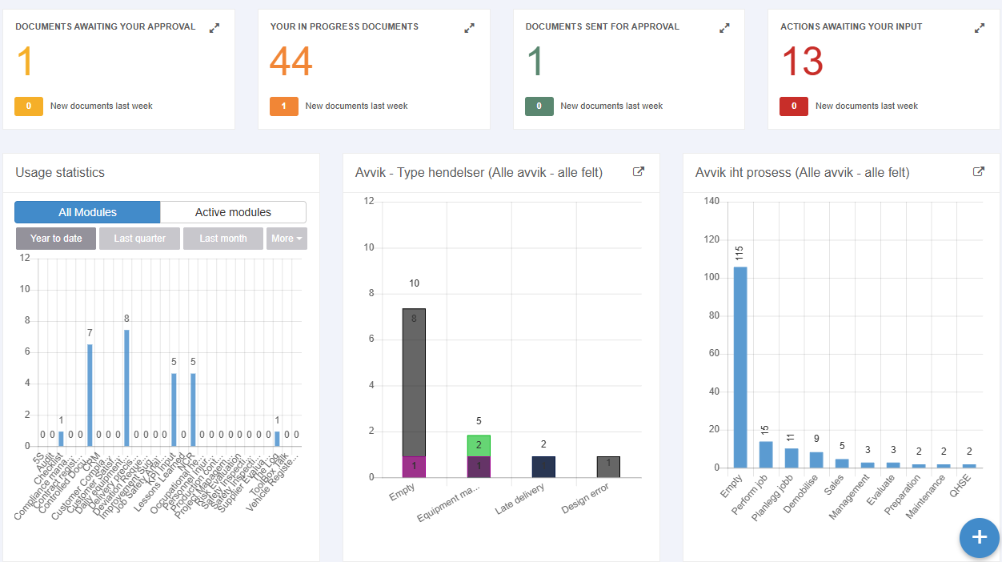
The dashboard is the page ABMS opens after you log in, and the page Dashboard in the left menu takes you back to. In a company whose only module is one of a few modules, such as Equipment Management, ABMS opens that module instead; see The top bar and the left menu. It is made of widgets: a search bar, tiles that count what is waiting for you, lists, and charts. Your user administrator chooses the widgets and their places for the whole company, so everyone in the company has the same layout; you cannot add, move, resize or remove widgets yourself. See Choose the dashboard widgets for your company. Which widgets your dashboard has depends on that choice. What the tiles and lists contain is personal, and the sort order you choose in a list is saved for you.
The widgets are described below in the order a company gets them before anyone has saved a widget selection. Your company’s widgets and order may differ.
The widgets
Section titled “The widgets”| Widget | What it shows | Order and amount | Shown by default |
|---|---|---|---|
| Search (the search bar) | A search for published documents by title or ID, across the full width at the top. See “The search bar” below and Search for a document. | — | Yes |
| Your in progress documents | The number of documents it is your turn to work on: drafts you have saved and not sent, and documents you have opened for your step in the workflow. Published and archived documents are not counted, nor documents sent to an external e-mail address. | Counts all such documents. | Yes |
| Documents awaiting your approval | The number of documents sent to you that you have not yet opened for your step with the green button in the document. When you do, the document moves to Your in progress documents. Published and archived documents are not counted. | Counts all such documents. | Yes |
| Documents sent for approval | The number of documents you have sent for approval that are still waiting, including documents you have sent to an external e-mail address. Published and archived documents are not counted. | Counts all such documents. | Yes |
| Actions awaiting your input | The number of things waiting for you: open actions where you are the next to act, environmental aspect actions waiting for you, and open Read & understood requests sent to you. | Counts all such items; the number is updated when an action is sent, completed, accepted or rejected. | Yes |
| Usage statistics | A chart of how many published documents each module has that were last updated in the chosen period. See “Usage statistics” below. | Modules from A to Z. | Yes |
| Activities last 5 days | Published documents (latest revision, not archived) last updated from the start of the day five days ago until now. Columns Title and Module. | Newest update first; 10 rows at a time, more as you scroll. | Yes |
| Your favourite documents | Your favourites. Columns Title and Module. See Use favourites. | Sorted by when the item was created (not when you added it), newest first; 10 rows at a time, more as you scroll. | Yes |
| Risk top 10 items | A list from Risk management, shown only if your company has that module. Click a row to open the risk analysis. | Sorted by risk analysis name. | No, except as described below for a company with only Risk management. Offered only when the company has Risk management. |
| Report analysis | A chart from the analysis of a report, chosen by your user administrator. The company can have several. See “Report analysis” below. | — | No |
If your company has only the Risk management module and no document modules, and nobody has saved a widget selection, the dashboard shows only the search bar, Actions awaiting your input and Risk top 10 items, in one column. In such a company, ABMS opens Risk management after login, and you reach this dashboard with Dashboard in the left menu.
The count tiles
Section titled “The count tiles”The four tiles in capital letters each show a large number in their own colour: orange for in progress, yellow for awaiting approval, green for sent, and red for actions. A small badge, “New documents last week” (shown in English), gives how many of the items were last updated in the past seven days.
Click a tile to open its list in the full table (see below). Click a row to open the document or action. ABMS remembers that you came from the dashboard and returns you there, for example after you send a document on. The list behind Actions awaiting your input holds the same three kinds of item as the count; for the Action Manager actions in it, see Action statuses, who holds an action, and e-mails.
The search bar
Section titled “The search bar”| Control | What it does |
|---|---|
| Field “Enter search text here…” (shown in English) | Type part of a title or a document ID and press Enter. Upper and lower case do not matter. Text with only punctuation is not searched. |
| Funnel button | Opens the Filter panel (heading in English). |
| Choose module | In the Filter panel: choose one or more modules under Select modules. The list shows the modules you have the Create right on. With nothing selected, the search is not limited by module. |
| Result list | One line per published document, “title - module name”, latest revision only. Click a line to open the document. “No documents found” (in English) when nothing matches. |
The search finds published documents only, by title or document ID. It does not find drafts, documents in a workflow or archived documents, and it does not search the content of documents or other registers.
Usage statistics
Section titled “Usage statistics”| Control | What it does |
|---|---|
| Year to date | Shows the period from the start of the year. Selected when the page opens. |
| Last quarter, Last month | Choose another period. |
| More | Opens further periods: Last week, Last 12 months, Last year, and Custom period, where you set From and To. |
| All Modules / Active modules | Show all modules, or only the modules that have at least one published document last updated in the chosen period (the documents the chart counts). |
Report analysis
Section titled “Report analysis”The widget shows one chart from a report’s analysis, chosen by your user administrator. The icon Open report (in English) opens the report in a new browser tab. If the chart has been deleted from the report, the widget says “Chart not found” (in English); if the chart has no data, it says “No data available for this chart”. See Create an analysis with charts.
The full table
Section titled “The full table”Clicking a count tile opens its list in a larger window, the full table. Activities last 5 days and Your favourite documents can also be shown this way.
| Control | What it does |
|---|---|
| Title | The name of the widget. |
| Magnifier | Shows or hides a search box. Press Enter to search; the x clears the search. |
| Column headings | Click to sort by that column; click again to reverse. |
| Rows | Click a row to open the item. Rows load 30 at a time as you scroll. |
| Collapse icon, Close | Close the full table. |
Columns and what the search box covers, per list:
| List | Columns | The search covers |
|---|---|---|
| Your in progress documents | Title, Updated, Module, Document Id (the first 8 characters of the ID), Status. A speech bubble with a number shows unread comments; click it to open the document with the comments open. | Title, module, status, document ID, and the created date typed in full (16.06.2026 or 16/06/2026). |
| Documents awaiting your approval | Title, Updated, Module | Title, module, created date. |
| Documents sent for approval | A switch All / Internal / External (with an info icon on External); Title, Updated, Module, Sent to (the name of the receiver for internal documents, the e-mail address for external documents), Days left (days until the external link is deactivated; hidden when Internal is chosen). | Title, module, receiver, created date; for external documents also the e-mail address and the deactivation date. |
| Actions awaiting your input | See Action statuses, who holds an action, and e-mails. | — |
| Activities last 5 days | Title, Updated, Module | Title, module, created date. |
| Your favourite documents | Title, Created, Module | Item name, module, created date. |
| Risk top 10 items | Title, risk area, status | Risk analysis name, risk area, sender, responsible, due date. |
The date the search box matches is the date the item was created, typed in full. In the lists that show Updated, typing the updated date finds nothing unless it is also the created date.
Sorting
Section titled “Sorting”Each list remembers the column and direction you last sorted by, saved for you and kept the next time you log in. Until you choose a sort, the in-progress, awaiting-approval, sent and activities lists show the most recently updated first, and the favourites list shows the most recently created item first.
New document
Section titled “New document”The New document button floats on the dashboard. It is not a widget, so it is not part of the widget selection. It lists the modules you have the Create right on, plus risk analysis when you have the Create right on the Risk management row. Choose one to start a new document there; see Create a document and send it for approval.
The older dashboard
Section titled “The older dashboard”Antenor can set a company up with an older dashboard layout instead. You can tell it by the Configure dashboard button. It has boxes for much the same lists and a search field “Search…” with a Filter button. In Configure dashboard, each user can show or hide the boxes your user administrator has made available. That choice is saved per user. Everything above this section describes the standard widget dashboard.
Next step
Section titled “Next step”Related
Section titled “Related”- Find your way after logging in
- Choose the dashboard widgets for your company
- The top bar and the left menu
- Approve or reject a document you received
- Handle an action you received
- Workflow steps, statuses, receivers and notifications
- Read notifications
- Confirm that you have read a document
- Send a document to someone outside ABMS
- Answer an action you received
- Send an action and close it
- Dashboard and search: periods, counts and matches
- How ABMS fits together: modules, documents, workflow, actions and rights
- A document is not moving: find out who must act
- How report charts count and group documents
- Action lists in detail: what each list holds, columns, sorting, filters and search