The report page
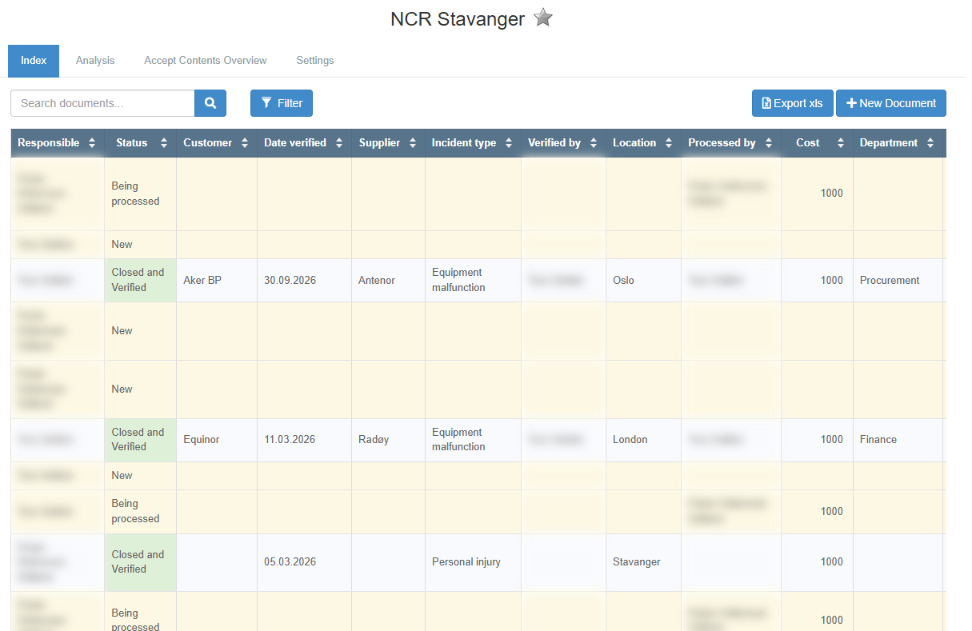
A report page shows one report: a list of documents with the columns and filters chosen for the report. You open it from Reports in the left menu, from a company menu, or from the module’s menu. You need the Read right on the reports row of your rights and the Read right on the report’s module, set by your user administrator; see Find and read a standard report if a report will not open. Search, personal filters and sorting are personal: they never change the report for others.
The Reports list
Section titled “The Reports list”| Control | What it does |
|---|---|
| Filter | Finds a report by its text. |
| New report | Creates a report; needs the Create right or higher on the reports row. See Create a report. |
| Name, Description, Last updated | The columns of the list. Click a report to open it. |
| Paging | Moves through the list. |
The list shows only reports on modules where you have the Read right; see Reports: who can do what, and the Reports list.
The header
Section titled “The header”| Control | What it does |
|---|---|
| Report name | The report’s name. |
| Star (Add to favourites) | Adds the report to your favourites. |
| Index | The list of documents. The report opens on this tab. |
| Analysis | The report’s charts; see The chart editor and chart controls. |
| Accept Contents Overview | Who has confirmed that they have read the module’s documents; see below. Shown only for a report on a module that has Read & understood turned on, and only to users with the Create right or higher on the reports row. |
| Settings | The report’s settings. Shown only to the report’s creator and to users with the Admin level on the Super area row, and only for a report on one module; see The report Settings tab. |
The top bar
Section titled “The top bar”| Control | What it does |
|---|---|
| “Search documents…” | A search box that searches the documents in the current view. |
| Filter | A list of the report’s fields. Choose one to set a personal filter on it; see “Personal filters” below. |
| Remove all filter | On a phone or tablet only: a red button with a filter icon, shown when you have personal filters, the report is on one module and you have the Create right on that module. It removes all your personal filters after you confirm “Are you sure you want to delete all personal filters?” with Yes. |
| Export xls | Exports the report to Excel. Anyone who can open the report can export it. |
| Export pdf | Exports the report as PDF. Shown only when PDF export is turned on for the report. |
| New Document | Starts a new document in the report’s module. |
For both export buttons: when the report has 1 to 500 rows, the file downloads in your browser. With more than 500 rows, or no rows, the export is made in the background and e-mailed to you as an attachment; the page shows “The export will be created in the background. Once finished, it will be sent to <your e-mail address> as an attachment.” While that export is being made, the same button on the same report gives “An export is already in progress for this report. Please wait until it is completed before requesting another export.” See Export a report.
Column headers
Section titled “Column headers”Each column is one of the report’s fields, for example Title, Created, Last updated, Status, Responsible and Id, followed by fields from the module.
- Sort. Click a header to sort by that column. An arrow shows the direction; click again to reverse. Your sort is saved for you.
Personal filters
Section titled “Personal filters”Click Filter in the top bar and choose a field: the report’s shared fields and the module’s fields, also fields that are not columns in the report. The filter controls for that field appear under the top bar. What they offer depends on the field type:
| Field type | Filter |
|---|---|
| List fields, such as dropdowns, Status and Responsible | Choose the values to include. The filter applies as soon as you choose. Dropdown and tick-box lists also offer blank and not blank. |
| Text fields | Type the text the field should contain, then press Enter or leave the box. Field blank and Field not blank filter on an empty or a filled-in field. |
| Number fields | A minimum and a maximum value; leave one empty if there is no limit. |
| Date fields | A From and a To date; either can be left empty. |
Every field type and its exact matching rule are in Which documents a report shows: document types, filters, search and sorting.
Your active personal filters are listed under Applied Filters as the field name followed by the chosen values. The cross after a filter removes it at once, without a question.
If the report’s main filter already covers the field, you cannot add a personal filter. When you choose that field under Filter, the message is: “A main filter has already been applied to this field, which prevents the addition of a personal filter. If you want to select different values for this field, you need to contact a superuser.” To change the main filter, ask someone who can change the report’s Settings (the report’s creator or a user with the Admin level on the Super area row); your user administrator can tell you who has it.
The rows and paging
Section titled “The rows and paging”- Each row is a document; click it to open the document. The status column shows the module’s status names, and an attachments column shows file names.
- A report shows 10 documents per page unless it has been set to 20 or 50. On a computer screen, the buttons 10, 20 and 50 under the table change the number of documents per page. The page links are at the bottom.
- Dates are shown as 16.06.2026 in Norwegian and 16/06/2026 in English.
The Accept Contents Overview tab
Section titled “The Accept Contents Overview tab”The tab shows the Read & understood status of the report’s module as a table: one column per document and one row per user. Use it to see who has not yet confirmed; see Follow up Read & understood confirmations.
| Part | What it shows |
|---|---|
| Columns (“Documents ->”) | Every document in the module that has Read & understood requests. For each document, the latest revision that has requests is shown. Click the name to open the document. A document without a title is shown as “Unnamed Document”. |
| Rows (“Users”) | Every active user who has been asked to confirm at least one of the documents. |
| Green check | The user has confirmed the document. |
| Red cross | The user has been asked but has not confirmed. |
| “-” | The user has not been asked about that document. |
| Paging | 10 users per page. |
For earlier revisions of a document, open the document and use the revision selector in its Read & understood dialog; see The Read & understood dialog.
Next step
Section titled “Next step”Related
Section titled “Related”- Find and read a standard report
- The report Settings tab
- Build or edit a company menu
- Follow up Read & understood confirmations
- Use favourites
- Report columns and rows: what each value shows
- Which documents a report shows: document types, filters, search and sorting
- Reports: who can do what, and the Reports list