The diagram library
The diagram library is the page that opens when you click Diagrams in the left menu. It lists every diagram in your company, and from here you create, preview, edit, copy and delete diagrams. The page is shown only to members of the Diagrams access group; see Get access to Diagrams. Every member can do everything on this page with every diagram. This page describes the controls in the order they appear, in a wide window. For a walkthrough, see Create and edit a diagram.
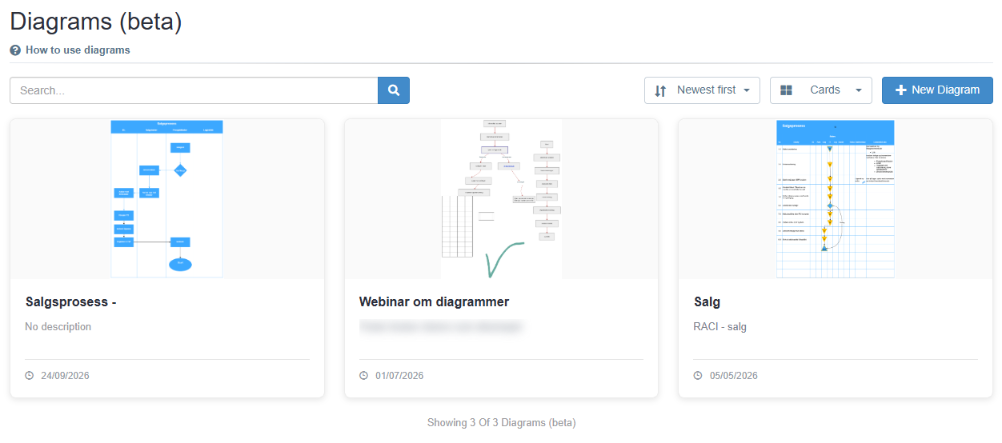
Header
Section titled “Header”| Control | What it does | Default |
|---|---|---|
| Page title Diagrams | ||
| How to use diagrams | Shows or hides a help panel. The panel starts with “Create and save diagrams here. Later you can insert them into documents and other WYSIWYG fields using the Insert Diagram button.” and has four steps: Create or edit, Open WYSIWYG, Insert Diagram and Update later. Update later does not update inserted diagrams automatically: you edit the diagram here and insert it again; see Insert a diagram in a document. While the panel is open, the link’s question-mark icon becomes an x. | Closed |
Toolbar
Section titled “Toolbar”The toolbar is hidden while the library loads and when the library has no diagrams.
| Control | What it does | Allowed values and default |
|---|---|---|
| Search box (“Search…”) | Press Enter or click the magnifier to search. Finds diagrams whose name or description contains the text, regardless of upper or lower case. When the whole search text is a date typed as dd.mm.yyyy or dd/mm/yyyy, with two digits for the day and the month (for example 05.03.2026), the search also finds diagrams created or updated that day. The x clears the search. | Free text. The search is kept while you stay in the same browser session; clicking Diagrams in the left menu clears it. |
| Sort dropdown | Sorts the diagrams in the Cards, Compact cards and Preview list views. Hidden in the Table view, where you sort with the column headings instead. | Newest first, Oldest first, Recently updated, Least recently updated, Title A-Z, Title Z-A. Default Newest first; your choice is remembered in this browser. |
| View dropdown | Chooses how the diagrams are shown; see “Views” below. | Cards, Compact cards, Table, Preview list. Default Cards; your choice is remembered in this browser. |
| New Diagram | Opens the diagram page for a new diagram; see The diagram page. |
| View | What each diagram shows | Actions per diagram | Paging |
|---|---|---|---|
| Cards and Compact cards | A thumbnail of the drawing, the name, the description (or “No description”) and the date it was created. | Buttons that appear when you point at the card: Edit Diagram, Copy diagram and Delete. | 12 diagrams at a time. A counter shows how many of the total are shown; Load more loads the next ones (“Loading…” while it works). |
| Preview list | A thumbnail, the name, the description, and the Created and Updated dates. Updated changes only when the diagram’s name or description is changed, not when only the drawing is saved. | Edit Diagram, Copy diagram and a delete icon (trash). | Pages, 10 diagrams per page by default. |
| Table | Columns Title, Description, Created, Updated, and a column of action icons. | Icons for edit, copy and delete, each with a tooltip. | Pages, 10 diagrams per page by default. |
In the Table view, click Title, Created or Updated to sort by that column, and click again to reverse. The first click sorts titles A-Z and dates newest first. In the Table and Preview list views, the page you are on and the page size are kept while you stay in the same browser session; clicking Diagrams in the left menu goes back to the first page.
Preview
Section titled “Preview”Clicking a diagram (a card or a row, outside the action buttons) opens a preview: the name, the description, the drawing and the date it was created. Links in the drawing open in a new tab. Close closes the preview.
Edit Diagram
Section titled “Edit Diagram”Opens the diagram on the diagram page. Whatever you save there replaces the drawing for everyone; see The diagram page.
Copy diagram
Section titled “Copy diagram”Opens the Copy diagram dialog.
| Control | What it does | Allowed values and default |
|---|---|---|
| Name (required) | The name of the copy. | Up to 255 characters. Filled in with the original name followed by “ Copy”. Placeholder “Enter diagram name”. |
| Description | The description of the copy. | Optional. Filled in with the original description. Placeholder “Enter diagram description (optional)”. |
| Cancel | Closes the dialog without copying. | |
| Save | Creates the copy. Disabled while Name is empty. Shows “Saving…” while it works. |
After Save you see “Diagram copied successfully”, and the library reloads with the copy. The copy has its own drawing: changing it does not change the original. If the copy fails, you see “Failed to copy diagram”.
Delete
Section titled “Delete”Opens the Confirmation dialog: “Are you sure you want to delete this diagram?”, with Cancel and Delete. After Delete you see “Diagram deleted successfully” and the diagram leaves the library. A deleted diagram cannot be restored from the library. Copies of it already inserted in documents stay there.
Empty library and no search hits
Section titled “Empty library and no search hits”| Situation | What the page shows |
|---|---|
| While loading | “Loading diagrams…” |
| No diagrams in the library | “No diagrams yet”, a short description, the button Create Your First Diagram (opens the diagram page for a new diagram), and a Tip: “Diagrams can be inserted into documents using the WYSIWYG editor”. |
| A search finds nothing | “No matching diagrams”, a short description and the button Clear search. |
| The library cannot be loaded | The message “Failed to load diagrams”. |